
How to transfer Terabox files to another cloud from Windows
Posted on November 28, 2026
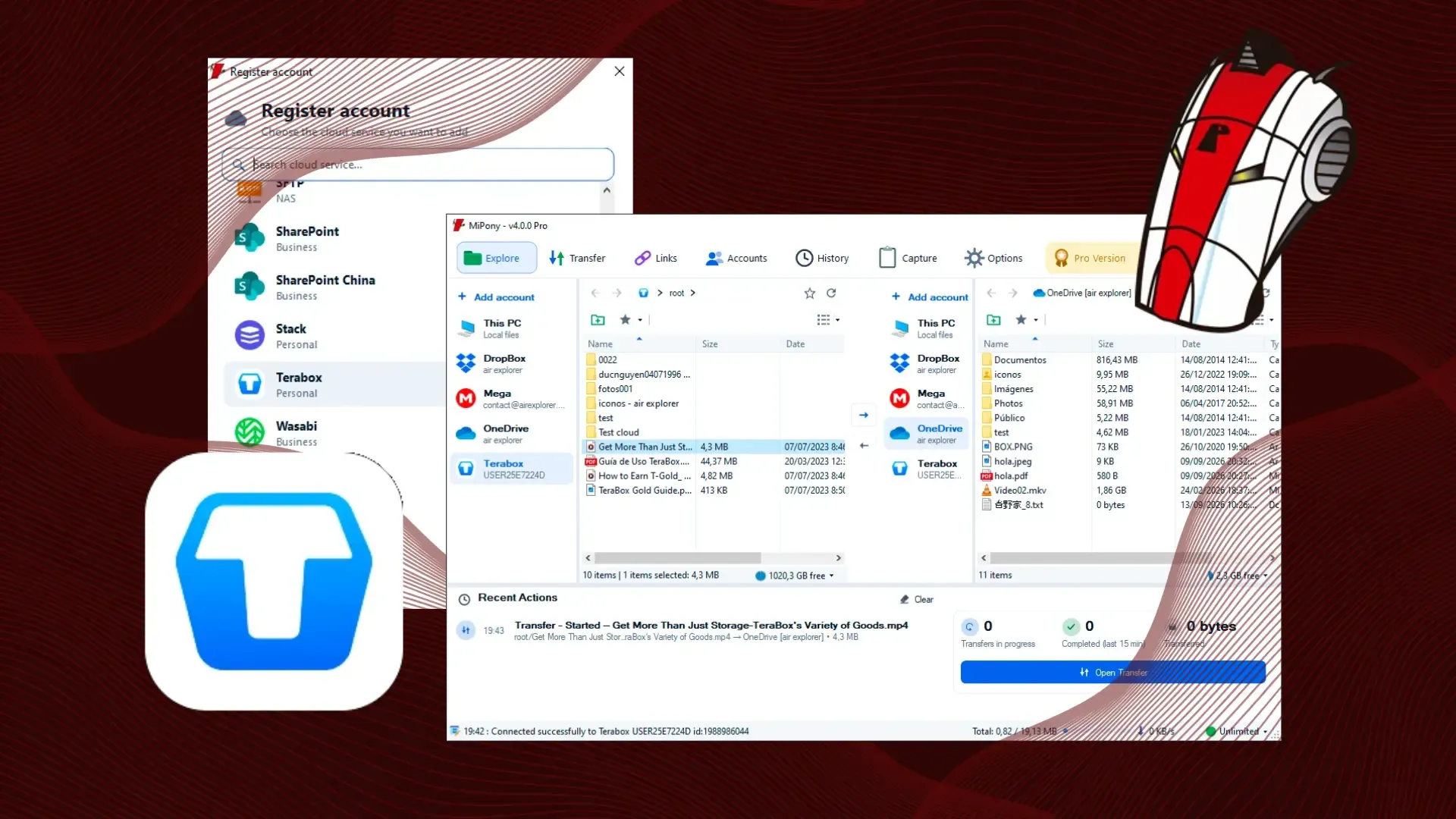
You can transfer Terabox files to another cloud without downloading them to your PC and uploading them again. Mipony, a free multi-cloud manager for Windows, connects your Terabox account and the destination account, opens them side by side and copies folders straight from one cloud to the other. The steps are the same whether you are moving to Mega, OneDrive, Dropbox or any other supported service.
Why keep your Terabox files somewhere else too
If Terabox is where your photos, videos, phone backups and documents end up, it probably holds a big share of your files. That is exactly why it pays not to rely on a single cloud. A second copy in the service you use every day gives you peace of mind and lets you work with your files wherever suits you best.
The usual way of doing it is slow: download everything to your computer, wait, use up disk space and upload it all again. That is fine for one small folder, but not for years of photos and videos. Copying cloud to cloud from a single app skips the round trip.
Connect Terabox and your destination cloud in Mipony
Terabox is listed in Mipony as a personal cloud, one of the 48 services you can add. To connect your accounts:
- Open the Accounts tab and click Add cloud account. You can also use Add account from either pane in Explore.
- In the Register account window, type “Terabox” into Search cloud service… instead of scrolling through the list.
- Select it and sign in with your Terabox account.
- Repeat for the destination cloud, for example Mega or OneDrive.
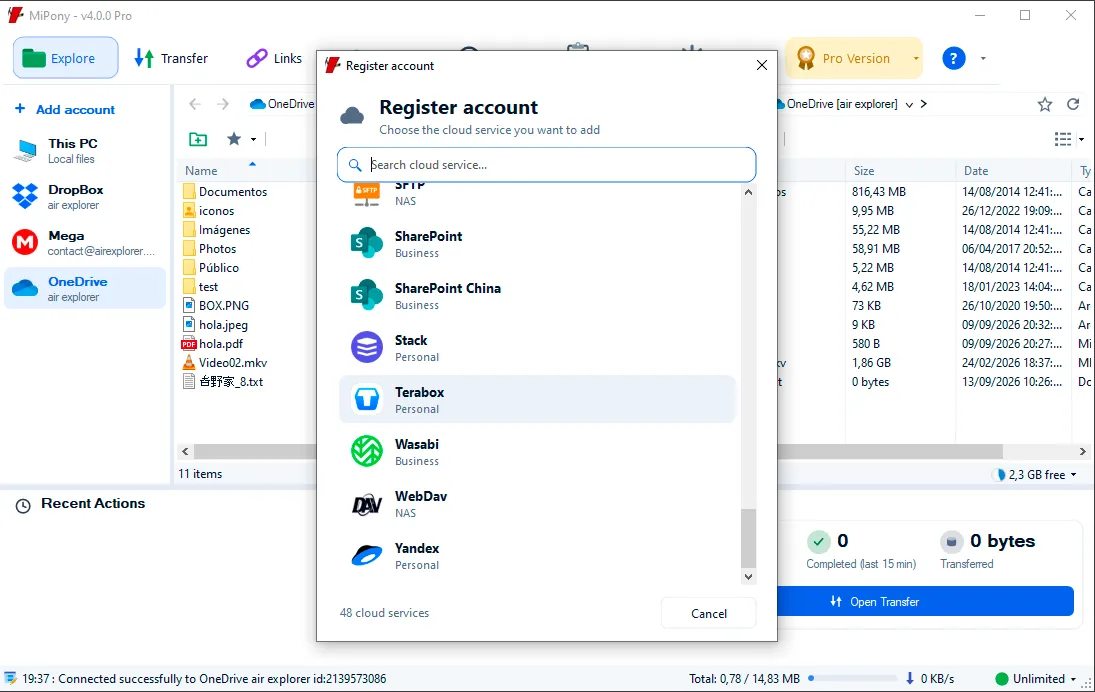
Once connected, both accounts appear in the side list in Explore, next to This PC and any other clouds you have added. Terabox, Mega, OneDrive and Dropbox can all sit in the same window.
How to transfer files from Terabox, step by step
With your accounts in place, the copy happens in Explore:
- In the left pane, select Terabox and open the folder you want to transfer.
- In the right pane, select the destination cloud and open the target folder. A new folder such as “From Terabox” keeps the copied files apart from what is already there.
- Select the files or folders in the Terabox pane.
- Click the central arrow pointing towards the destination.
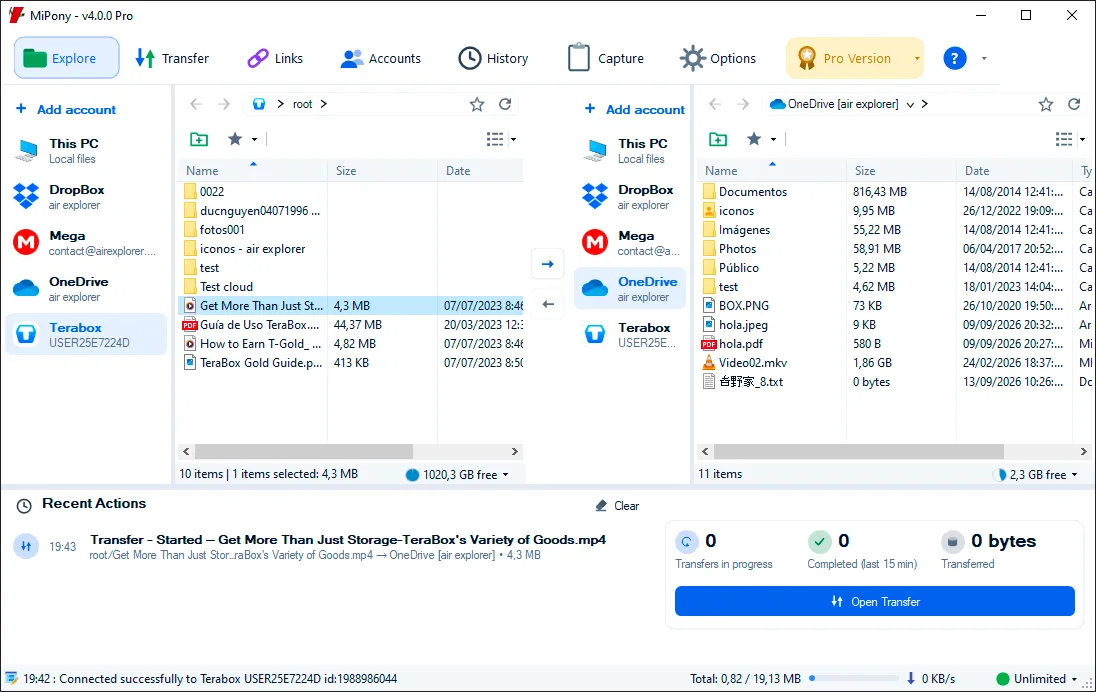
As soon as the copy starts, it shows up under Recent Actions at the bottom of the window, with a summary of transfers in progress, completed transfers and data transferred. For the per-file detail, click Open Transfer or go to the Transfer tab.
There are two arrows between the panes: one copies left to right and the other right to left. That way you can send files back to Terabox without swapping the accounts around.
Before you copy: check the free space
The bottom of each pane shows how many items the open folder contains and how much free space is left in that account. Before starting a large copy, compare the size of your Terabox folder with the free space at the destination.
If it will not all fit, choose what goes first. Working in batches, one top-level folder at a time, is usually the easiest approach: each batch is simpler to check, and if something fails you know exactly where to look.
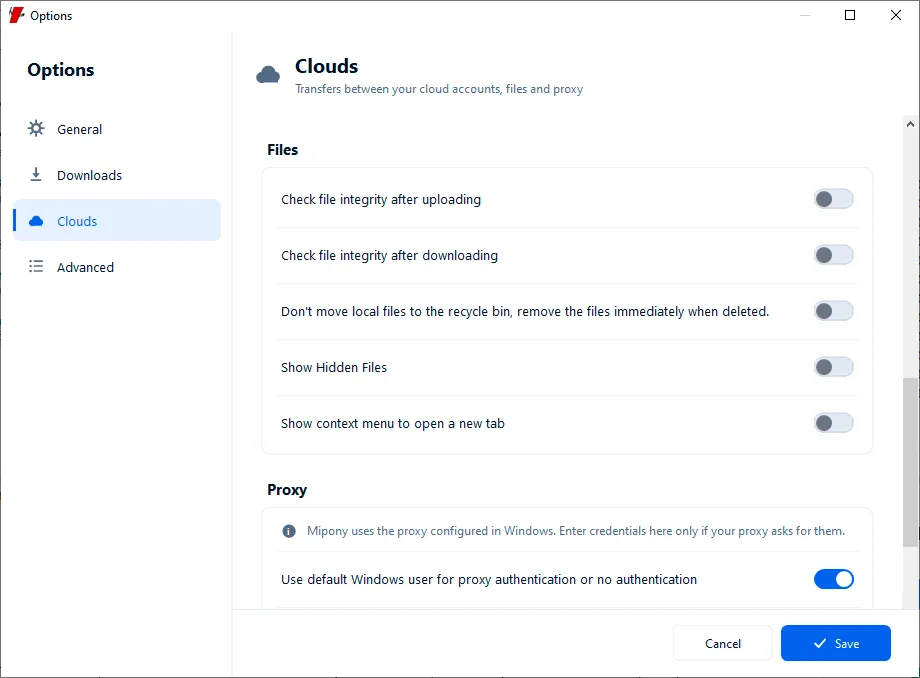
For extra peace of mind, go to Options → Clouds and turn on Check file integrity after uploading, so Mipony verifies each file once it has been copied.
Mega, OneDrive or your own PC
The destination is up to you. The process is identical with any supported cloud: Terabox in one pane, the destination in the other, then the arrow. You can move your files to Mega, OneDrive, Dropbox or Box, or bring them down to your computer by choosing This PC in one of the panes.
The originals stay in Terabox, so nothing is lost if a transfer stops halfway. The free version of Mipony supports up to four cloud accounts and places no limit on cloud-to-cloud transfers, which is enough to move your Terabox files.
If you plan to leave Terabox for good, How to move your files from one cloud to another explains how to check the result and when it is safe to delete the originals.
Copy your first Terabox folder
Download Mipony free for Windows, connect Terabox and your destination cloud, and transfer your first folder in a few minutes. New to the app? How to use Mipony walks you through the basics, and the Mipony manual covers every other option.