
How to move iCloud Drive files to OneDrive from a Windows PC
Posted on November 9, 2026
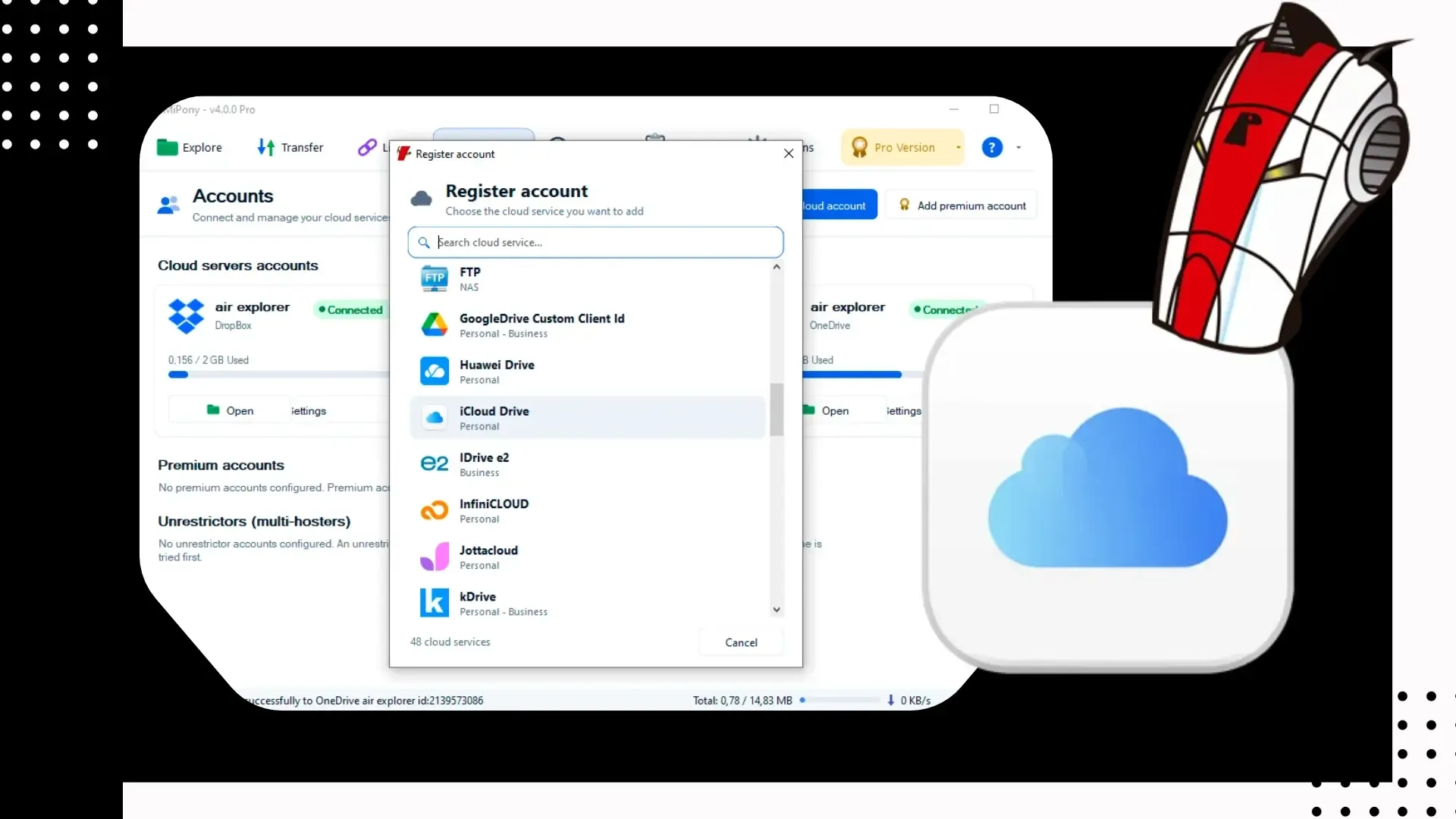
You can move iCloud Drive files to OneDrive from a Windows PC without a Mac and without downloading everything first. Mipony signs in to iCloud Drive with your Apple Account, shows it next to OneDrive in a two-pane explorer and copies folders straight from one cloud to the other. It is the simplest way to reach what you keep on your iPhone or iPad while you work on a PC.
Working across Apple and Windows devices
If you carry an iPhone or iPad and work on a Windows PC, your files probably live in two places: scans and documents in iCloud Drive, day-to-day work in OneDrive. Apple’s iCloud for Windows app helps, but it syncs a folder to your disk. To get those files into OneDrive you would wait for them to download, use up local space and then upload them again.
A multi-cloud manager skips the detour. You open iCloud Drive and OneDrive side by side and copy what you need directly between them.
Connect iCloud Drive in Mipony
iCloud Drive is one of the clouds Mipony supports, free version included. To add it:
- Open the Accounts tab and click Add cloud account.
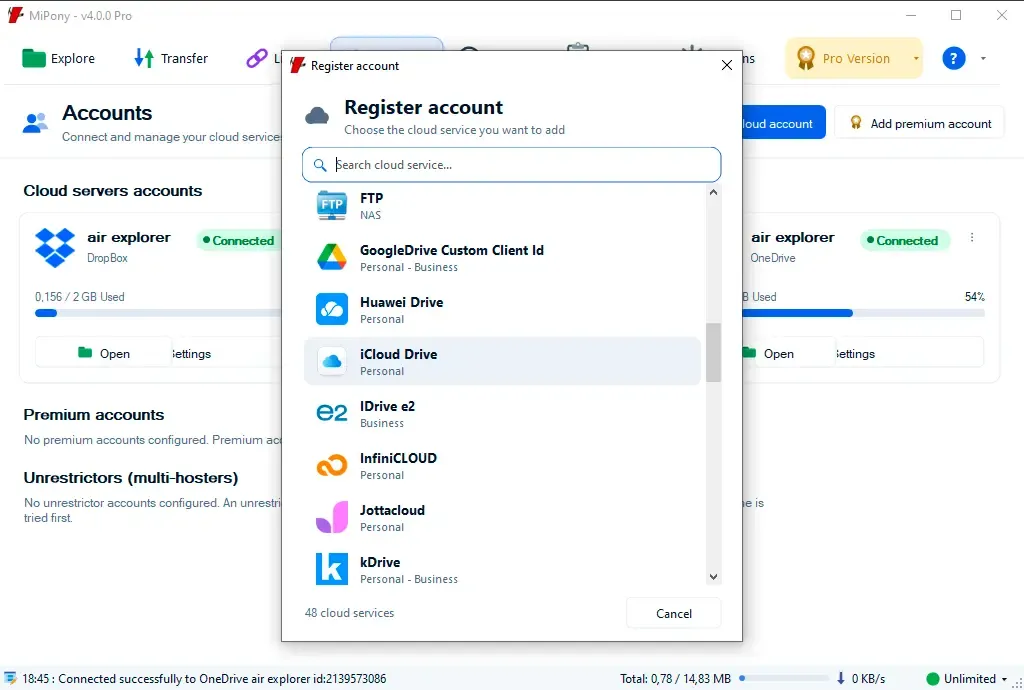
- Pick iCloud Drive from the list of services.
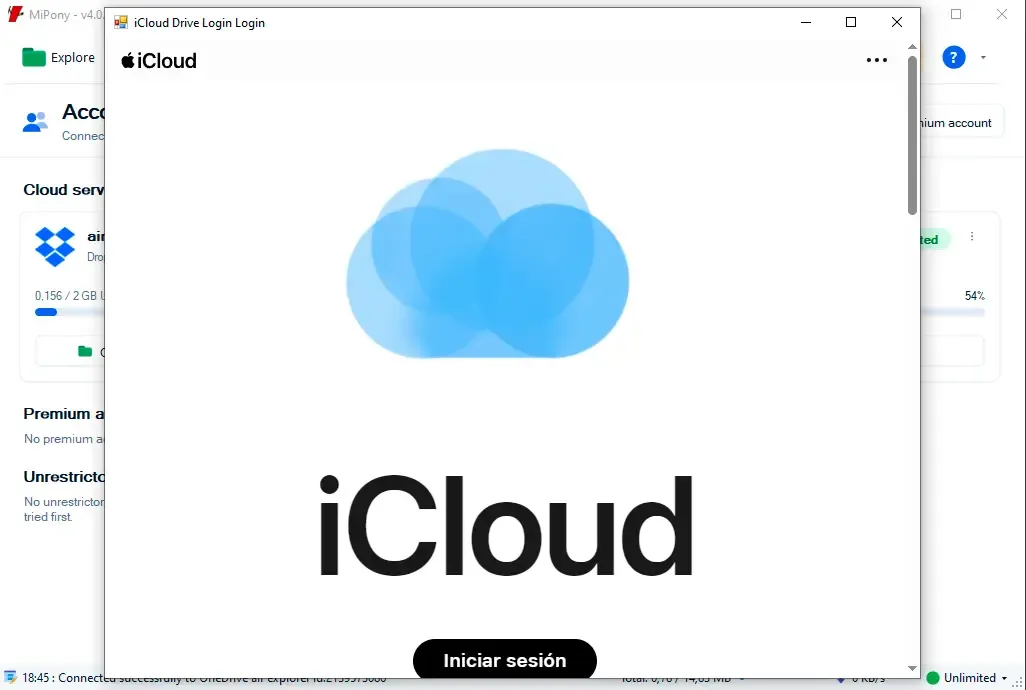
- Mipony asks how you want to sign in. Enter your Apple ID and your regular password.
Once you’re signed in, iCloud Drive shows up in your account list like any other cloud.
If you use Advanced Data Protection
With Apple’s Advanced Data Protection turned on, your files are end-to-end encrypted and any access from outside your devices needs an extra approval. Mipony requests it for you: when you connect the account, one of your Apple devices gets a notification asking you to allow access.
For this to work, Access iCloud Data on the Web must be turned on in that device’s iCloud settings. If it’s off, switch it on and connect the account again.
How to move your files from iCloud Drive to OneDrive
With both accounts connected, copying works just like it does between any other pair of clouds:
- Add your OneDrive account from Accounts too, if you haven’t already.
- Open Explore. In the left pane, select iCloud Drive and open the folder you want to move.
- In the right pane, select OneDrive and open the destination folder. A new folder such as “From iCloud” keeps the copied files easy to spot.
- Select the files or folders and click the central arrow pointing right.
- Follow the progress and speed of every copy in the Transfer tab.
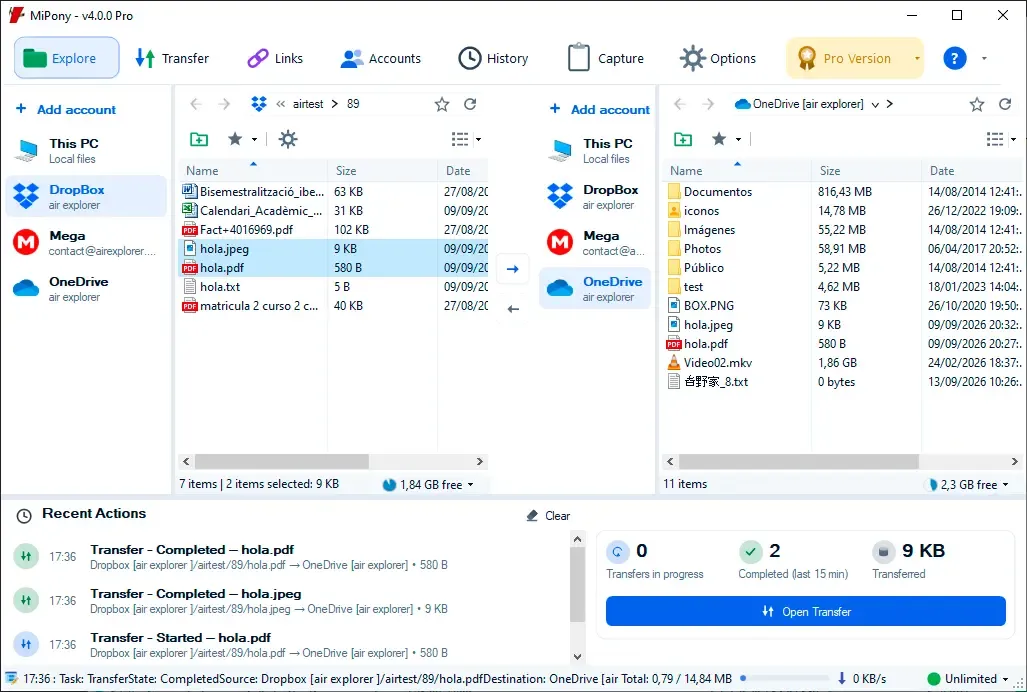
The originals stay in iCloud Drive, so your iPhone and iPad keep seeing exactly the same files. Cloud-to-cloud transfers are unlimited in the free version, which connects up to four accounts. You only need Mipony Pro if the destination is a OneDrive for Business or school account.
Before you start copying
- iCloud Photos is not iCloud Drive. Your iPhone photo library is stored separately and Mipony can’t reach it. To move photos, save them as files in an iCloud Drive folder first.
- File names. OneDrive rejects some characters that iPhones and Macs allow, such as
" * : < > ? / \ |. If a single file won’t copy, check its name. - OneDrive storage. Check in Accounts how much you are about to copy and how much free space you have left.
- Apple sessions expire. If you signed in with the browser, Mipony will ask you to sign in to iCloud again once that session runs out.
If you’re leaving iCloud for good, How to move your files from one cloud to another explains how to check the result and when it’s safe to delete the originals.
More than a one-off move
Moving files between clouds doesn’t have to mean switching providers. Plenty of people keep iCloud Drive for their phone and OneDrive for their PC, and simply need to move things between the two now and then. Mipony also lets you upload files from your PC to iCloud Drive or download them to your computer without opening Apple’s website: in Explore, choose This PC in one pane and iCloud Drive in the other.
Connect your iCloud Drive today
Download Mipony free for Windows, connect iCloud Drive and OneDrive, and copy your first folder in a few minutes. New to the app? How to use Mipony walks you through it, and the Mipony manual covers every other option.