
Multiple OneDrive accounts on one PC: how to use them together
Posted on November 13, 2026
You can use multiple OneDrive accounts on one PC without switching Windows users or signing out every time, as long as you use a multi-cloud manager such as Mipony. Microsoft’s OneDrive app supports only one personal account per Windows user. Mipony opens several OneDrive accounts side by side, personal or work, so you can browse them, upload to either one and copy files between them from a single window.
What the OneDrive app on Windows allows
The OneDrive app built into Windows has a limit that catches a lot of people out:
- One personal account per Windows user.
- Several work or school accounts, but not two from the same organization.
If you have two personal accounts, say your main one and an older one or one for a side project, the usual workarounds are clumsy. You can create a second Windows user, unlink one account to link the other, or keep the second one open in a private browser window. None of them lets you work with both at the same time.
How to use two OneDrive accounts at once with Mipony
Mipony does not replace the OneDrive app, and it does not create a synced folder on your PC. It connects to each account and shows it in a file explorer, where you can view, upload, download, copy and organize files.
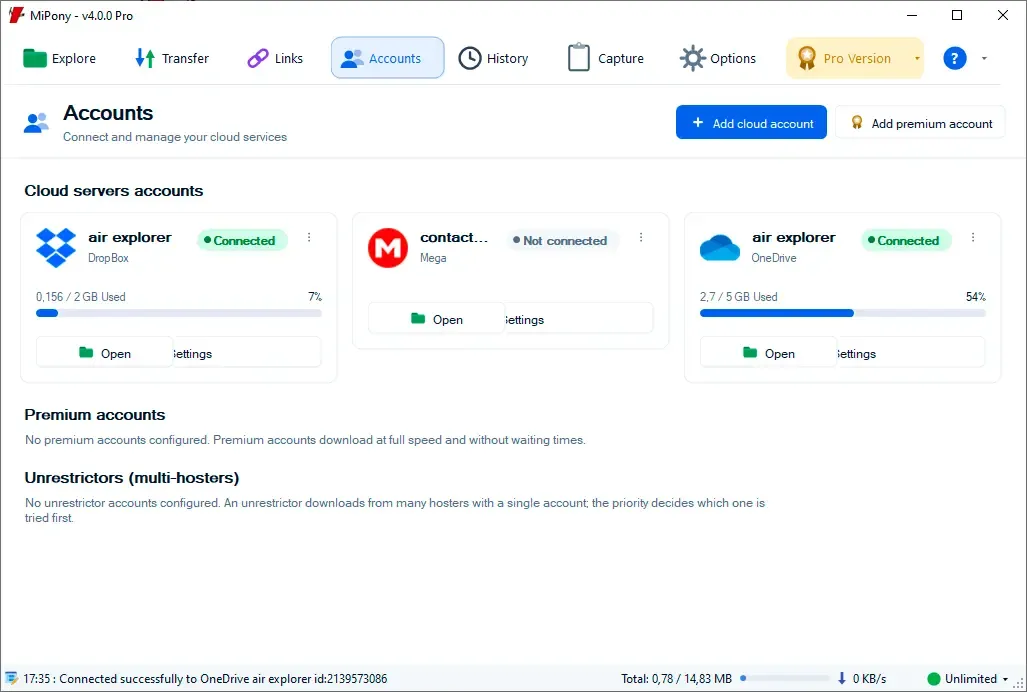
- Open the Accounts tab and click Add cloud account.
- Choose OneDrive from the list of clouds.
- Sign in with the first account in your browser and authorize access.
- Repeat the steps with the second account.
Both accounts then appear in Accounts, which shows the storage used by each one, and in the side list of Explore. Before moving large folders, open the account’s menu in Accounts and click Refresh quota to see up-to-date usage.
If the wrong account gets connected
When you add the second account, your browser may remember the first session and sign straight into it. If that happens, pick a different account on the Microsoft sign-in page, or sign out in the browser before you authorize.
Give each account a clear name
Two accounts from the same service are easy to mix up. In Accounts, open the menu of one of them and click Edit…. Type something recognizable in Display Name, such as “OneDrive personal” or “OneDrive photos”, and add a Description if you like.
Working with both accounts at once
The real benefit shows up in the Explore tab, which has two panes:
- Open one account in each pane. In the side list, right-click an account and choose Open in the other panel.
- Copy files between them. Select files in one pane and click the central arrow. The originals stay in the source account.
- Mix in your PC. Either pane can show This PC, so you can upload to one account or the other without leaving the window.
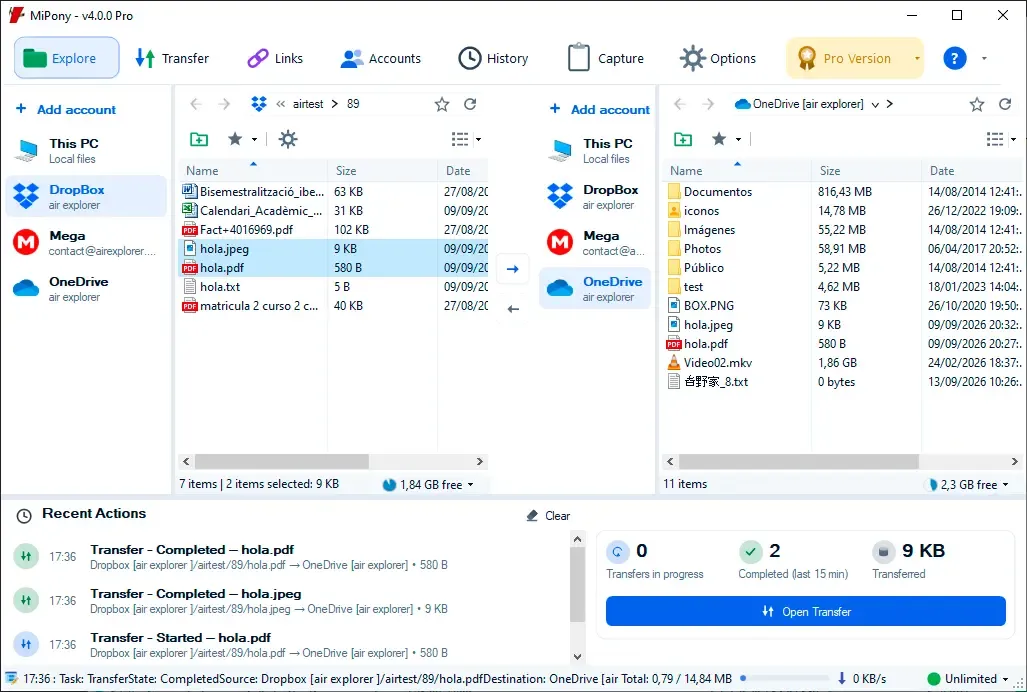
Follow the progress of every copy in the Transfer tab. If you are reorganizing a lot of content, How to move your files from one cloud to another covers what to check before and after a big move, and it applies just as well between two OneDrive accounts.
A personal and a work account together
If you have a personal account plus one from your employer or school, Mipony lets you keep those together too and move files between them.
Keep in mind that a work account belongs to your organization. Before copying company files into your personal account, check that your organization allows it.
A Mipony Pro feature
Connecting several accounts from the same service, such as two OneDrive accounts, is a Mipony Pro feature. Pro also includes unlimited accounts, business clouds, more simultaneous transfers, a speed limiter and an ad-free experience.
Bring your OneDrive accounts into one window
Download Mipony for Windows, activate Mipony Pro and connect all your OneDrive accounts in the same explorer. New to the app? How to use Mipony walks you through connecting an account and making a first transfer, and the manual covers every other option.