
How to manage cloud files without a browser on Windows
Posted on November 24, 2026
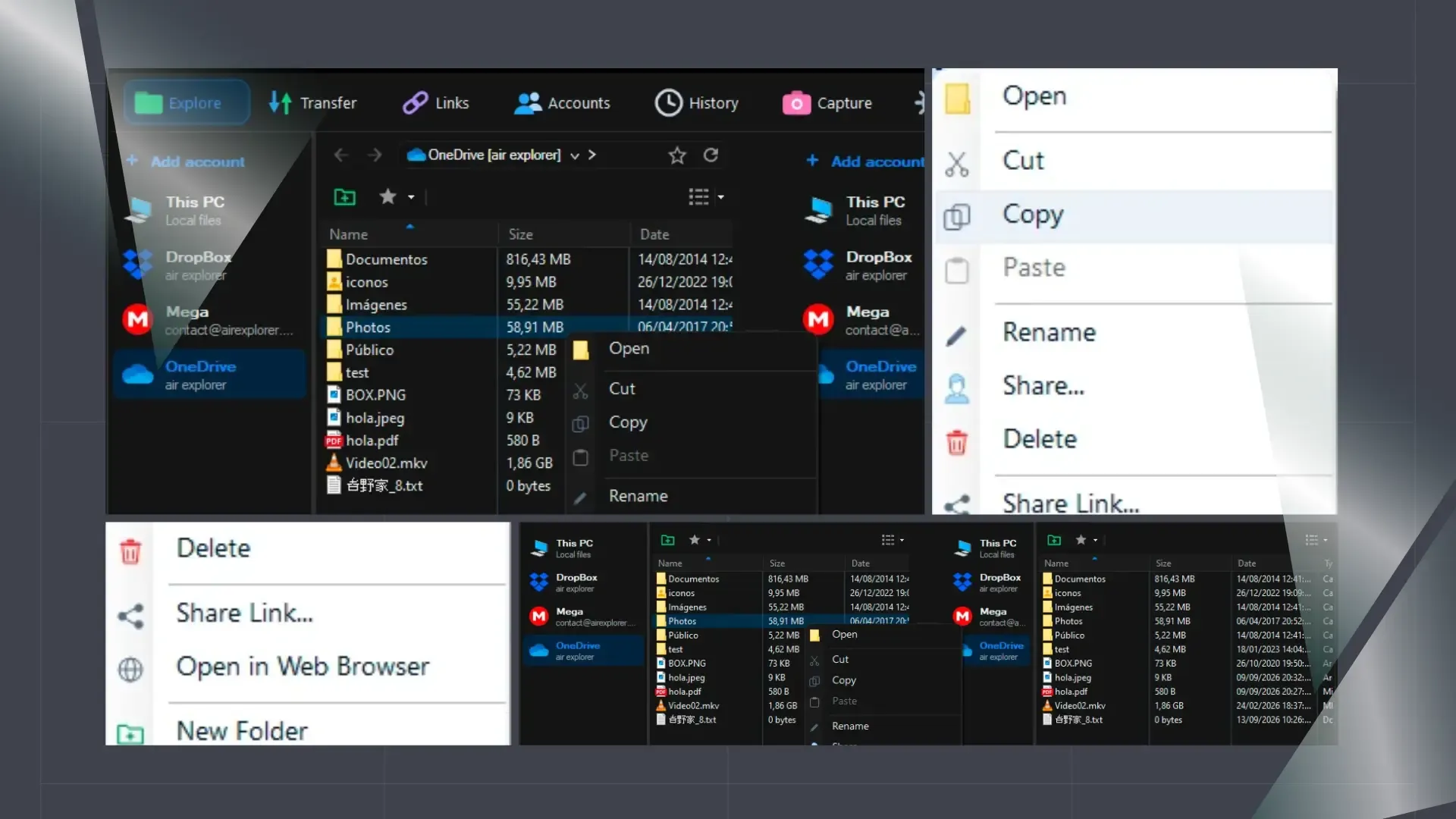
You can manage cloud files without a browser by using a desktop app that shows your cloud storage like folders on your PC. In Mipony, right-click any file or folder in the Explore tab. That one menu lets you open and edit files, play videos, rename, move, create folders and share links, all without logging in to the OneDrive, Dropbox or MEGA website.
One window instead of a tab per cloud
Every cloud service has its own website, with its own menus, its own way of organizing folders and its own login in a separate tab. Renaming a file in one and creating a folder in another means jumping back and forth between tabs.
Mipony puts all your accounts in one window and handles their files with the same right-click menu. Only a few options change, depending on what each service supports.
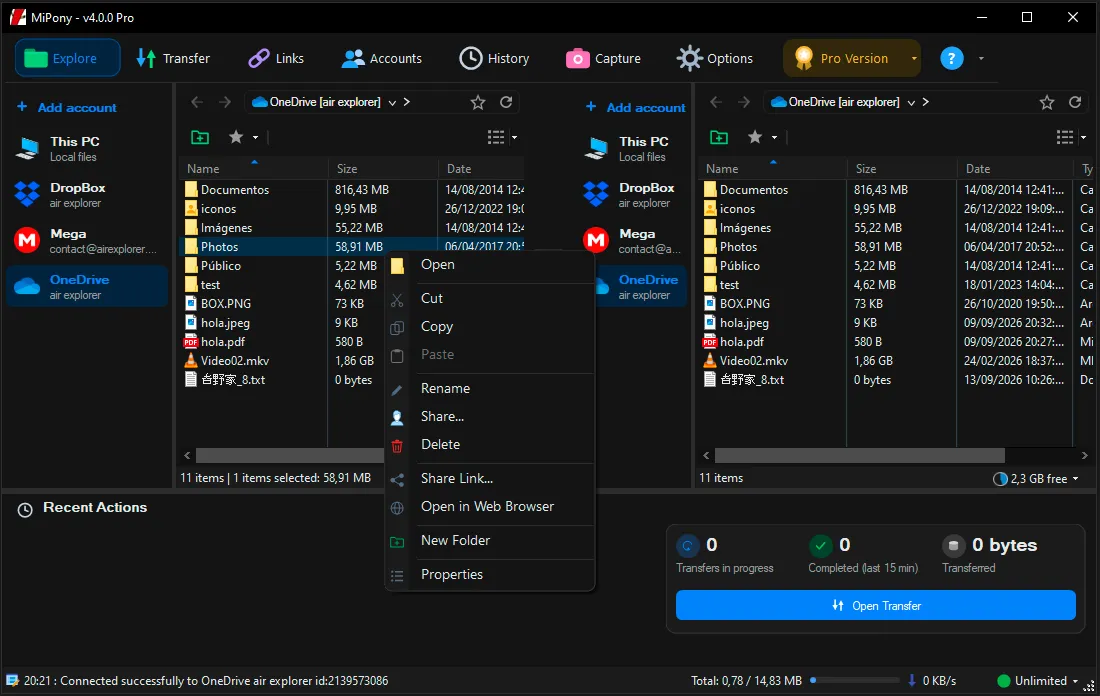
Open and edit files stored in the cloud
Opening a file is usually the first thing you need, and the menu gives you three ways to do it:
- Open opens the file on your PC. If you edit it, say a document or a spreadsheet, and click Save, your changes are saved back to the cloud. No downloading and re-uploading by hand.
- Open With lets you pick the program to open it with. It shows up when a single file is selected, not for folders.
- Play streams a video or audio file straight from the cloud. Mipony uses VLC if it is installed, or the player Windows associates with that file type. It only appears on clouds that support it.
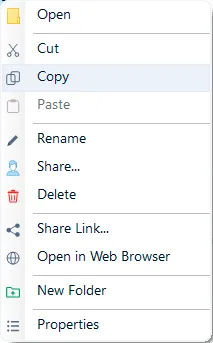
Organize your folders and files
Tidying up a cloud through its website takes several clicks per file. The right-click menu, together with the keyboard shortcuts you already know, makes it much quicker.
Create folders and rename items
- New Folder creates a folder inside the one you have open. Right-click an empty area of the list and it is one of the few options you will see.
- Rename changes the name of the selected file or folder. The shortcut is F2, just like in Windows File Explorer.
Move and copy with Cut, Copy and Paste
- Copy (Ctrl+C) and Paste (Ctrl+V) duplicate files in another folder and leave the originals where they were.
- Cut (Ctrl+X) and Paste move them, so they disappear from the source. This works inside the same cloud, and also to another cloud or to your PC.
Where things land depends on how you paste. Ctrl+V pastes into the folder you have open. Right-clicking a folder and choosing Paste puts the files inside that folder instead, the same as in File Explorer. To select everything in a folder, press Ctrl+A.
Share a link without visiting the website
Sending someone a file does not require the service’s website. Right-click the file or folder and choose Share Link, and Mipony creates a link you can send to anyone. The option is available on clouds that support shared links.
For the occasional task that only the website can do, Open in Web Browser opens that exact item in your browser, so you don’t have to hunt for it. It also depends on the service supporting it.
Why the menu changes
The menu adapts to your selection and to the cloud you are browsing:
- Nothing selected (right-click on an empty area): only options for the open folder, such as New Folder and Paste.
- One file selected: Open With appears and, for video or audio, Play.
- Several items selected: options that only make sense for a single item are hidden.
- Depending on the cloud: Share Link, Open in Web Browser and Play appear only where the service supports them.
If you can’t find an option, check what you have selected and which cloud you are in.
Quick reference
| Option | Shortcut | When it appears |
|---|---|---|
| Open | — | With something selected |
| Open With | — | With a single file |
| Play | — | With video or audio, if the cloud supports it |
| New Folder | — | Always |
| Rename | F2 | With something selected |
| Copy | Ctrl+C | With something selected |
| Cut | Ctrl+X | With something selected |
| Paste | Ctrl+V | Always; enabled after copying or cutting |
| Share Link | — | If the cloud supports it |
| Open in Web Browser | — | If the cloud supports it |
Manage all your clouds from one window
Download Mipony free for Windows, connect your accounts and try the right-click menu on your own files. If you haven’t connected a cloud yet, How to use Mipony covers the first steps, and the Mipony manual explains everything else.