
How to move your files from one cloud to another
Posted on October 14, 2026
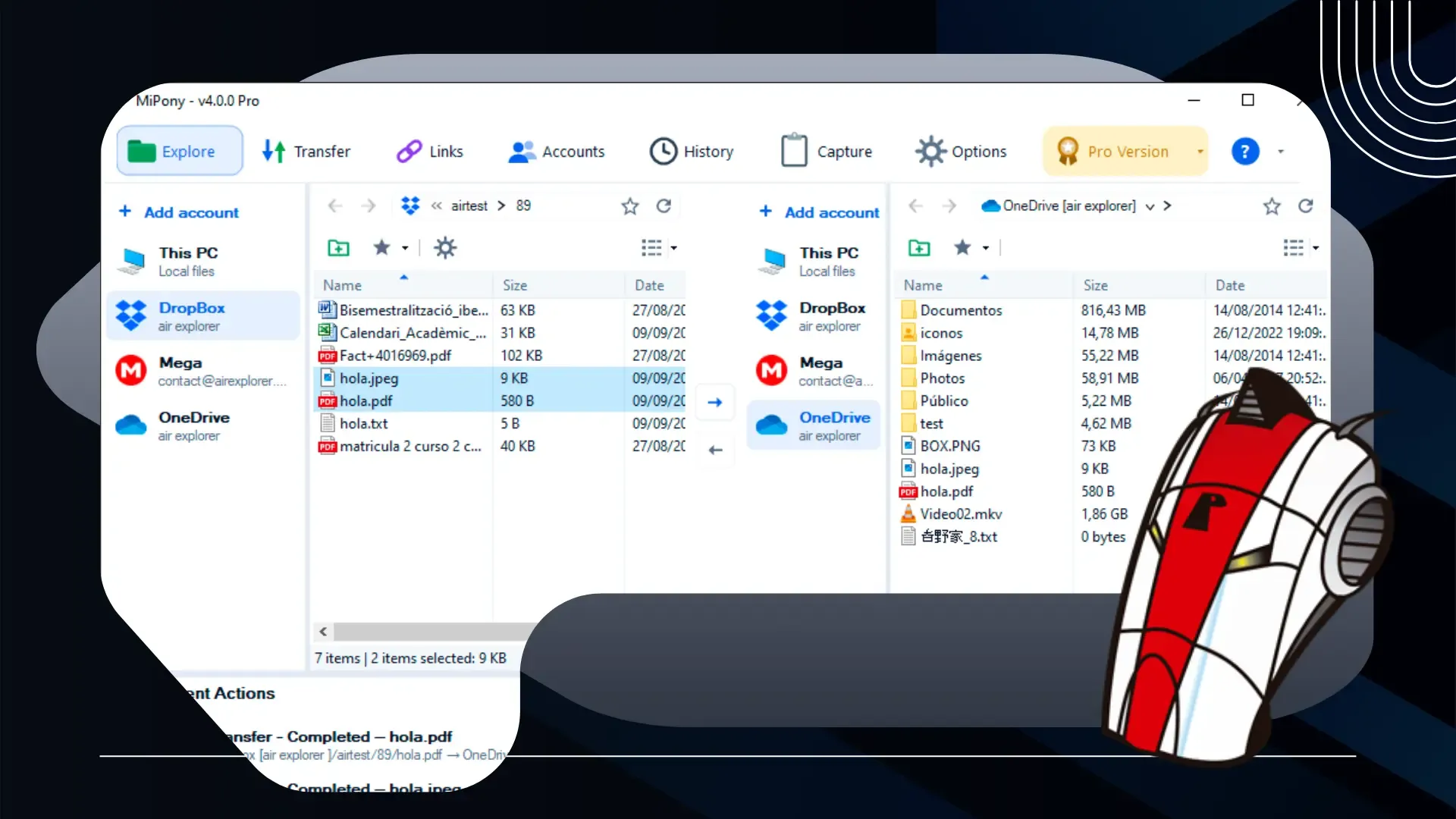
The easiest way to move files from one cloud to another is to copy them directly between the two accounts, without downloading everything to your computer and uploading it again. A multi-cloud manager such as Mipony opens both services side by side, so you pick a source folder, pick a destination and start the copy. The part that takes some thought is what happens before and after: checking storage, file names and shared links, and only deleting the originals once you know everything arrived.
Why not just download and re-upload?
Downloading a whole cloud to your PC and uploading it somewhere else works, but it has real costs. You need enough free disk space for everything you are moving, the job runs in two separate stages, and it is easy to lose track of which folders are already done.
Copying from cloud to cloud turns it into a single operation per folder. Your folder structure comes along with the files, and you can follow each transfer from start to finish in one place.
What to check before you move anything
A few minutes of preparation saves hours of cleaning up duplicates and half-copied folders later.
Storage on the destination
Compare how much space your files take up in the current service with the free space in the new one. If everything will not fit, decide in advance which folders move and which stay behind. In Mipony, the Accounts tab shows the storage used by each connected account, as long as the provider makes that information available.
File names the new service may reject
Every cloud has its own naming rules. OneDrive, for example, does not accept the characters " * : < > ? / \ | in file or folder names, nor names that begin or end with a space. Files created on a Mac or a phone are the usual suspects. If a single file refuses to copy, check its name first.
Things that stay behind
Moving files does not move everything attached to them:
- Shared links still point to the old service. Once you delete the originals, those links break, so plan to share again from the new cloud.
- Folders other people share with you become independent copies in the destination, no longer connected to the owner or to their future changes.
- Version history stays where it is. Only the current version of each file is copied.
How to copy files between clouds with Mipony
Mipony connects to Dropbox, OneDrive, MEGA, Box and many other services, so the process is the same whichever pair you are working with:
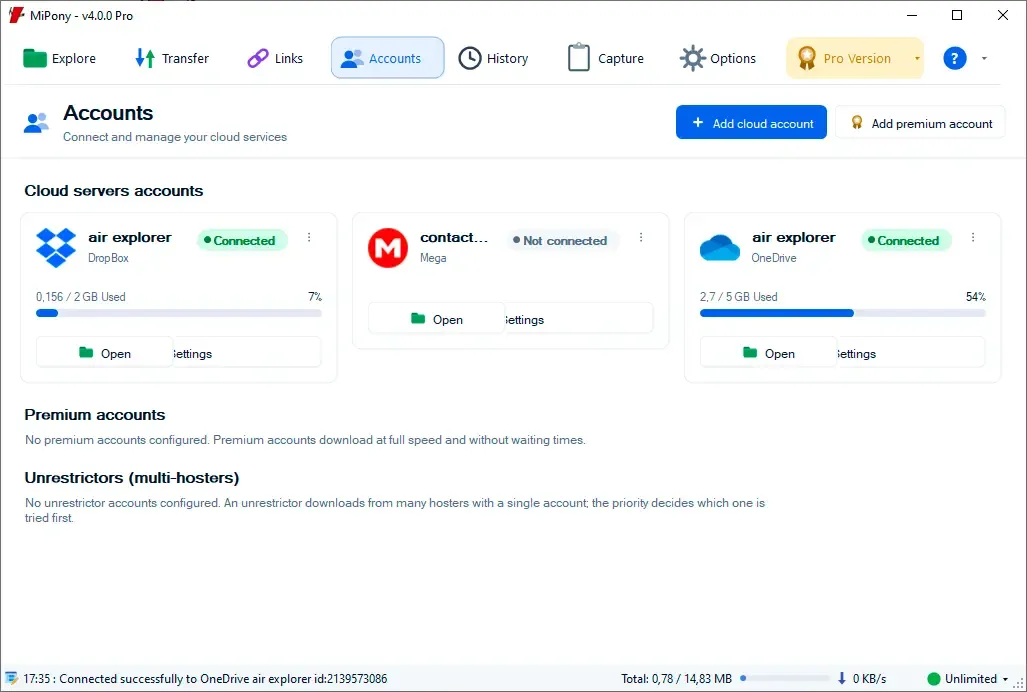
- Open the Accounts tab, click Add cloud account and connect the service you are leaving. Sign in and authorize access when prompted. Repeat for the service you are moving to.
- Go to Explore. In the left pane, select the source account and open the folder you want to move.
- In the right pane, select the destination account and open the target folder. A new folder such as “Imported” keeps the moved files separate from what is already there.
- Select files and folders on the left and click the central arrow pointing right.
- Follow the status, progress and speed of every copy in the Transfer tab.
With a large library, work in batches, one top-level folder at a time. Each batch is easier to verify, and if something fails you know exactly where to look.
The free version of Mipony connects up to four cloud accounts and has no limit on cloud-to-cloud transfers, which covers most personal moves. Business accounts such as OneDrive for Business require Mipony Pro.
Copy first, delete later
Even if your goal is to leave the old service for good, treat the move as a copy. Copying between clouds in Mipony keeps the original files where they are, so a failed transfer or a missing folder never leaves you without your data.
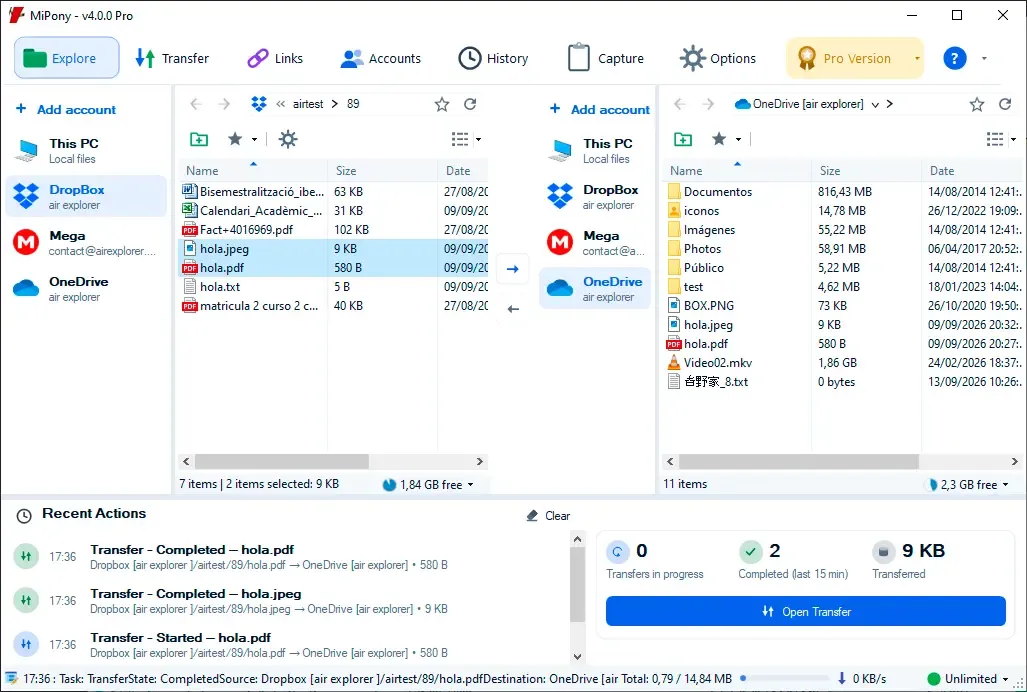
Before you delete anything at the source:
- Compare item counts. Open the same folder in both Explore panes; the bottom of each pane shows how many items it contains.
- Open a handful of files in the new service, especially documents and photos you use often.
- Check the Transfer tab for any copy that did not complete, fix the cause and run it again.
Then give yourself a few days of working only with the new cloud. If nothing is missing, you can clean up the old account. One last detail: if the old service has a desktop sync app on your computer, deleting files in the cloud also removes them from your synced folder, so disconnect or uninstall the app first if you want to keep a local copy.
Start moving your files
Download Mipony for Windows, connect both of your cloud accounts and copy your folders from a single explorer. New to the app? How to use Mipony walks you through connecting an account and making a first transfer, and the Mipony manual covers the rest of the options.