
MultCloud alternative: free cloud-to-cloud transfers, no cap
Posted on November 1, 2026
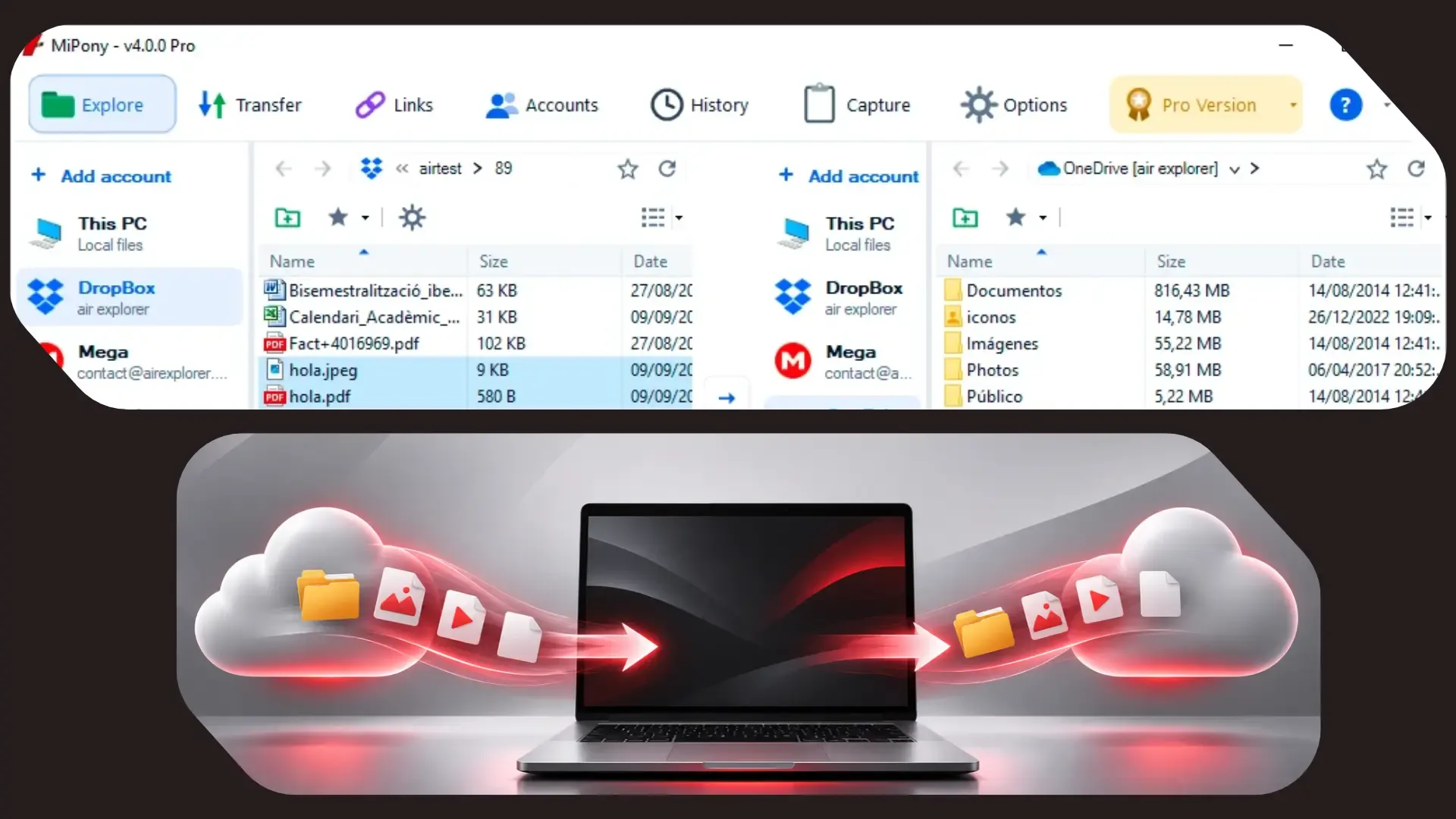
If you keep running out of MultCloud’s free data traffic, a practical MultCloud alternative is Mipony: a free multi-cloud manager for Windows that copies files between clouds with no traffic cap. The two work in very different ways. MultCloud is a web service that runs transfers on its own servers, while Mipony is a desktop app that runs them from your PC. Most of the pros and cons of each one come down to that.
Where MultCloud’s free plan falls short
MultCloud is a well-known service and it does the job, but its free tier is built for trying it out rather than for a full move. These are its main limits:
- 5 GB of data traffic per month. Every gigabyte copied between clouds counts, and once it is used up you wait for next month or upgrade.
- 2 transfer threads, compared with 10 on paid plans.
- No scheduled tasks or real-time sync. Those are reserved for paying users.
Unlimited traffic means moving to one of its paid unlimited plans, either yearly or lifetime. Moving even 50 GB on the free plan would take the best part of a year.
Mipony vs. MultCloud at a glance
| MultCloud (free) | Mipony (free) | |
|---|---|---|
| What it is | Web service | Windows app |
| Cloud-to-cloud traffic | 5 GB per month | No limit |
| Where the copy runs | MultCloud’s servers | Your PC and your connection |
| PC must stay on? | No | Yes, until the copy finishes |
| Parallel transfers | 2 threads | 2 simultaneous transfers |
| Accounts | Several | 4 accounts, 1 per cloud |
| Scheduling and sync | Paid plans only | Not available |
| Sign-up | Account required | No sign-up |
Who handles your files
With MultCloud, you give a third-party service access to your cloud accounts and the copy runs on its infrastructure. The upside is that it keeps working after you shut down your computer.
Mipony connects your PC straight to each cloud. There is no Mipony account to create, and the transfer runs on your own machine, so your internet speed sets the pace, not a monthly quota.
How to transfer files between clouds with Mipony
If what you need is to move data between services without counting gigabytes, here is the whole process:
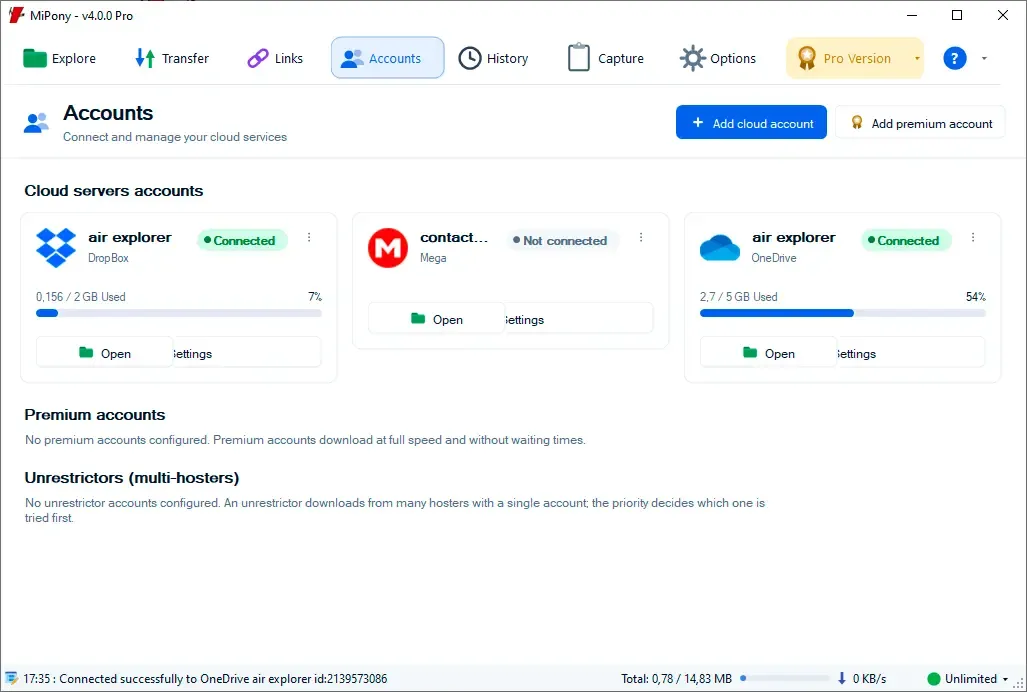
- Download and install Mipony. No sign-up is needed.
- In the Accounts tab, click Add cloud account, choose the service, sign in and authorize access. Repeat for the second cloud.
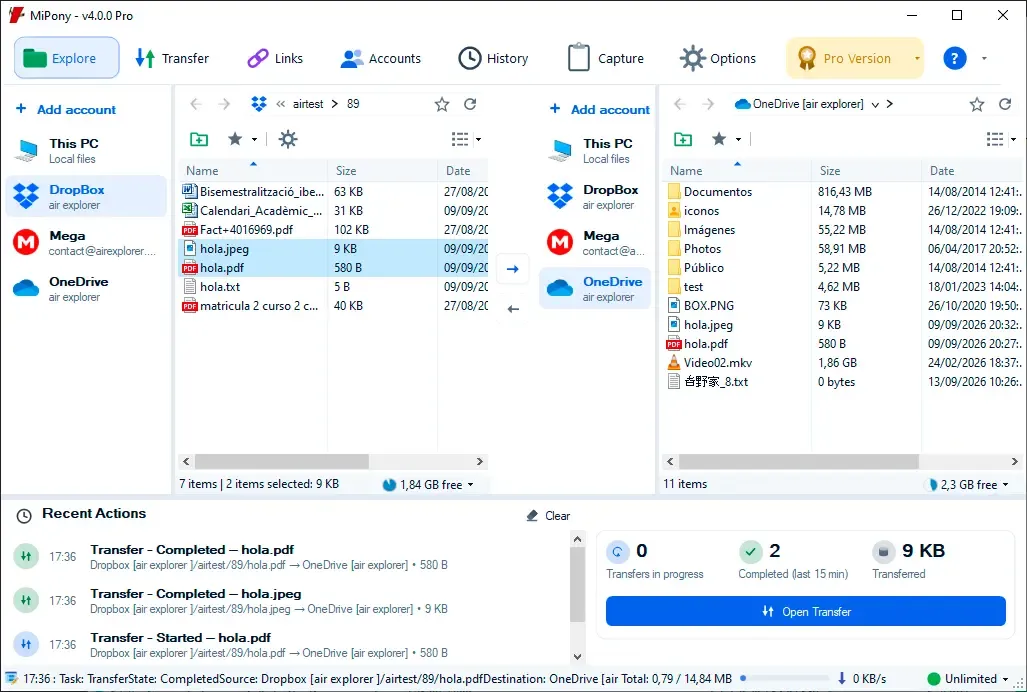
- Open Explore. Pick the source cloud and folder in the left pane, and the destination cloud and folder in the right pane.
- Select the files or folders and click the central arrow to copy them across.
- Follow the status, progress and speed of every copy in the Transfer tab.
The originals stay untouched in the source cloud. For extra peace of mind, go to Options → Clouds and turn on Check file integrity after uploading, so Mipony verifies each file once it has been copied. The same page lets you raise the number of retries, which helps on an unreliable connection.
Mipony works with more than 40 services, including OneDrive, Dropbox, MEGA, Box, Terabox, Yandex, kDrive, Jottacloud and Nextcloud, S3-compatible storage such as Backblaze B2 and Wasabi, and protocols like FTP, SFTP and WebDAV.
Upload files from your PC and share them
Mipony does more than copy between clouds. Either pane in Explore can show This PC, so uploading from your computer works the same way: open a local folder on one side and a cloud on the other, select your files and click the arrow. You can also drag files from Windows File Explorer straight into the cloud folder open in Mipony.
To share a file or folder, right-click it in the cloud and choose Share Link. Mipony creates the link without opening the provider’s website, as long as the service supports sharing.

What does Mipony Pro add?
Cloud-to-cloud transfers are unlimited in the free version too. Mipony Pro adds the rest: multiple accounts per cloud and unlimited accounts overall, more simultaneous transfers, write access to business clouds such as OneDrive for Business and SharePoint, a speed limiter and no ads.
Try it on your next transfer
The best test is a real folder. Download Mipony free for Windows, connect two of your clouds and copy something that would not fit in a 5 GB monthly allowance. If you are switching providers for good, How to move your files from one cloud to another covers what to check before and after the move, and the Mipony manual explains every other option.