
How to use Mipony: connect your cloud and make your first transfer
Posted on October 10, 2026
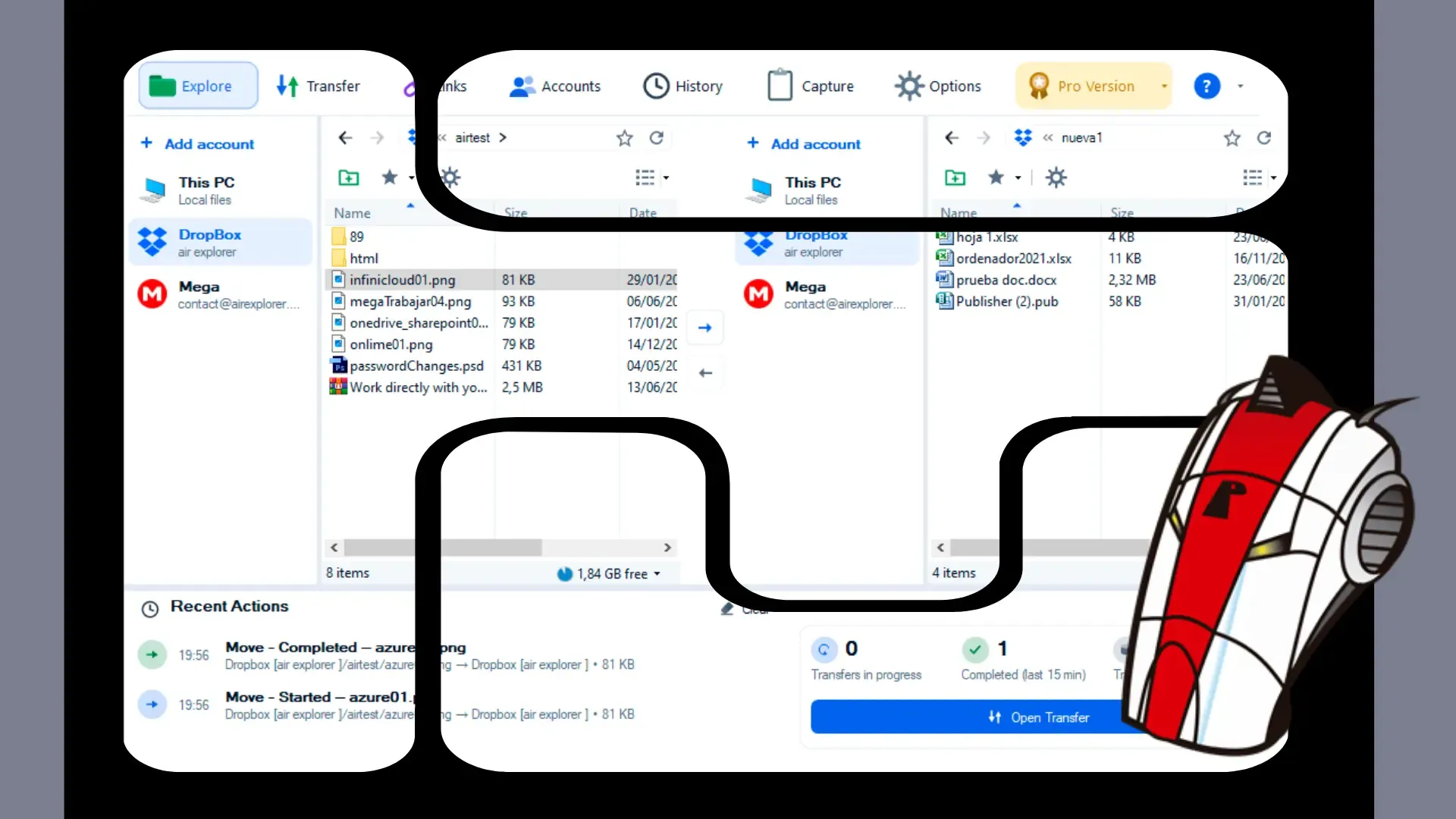
Want to upload files to your cloud storage and know exactly where they are saved? This guide explains how to use Mipony to connect a storage account and make your first transfer from your computer. We will use a simple example: copying a document from your PC into a cloud folder.
Once you have completed this upload, you can follow the same approach to download files or copy them between supported cloud services. You only need to change the source and destination locations in the two explorer panes.
What you need before you start
To follow this tutorial, you need Mipony for Windows, an Internet connection, and an account with a supported cloud storage service, such as Google Drive, OneDrive, or Dropbox. Choose a small file that is easy to recognize, such as a PDF named test-document.pdf.
If you have not installed the application yet, download Mipony for Windows and install it. Open Mipony and have your account sign-in details ready. Check that your cloud storage has enough available space for the file you want to upload.
1. Connect your cloud storage account
The first step in using Mipony is to add the service where you want to save your files:
- Open the Accounts tab.
- Click Add cloud account.
- Find your provider in the service picker and select it.
- Sign in or enter the connection details requested by the service.
- Authorize access when prompted.
The connection process depends on the provider. Some services open an authorization page, while others request credentials or server details. Follow the instructions for your chosen service until the account appears in Mipony.
Once it appears in Accounts, click Open to browse its folders. If the provider is marked as requiring Pro, you will need that license to add it.
2. Set up the source and destination in Explore
Open Explore. This workspace has two panes, and each can display a folder on your computer or a cloud account. For your first upload, put the local file on the left and the cloud folder on the right.
In the left pane, select This PC and open the folder containing test-document.pdf. In the right pane, select the account you just connected and open the folder where you want to save the document.
To keep the test separate from your other files, create a folder using New folder in the context menu when that action is available. You could name it “Mipony test” and open it before continuing.
Check the paths in both panes. The folder open in the destination pane is where Mipony will save the copied file.
3. Make your first transfer with Mipony
Select test-document.pdf in the left pane. Then click the central arrow pointing toward the right pane. Mipony will start copying the document from your computer into the cloud folder you have open.
This operation is an upload: the file goes from your PC to your storage provider. Using the arrow to copy it keeps the original document in its local folder.
Start with one file so you can follow each step easily. Once you are comfortable with the process, select several documents or a folder and repeat it. You can also upload files by dragging them from Windows File Explorer into a cloud folder open in Mipony.
4. Check transfer progress and the uploaded file
Open Transfers to view the operation’s status, progress, and speed. Wait until the upload finishes before checking the destination file. Larger files will take longer, so use the progress information to follow the operation.
Return to Explore and check the cloud folder. Refresh the view if necessary and confirm that test-document.pdf appears there. You can also open History to review completed operations.
If the transfer fails, check its status and properties. Review your connection, available storage, and the account’s write permissions. Once you have addressed the cause, use Run again when that option is available.
How to download files or transfer them between clouds
After your first upload, you can use the same source-and-destination approach for other tasks:
- To download: open the cloud account in one pane and a This PC folder in the other. Select the cloud file and click the arrow pointing toward your computer.
- To copy between clouds: connect both accounts, open the source in one pane and the destination in the other. Select your files and click the arrow pointing toward the destination cloud.
Copying between cloud accounts keeps the originals in the source account. Always check the destination folder after the transfer finishes to confirm the result.
Frequently asked questions for new users
Why is the copy arrow unavailable?
Check that you have selected a file in the source pane and that the destination can receive it. Review the account’s permissions as well.
Does removing an account from Mipony delete its files?
No. Removing an account from Mipony does not delete files stored with the cloud provider.
Where can I find more instructions?
Read the Mipony user manual for help managing accounts, organizing folders, and controlling transfers. To get started, connect your cloud account and copy a small file using the steps above.