
CONNECT YOUR ACCOUNTS
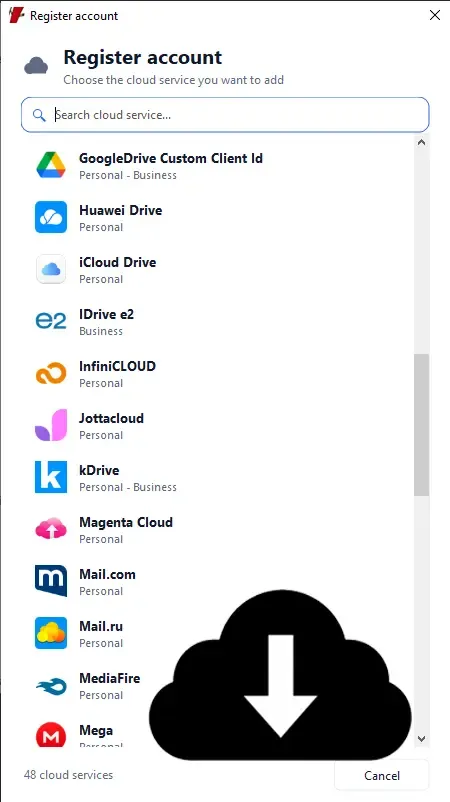
Bring your storage services together and access your files from Mipony.

Mipony is a free multi-cloud manager for Windows that connects 40+ storage services, transfers files between clouds without limits and moves files between your PC and your clouds from a single window.
CONNECT YOUR ACCOUNTS
Bring your storage services together and access your files from Mipony.
EXPLORE AND TRANSFER
Work in two panes and track the progress of your transfers.
Ponydroid
Install Ponydroid on your Android smartphone and tablet.
Open your accounts, browse your folders, and move files between locations from one interface.
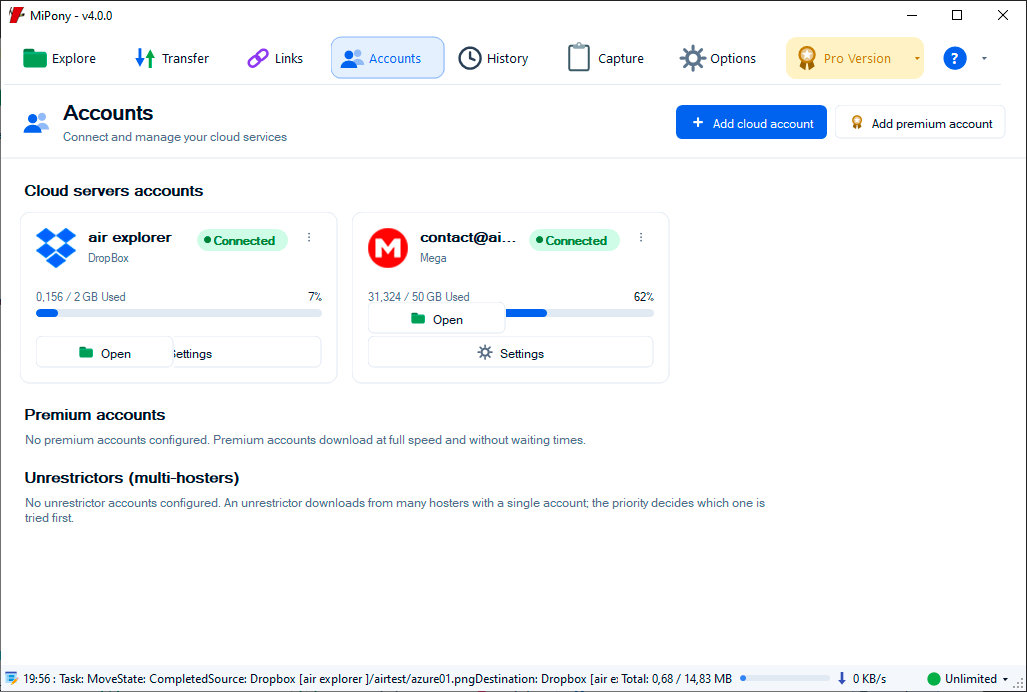
Open your folders and check the available space in each account.
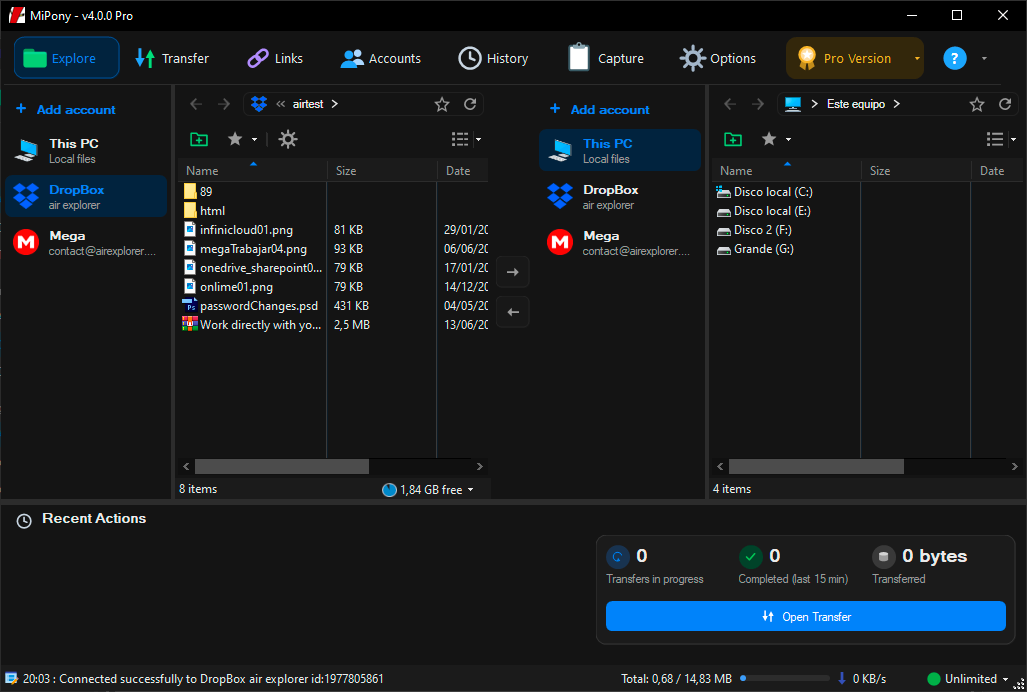
Upload, download, and copy files between your computer and clouds, or from one cloud to another.
Mipony supports a wide range of cloud storage services. Connect your accounts and access files from different providers in one place.
 MEGA
MEGA  OneDrive
  Dropbox
  Box
Box  iCloud Drive
  SharePoint
  OneDrive for Business
  Amazon S3
  Backblaze
  Wasabi
  Azure
Azure  Nextcloud
  ownCloud
  Jottacloud
  Yandex Disk
  MediaFire
  Terabox
  IDrive e2
  WebDAV
  FTP
FTP  SFTP
SFTP  Google Drive
 Transfer your files from Dropbox to OneDrive and between other supported services, free and without limits.
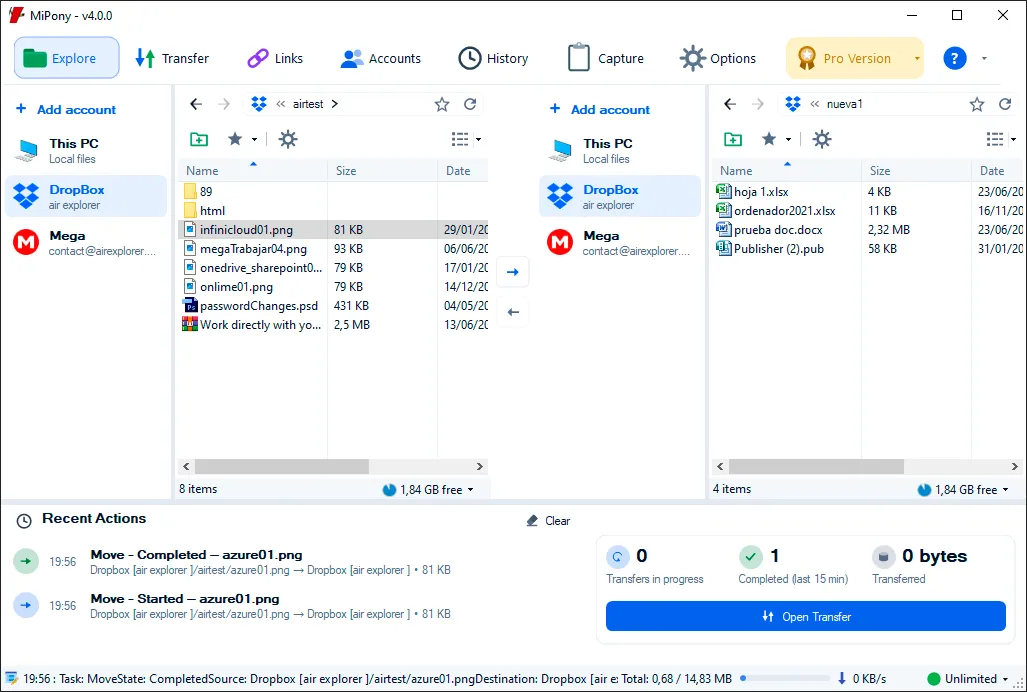
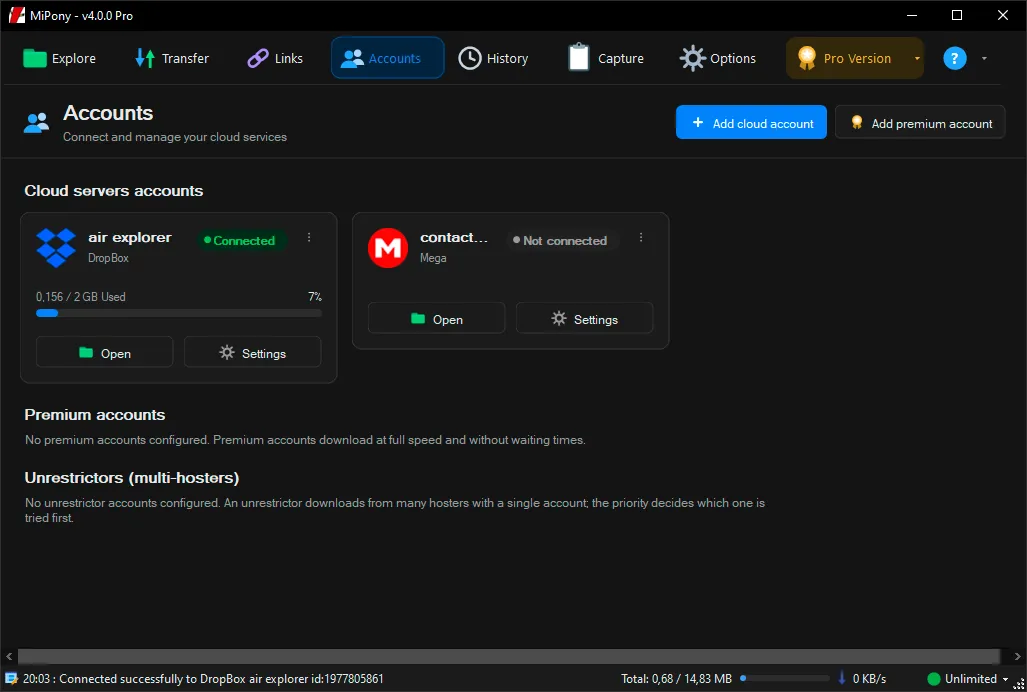
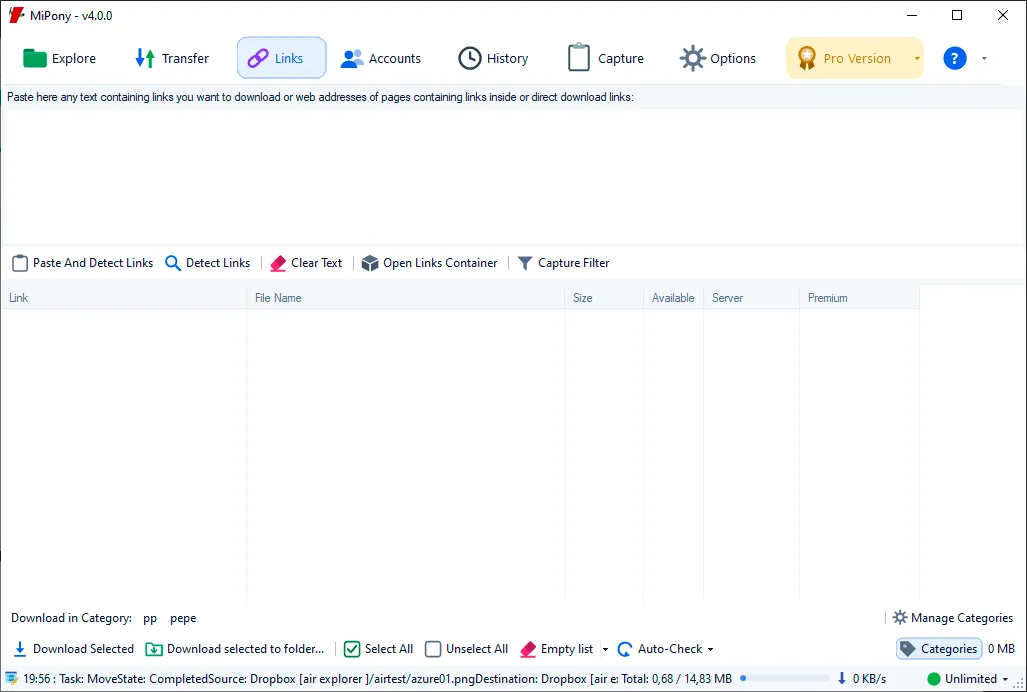
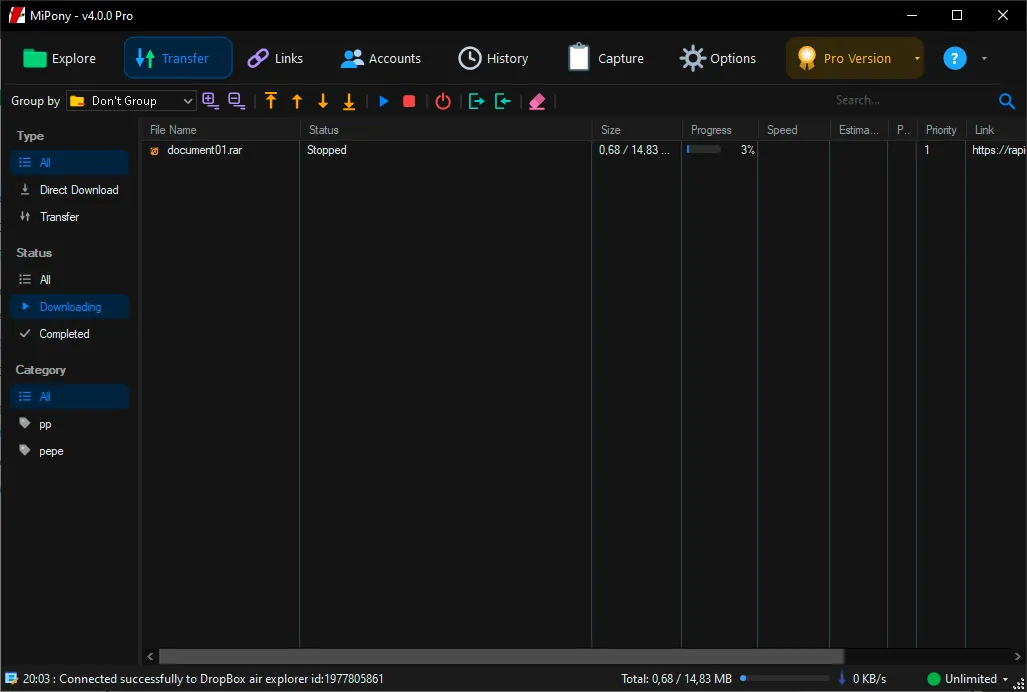
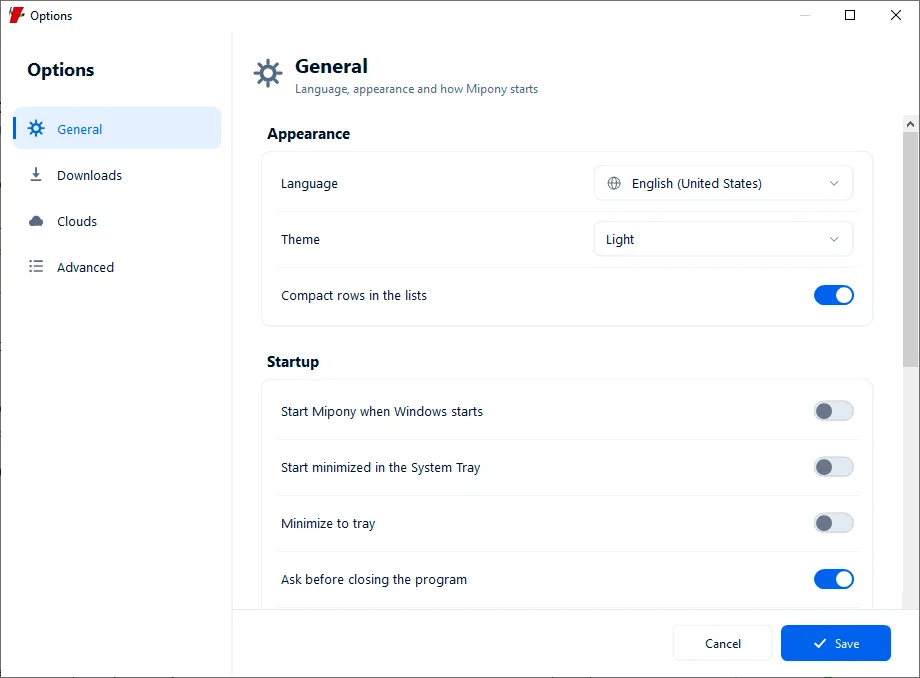
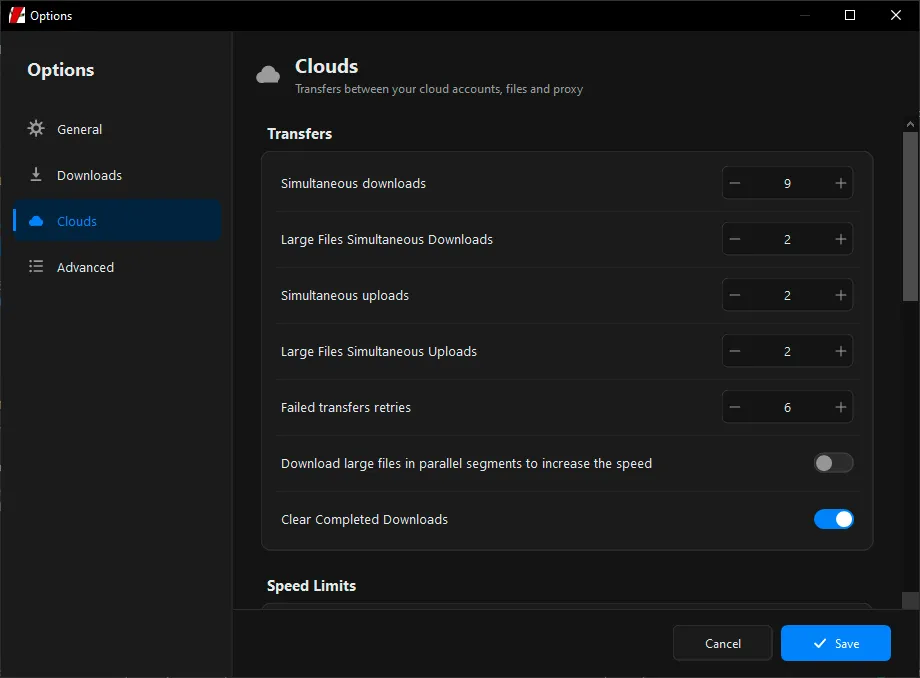
Work with your accounts and computer from a clear view, with the tools you need to manage your files.
Choose an account and folder to save files from a link. Reuse recent destinations and, if you want, extract RAR files before uploading their contents.
Upload files and folders, download them, or copy them between clouds. Start each operation with the buttons between the two panes.
Check progress, speed, and status. Pause, resume, cancel, or run operations again when available.
Rename multiple files at once and create sharing links when the provider supports them.
Mipony is a free multi-cloud manager for Windows that connects 40+ storage services, transfers files between clouds without limits and moves files between your PC and your clouds from a single window.
Yes. The free version includes unlimited cloud-to-cloud transfers and up to 4 cloud accounts. If you need more accounts or want to remove the ads, you can upgrade to Mipony Pro, from $14 per year.
More than 40 services, including MEGA, OneDrive, Dropbox, Box, iCloud Drive, SharePoint, Amazon S3, Backblaze, Wasabi, Azure, Nextcloud, Jottacloud and Yandex Disk. You can also connect FTP, SFTP and WebDAV servers.
Add both accounts in Accounts. Then, in Explore, open the source cloud in one pane and the destination in the other, select the files and click the central arrow pointing to the destination. You can follow the copy in the Transfer tab. See the step-by-step guide on how to move files from one cloud to another.
The free version allows 4 accounts (one per cloud), 2 simultaneous uploads and 2 downloads, read-only access to business clouds, and shows ads. Pro removes the ads and adds unlimited accounts, more simultaneous transfers, write access to business clouds, a speed limiter and a startup password. Compare the plans on Mipony Pro.
No. Mipony is available for Windows only.
Yes, with your own client ID. Because of Google's requirements, Mipony connects to Google Drive with credentials you create yourself in Google Cloud: you create a project, enable the Google Drive API and get a client ID and client secret. Then you enter them in Mipony when you add the account with the GoogleDrive Custom Client Id option. Our guide shows every step with screenshots: set up a custom OAuth client ID for Google Drive.