Set up a custom OAuth client ID for Google Drive
Create a Google Drive OAuth client ID in Google Cloud and connect it to Mipony, step by step.
Follow these steps to create your own Google Drive client ID and use it when adding a Google Drive account in Mipony.
-
Create a Google Cloud project
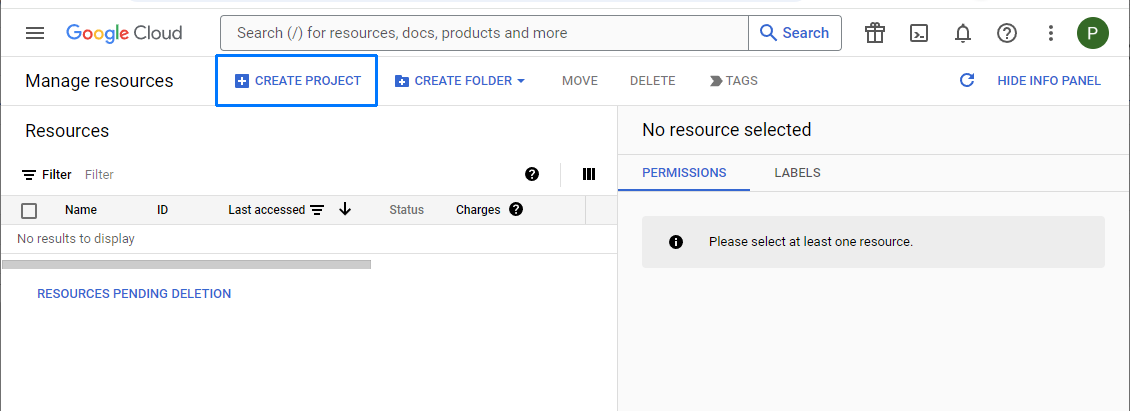
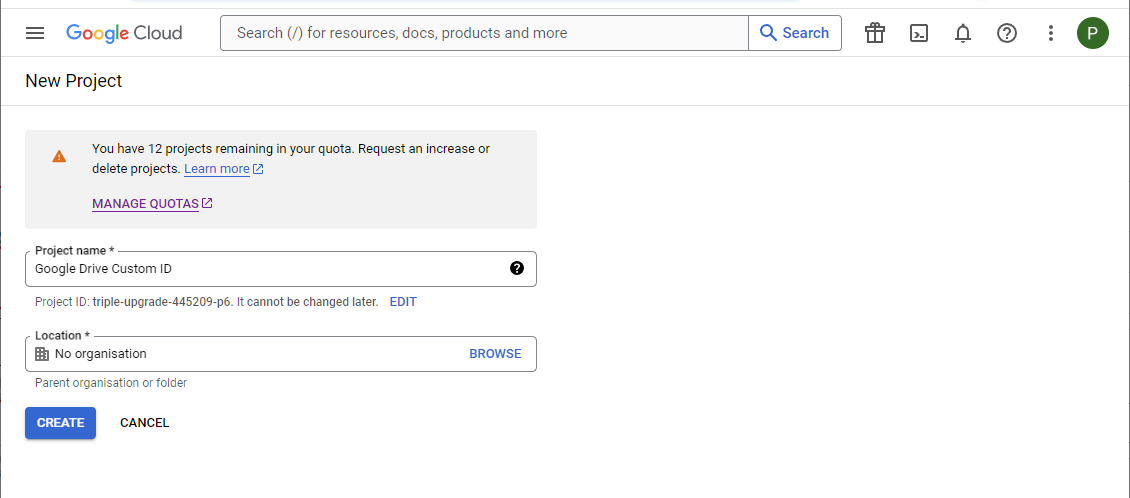
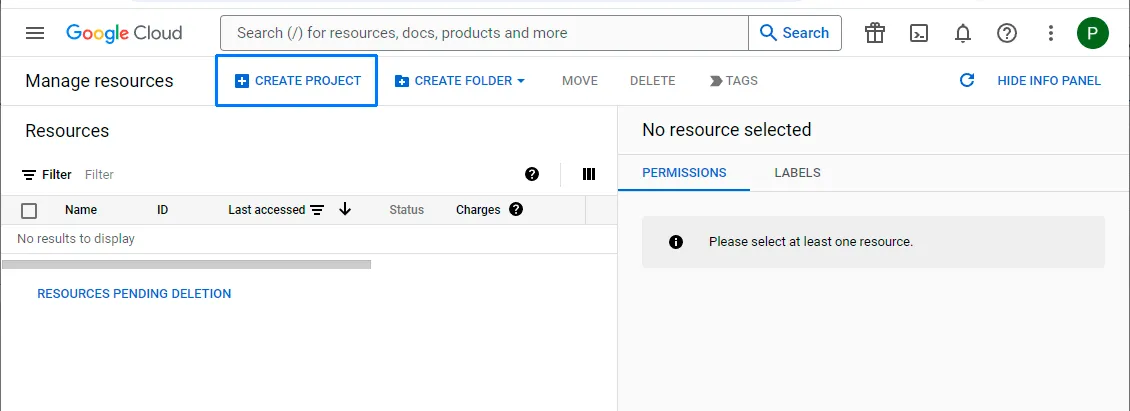
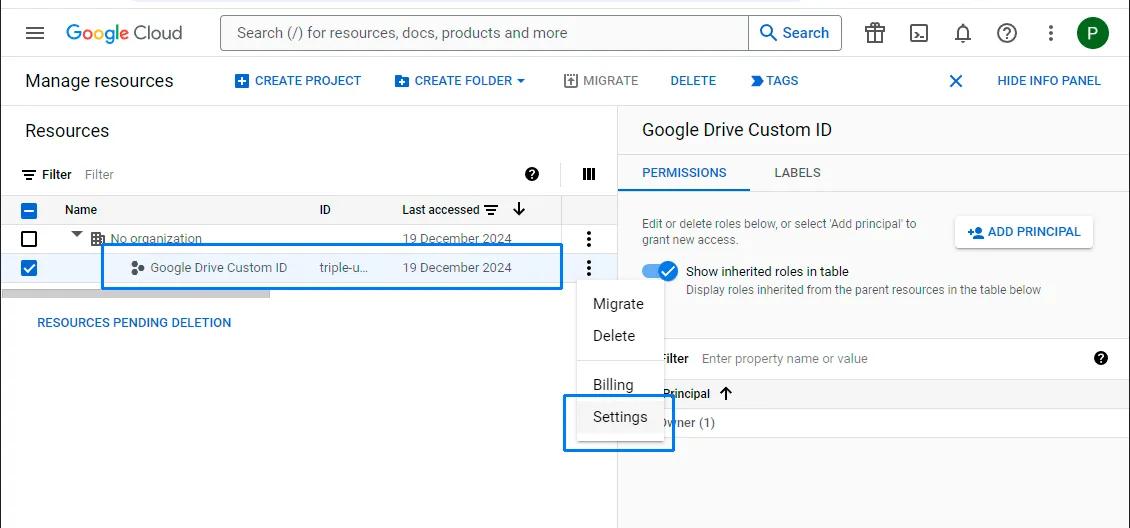
Sign in to Google Cloud Resource Manager and select Create project. You may use a different Google account from the Drive account you will connect later.
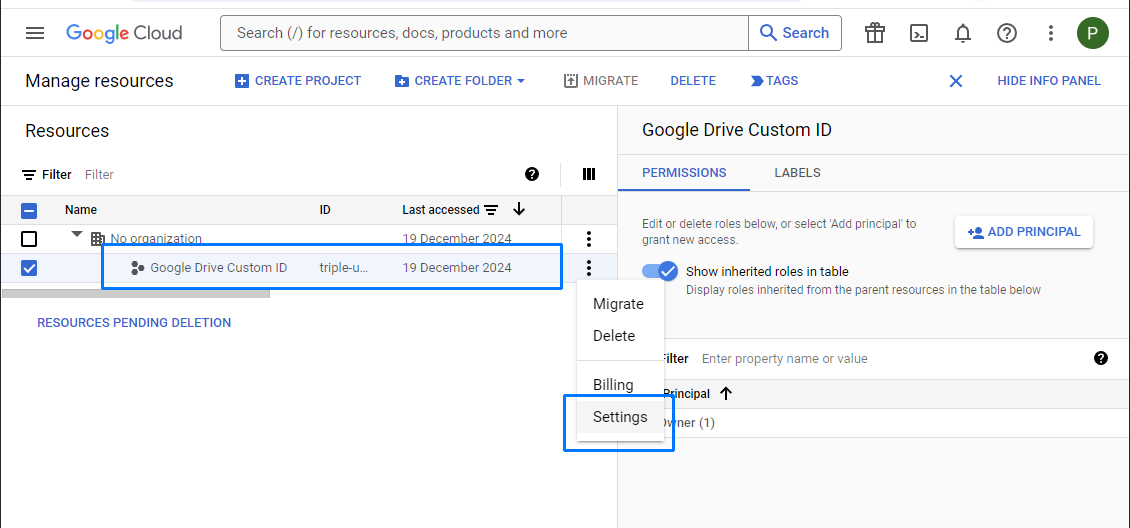
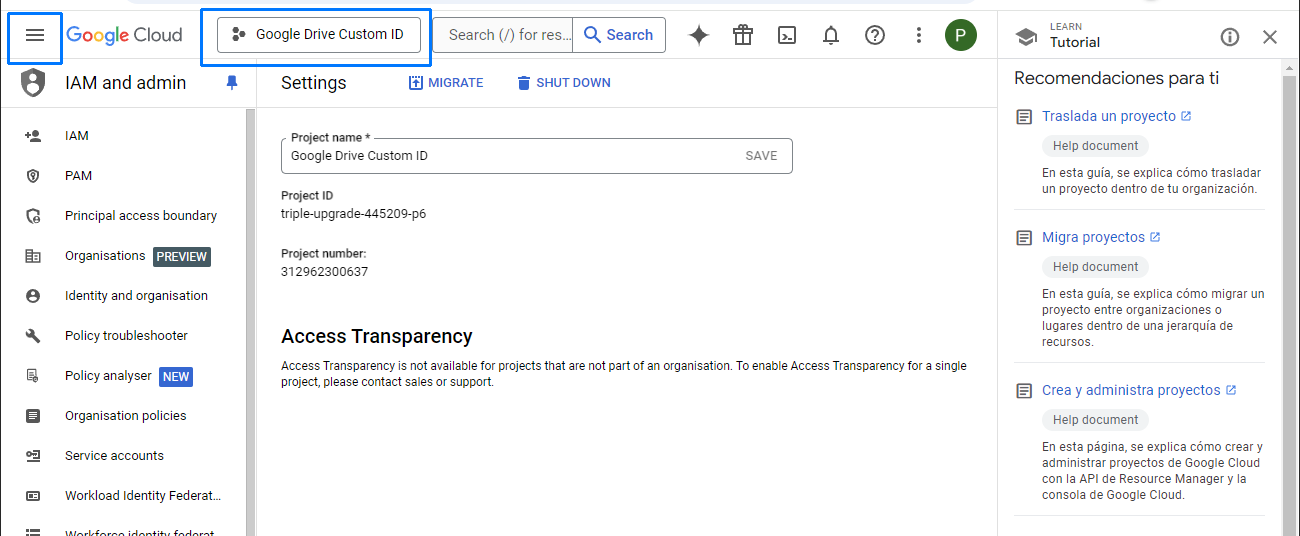
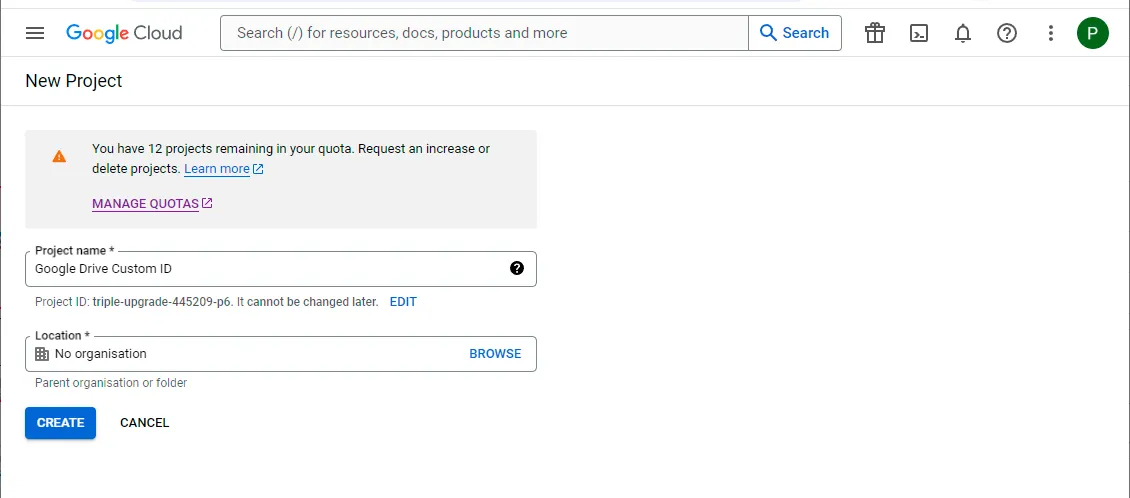
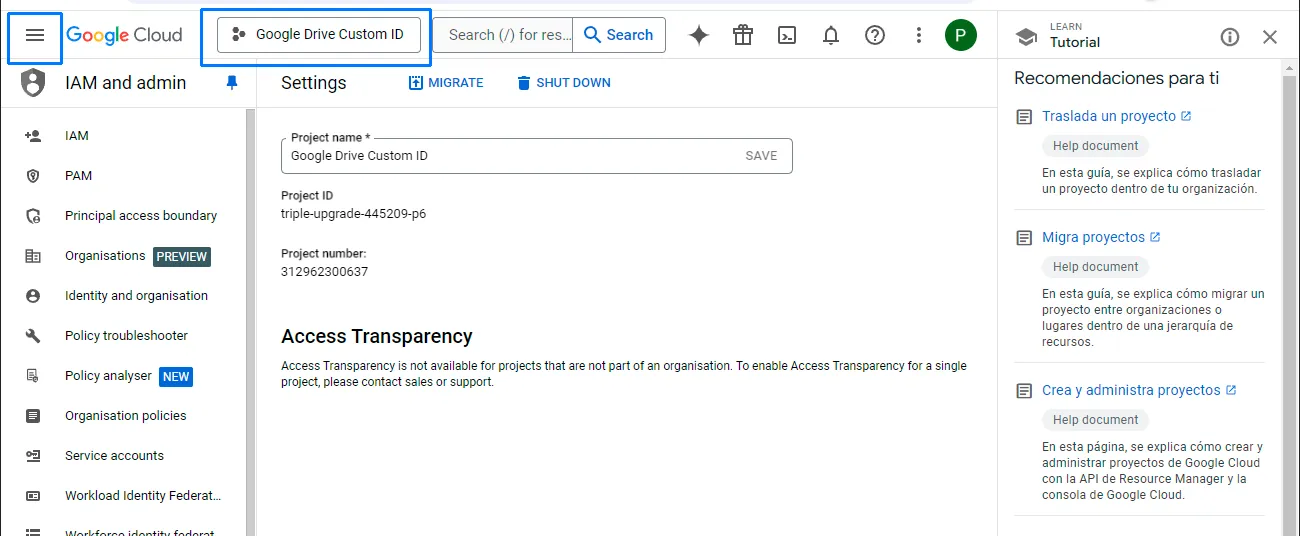
Give the project a name, such as “Google Drive Custom ID”, and create it. Select the new project and open its settings.
Open Google Cloud Resource Manager ↗
-
Enable the Google Drive API
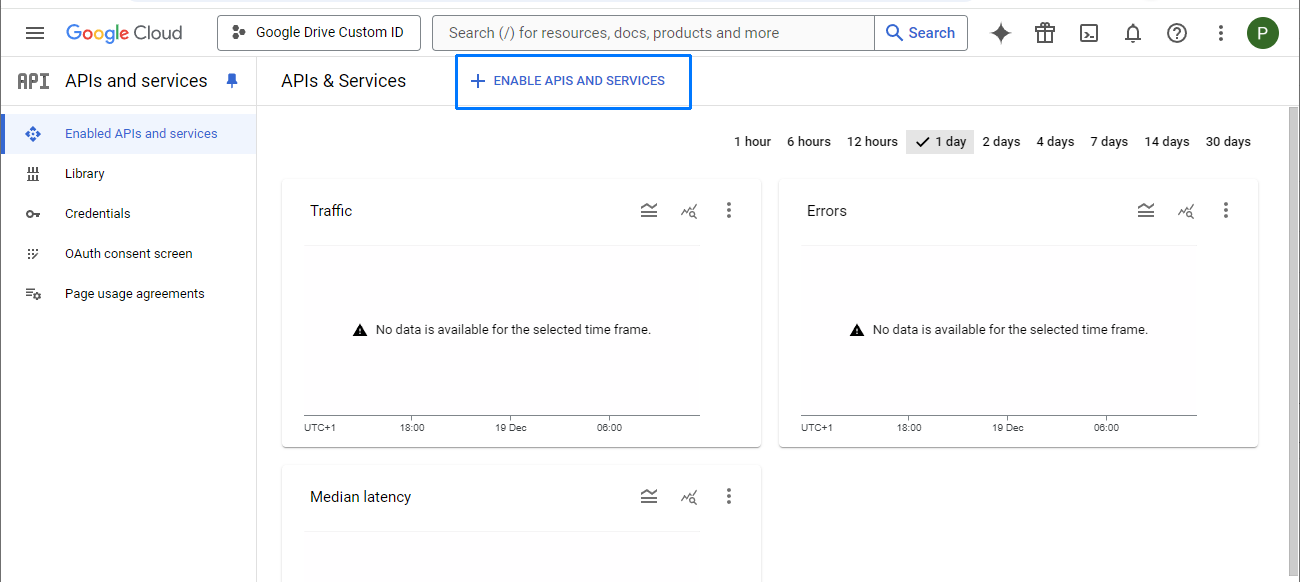
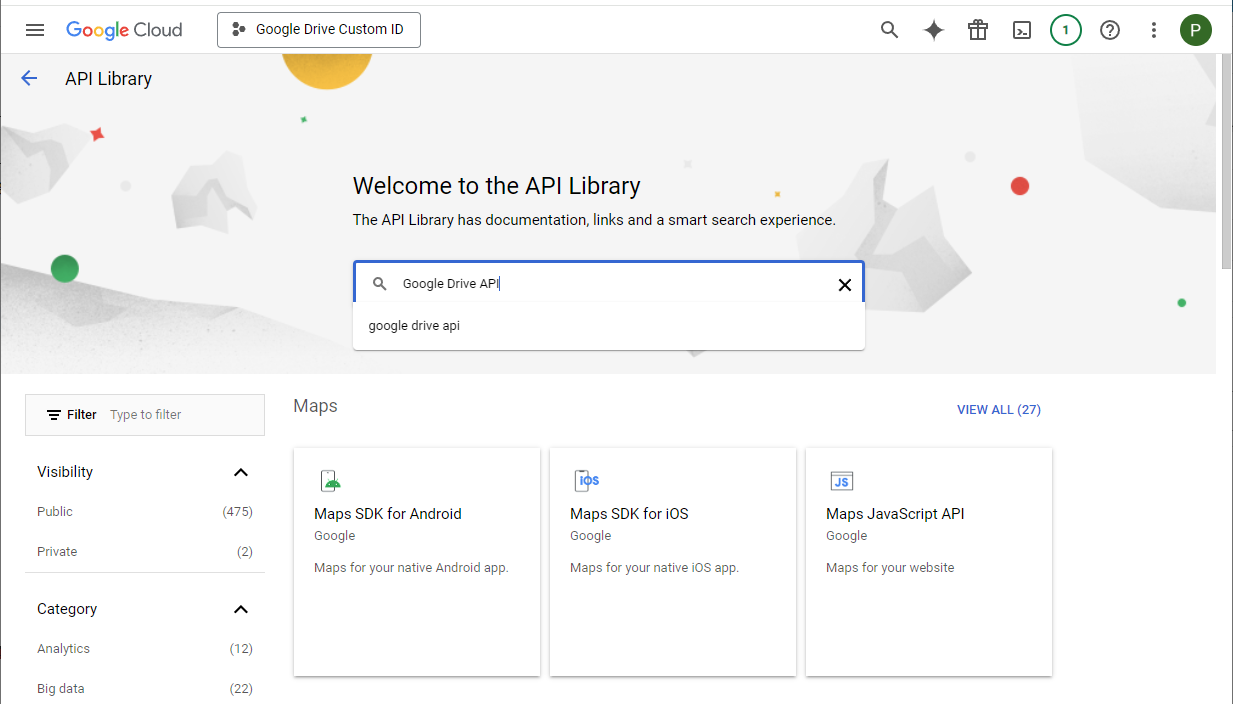
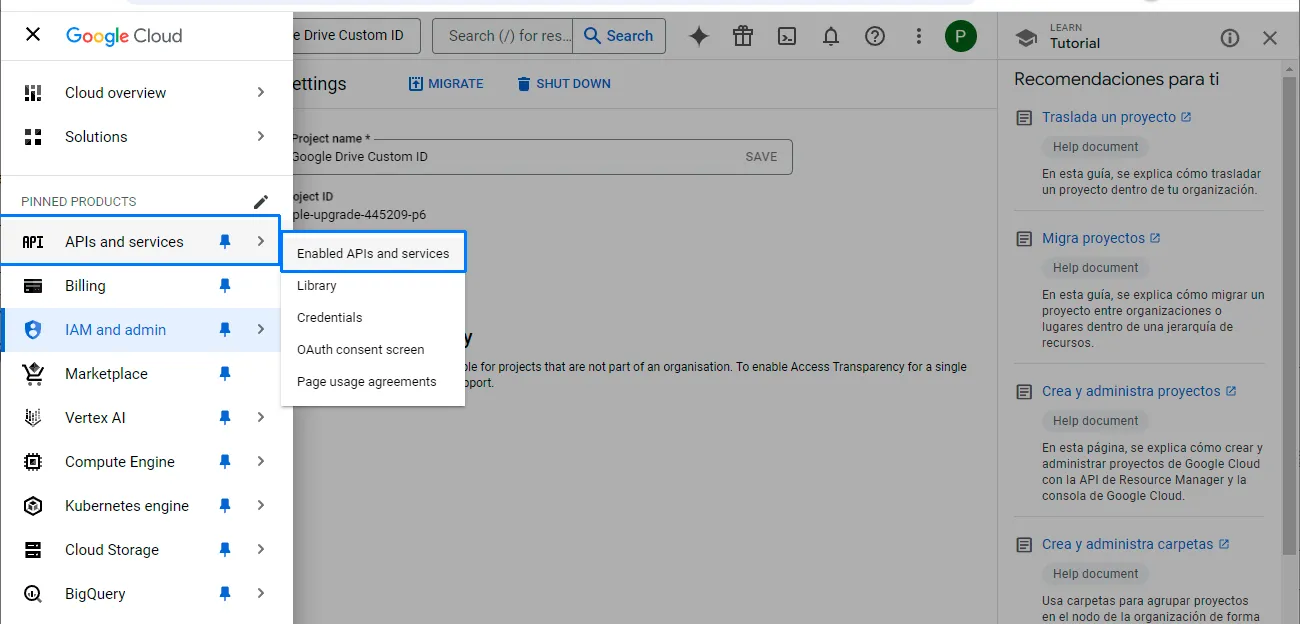
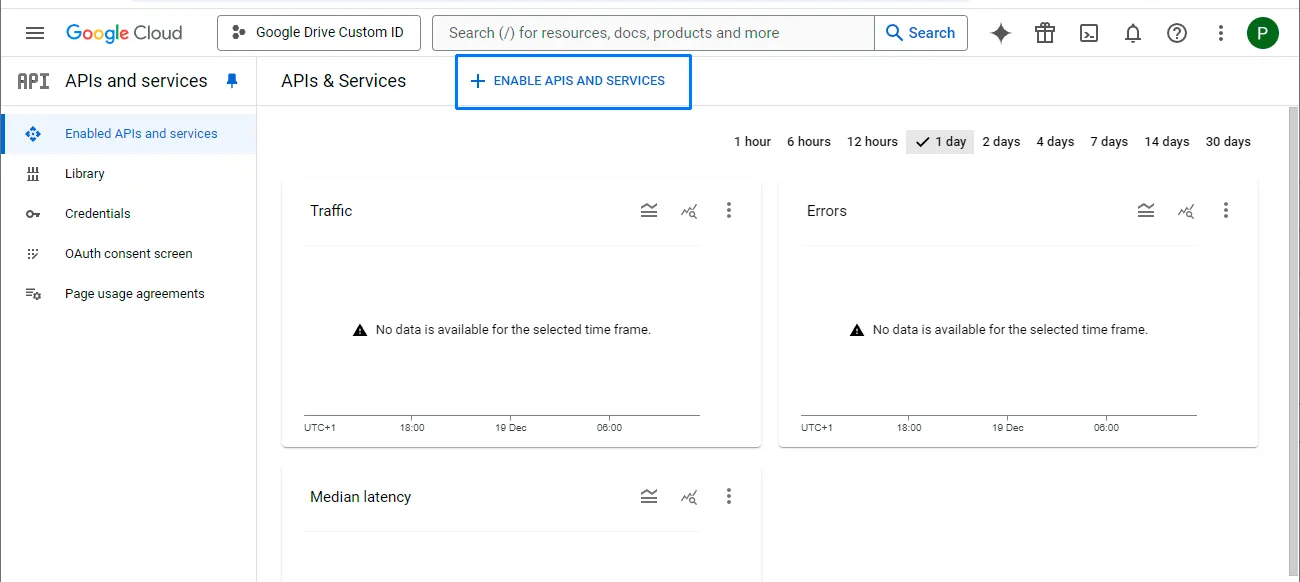
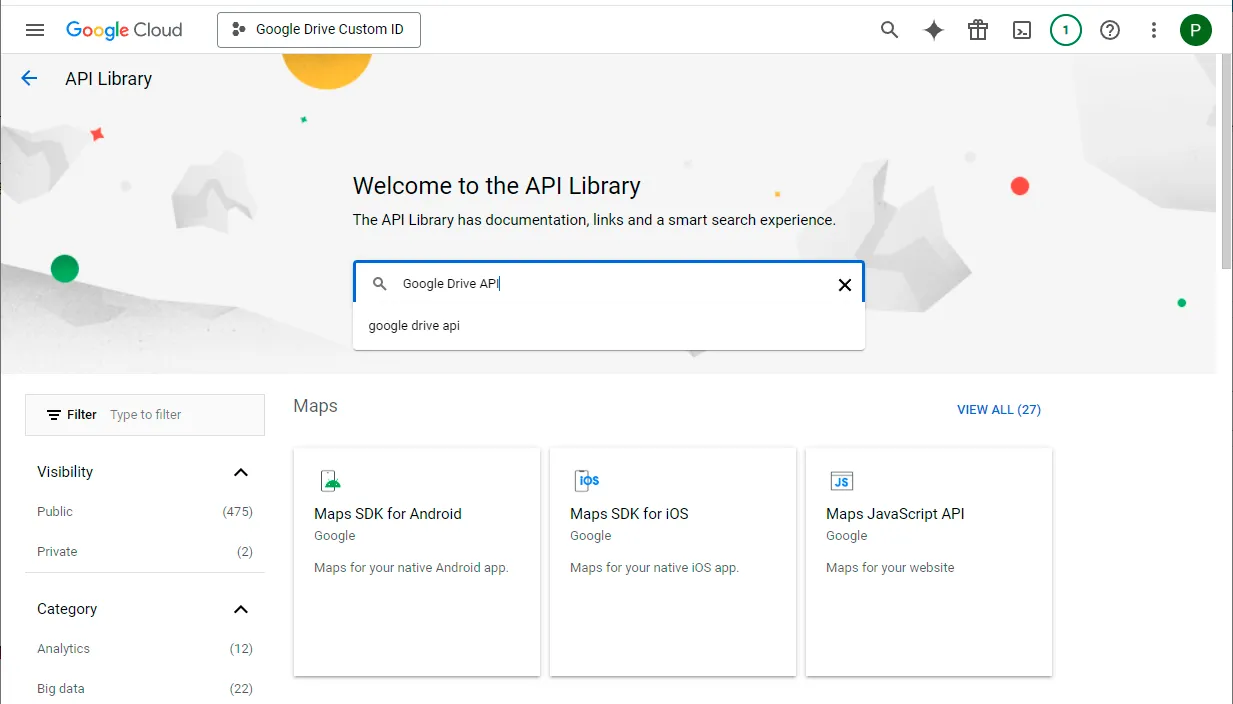
Open the main menu, go to APIs & Services, and choose Enabled APIs & services. Select Enable APIs and services.
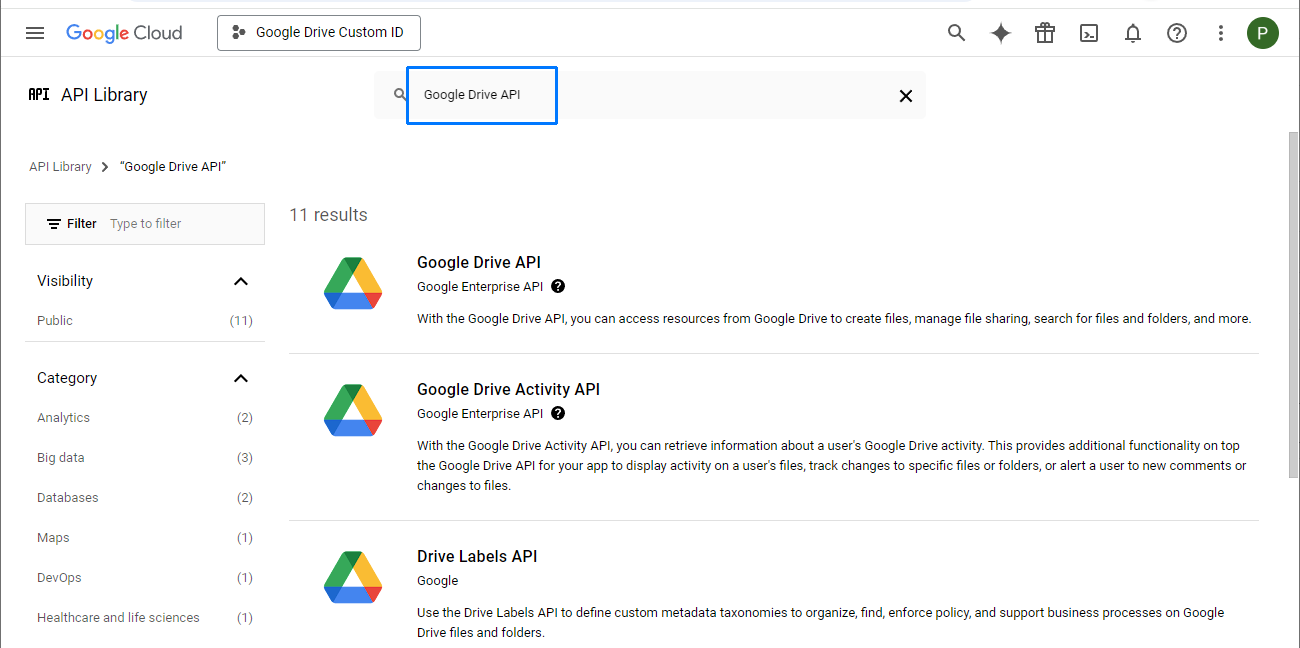
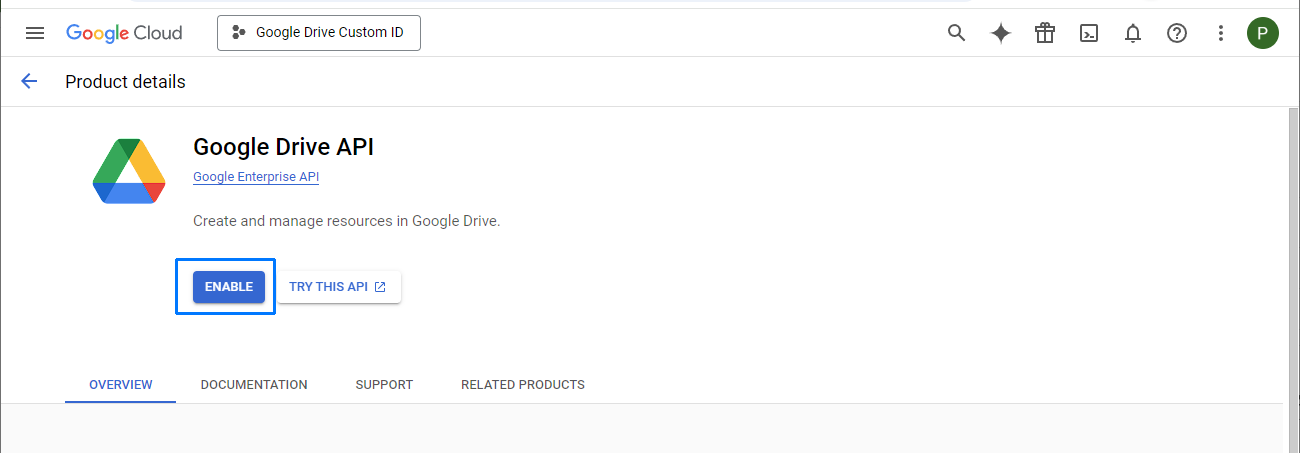
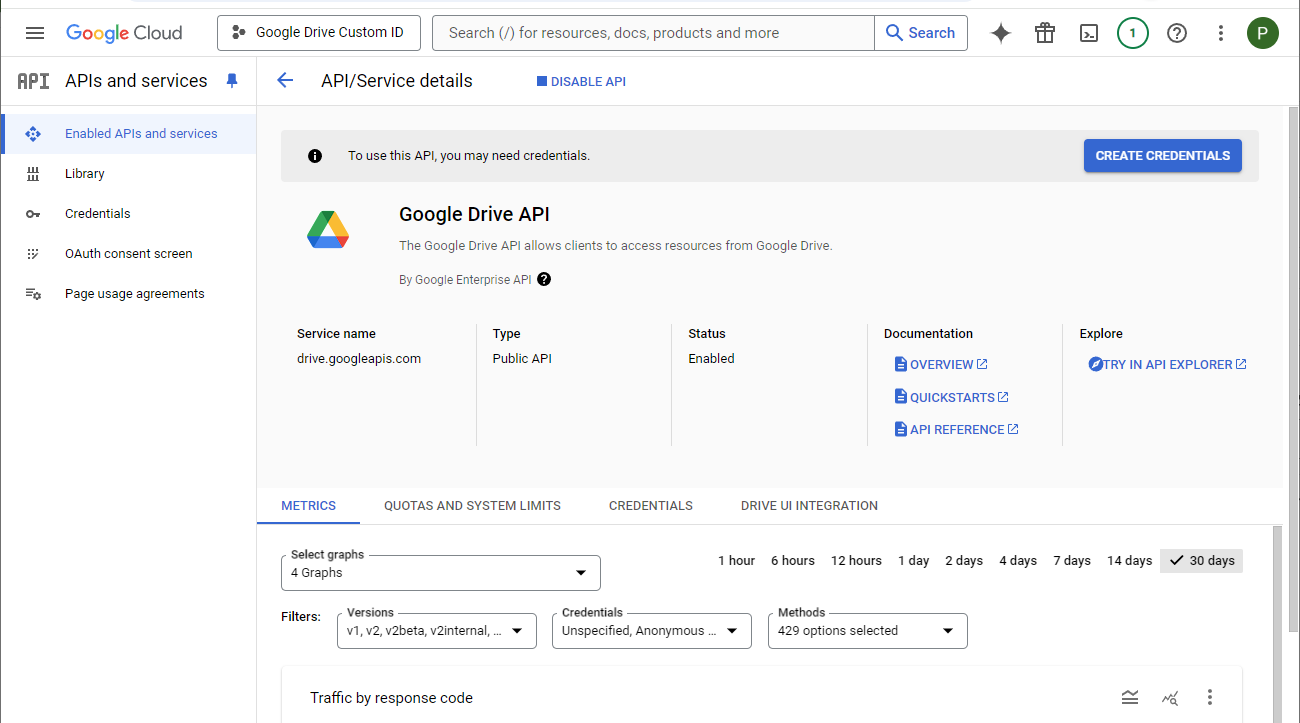
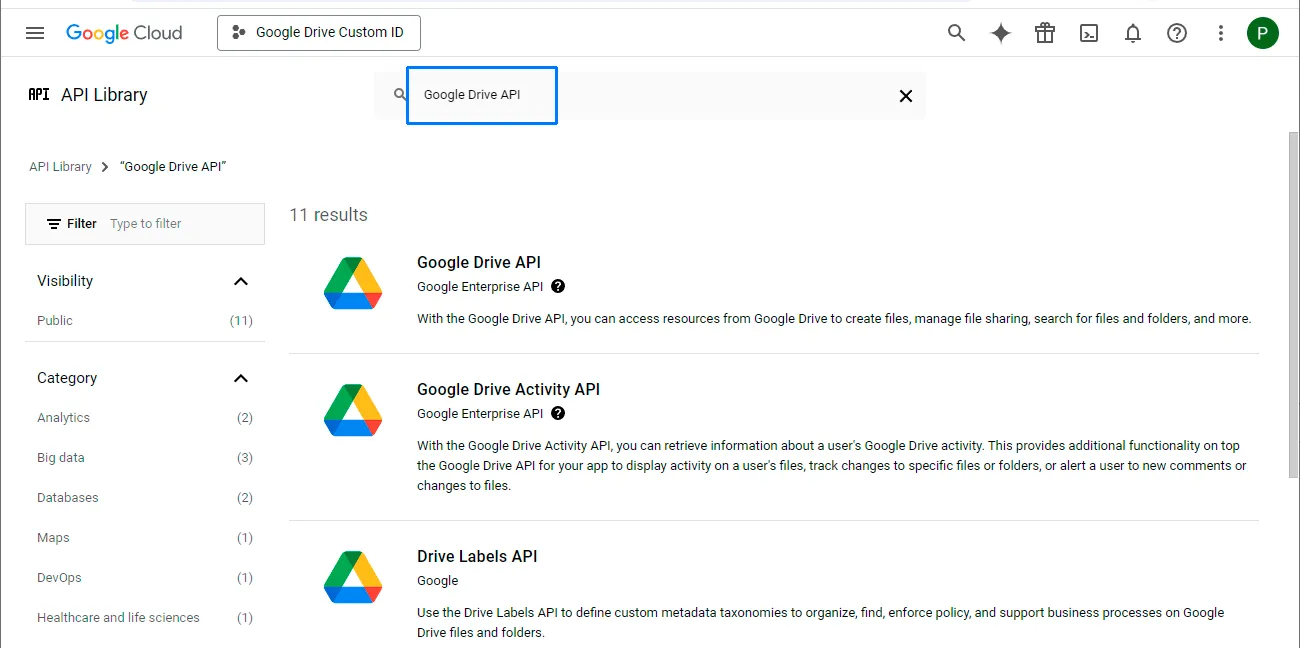
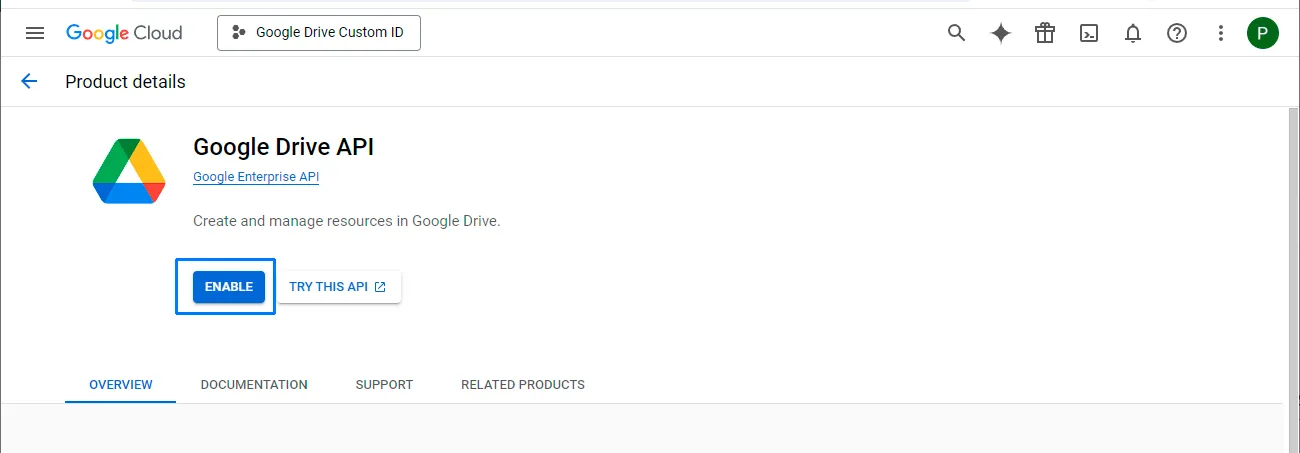
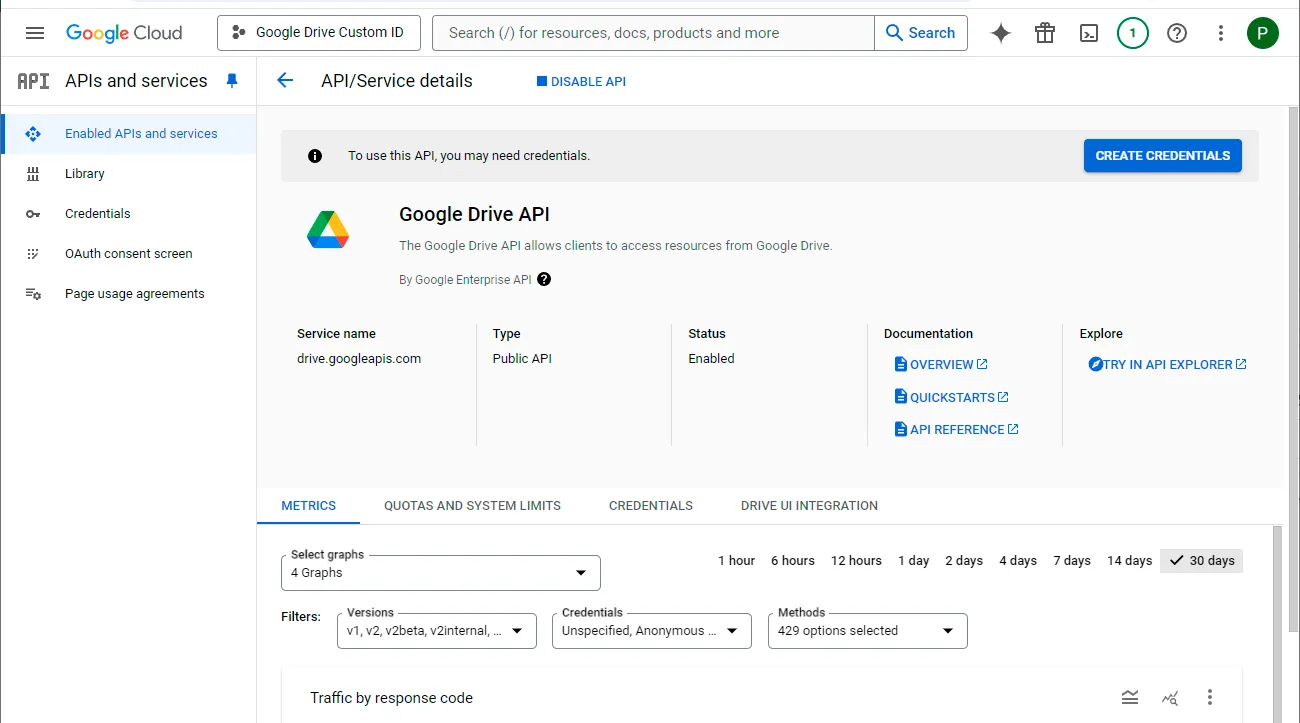
Search the API Library for “Google Drive API”, open its result, and select Enable.
-
Start the OAuth consent screen
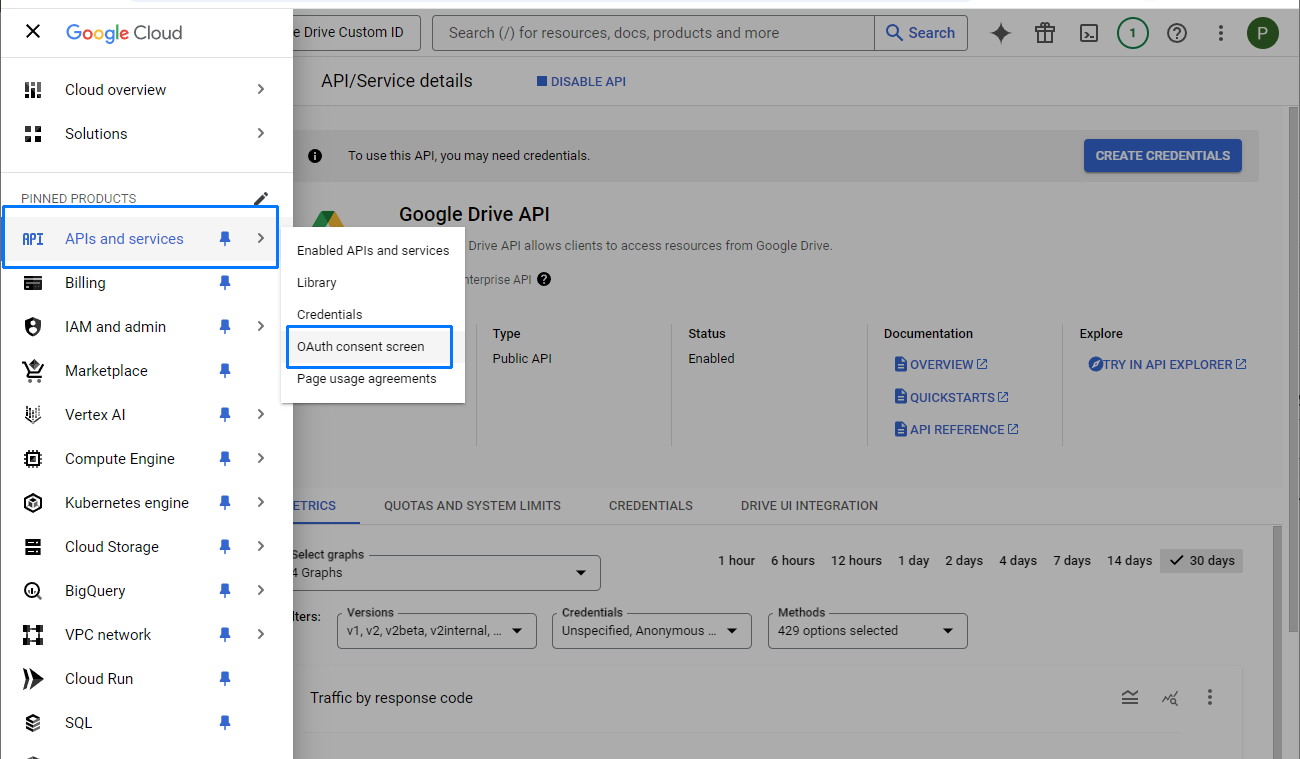
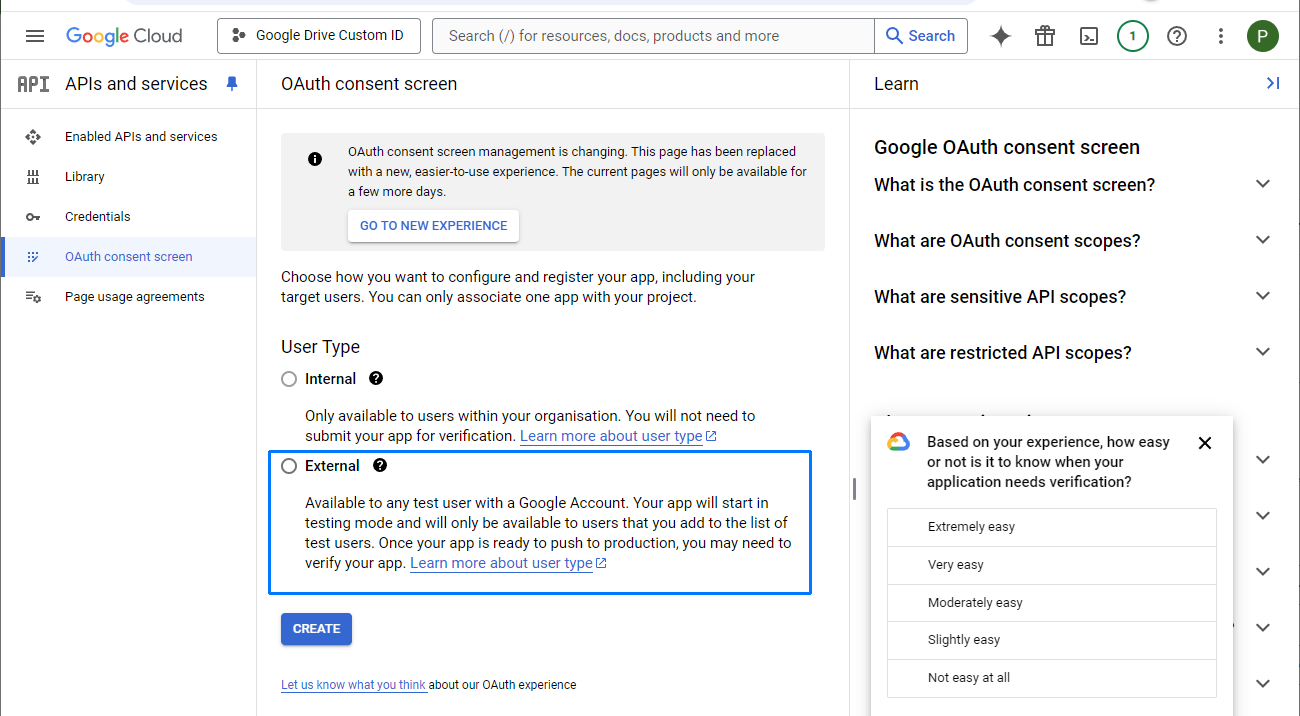
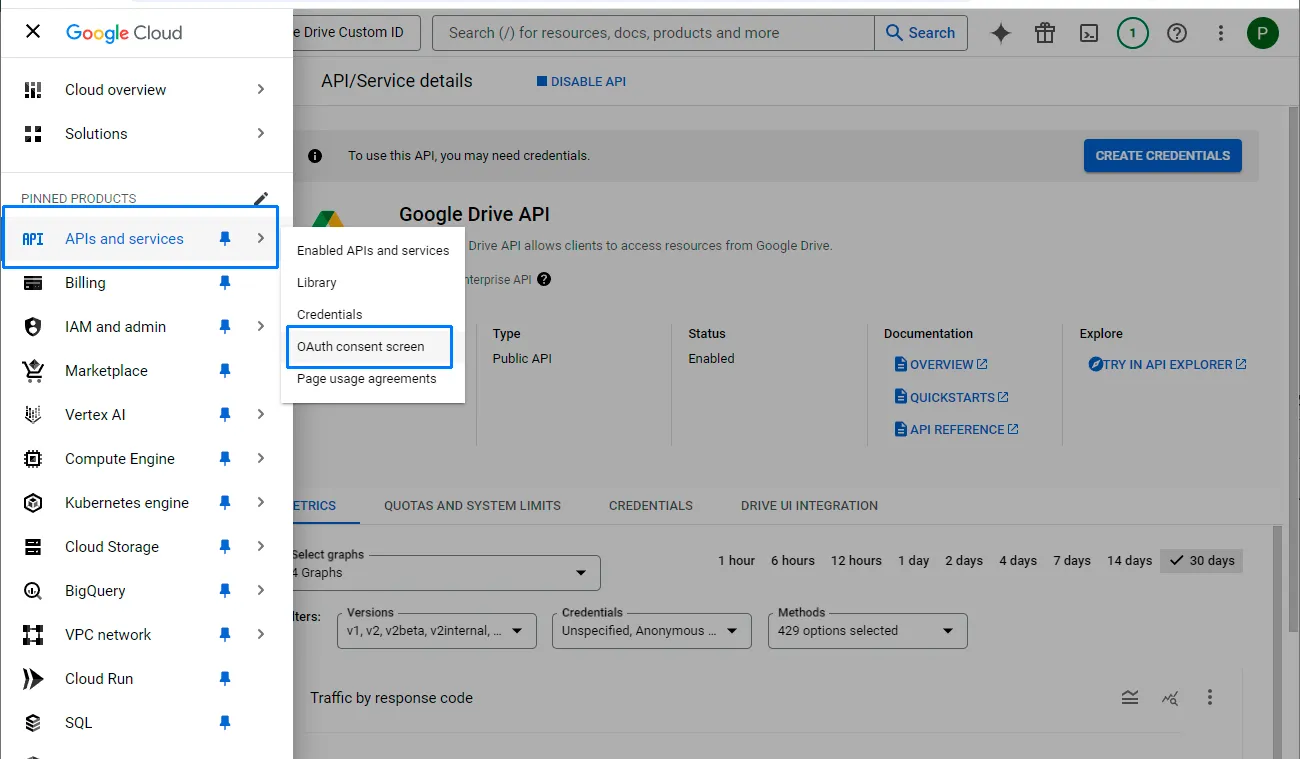
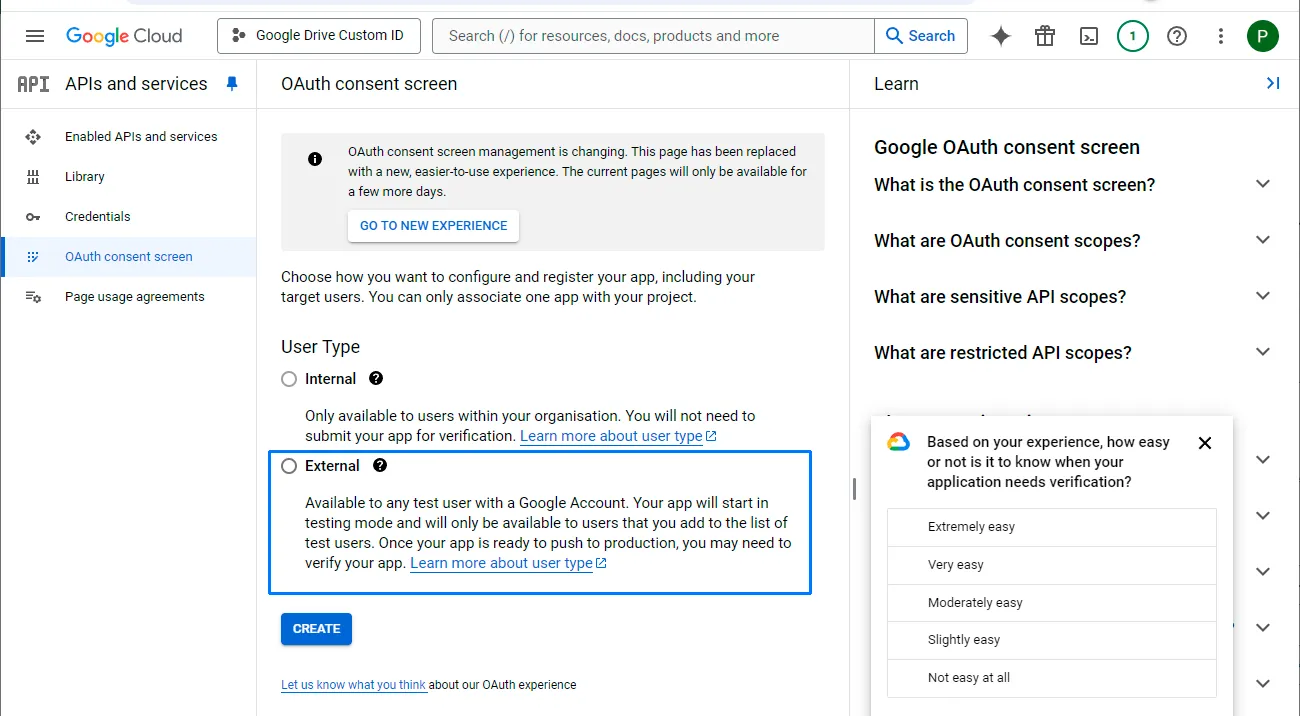
Under APIs & Services, open OAuth consent screen. Choose External and select Create. Choose Internal only if the client ID will be used within your organization.
-
Enter the application details
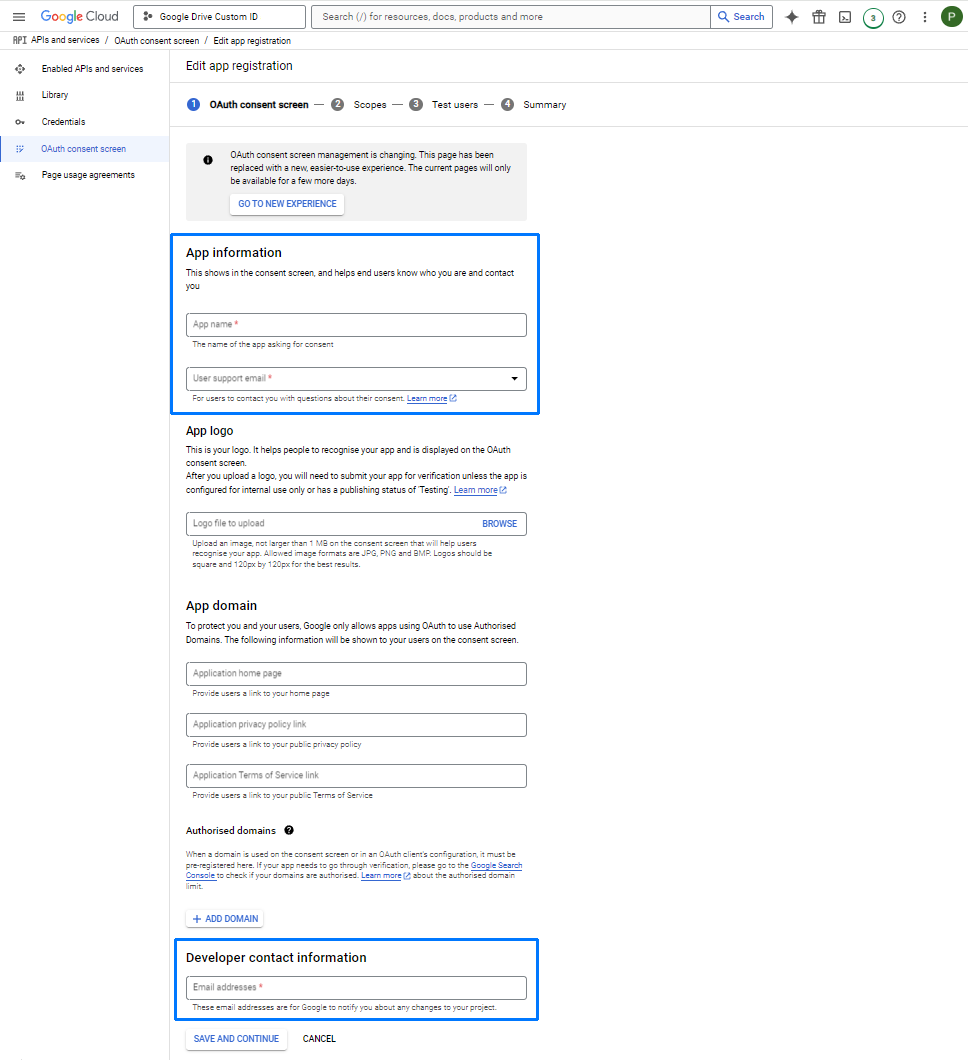
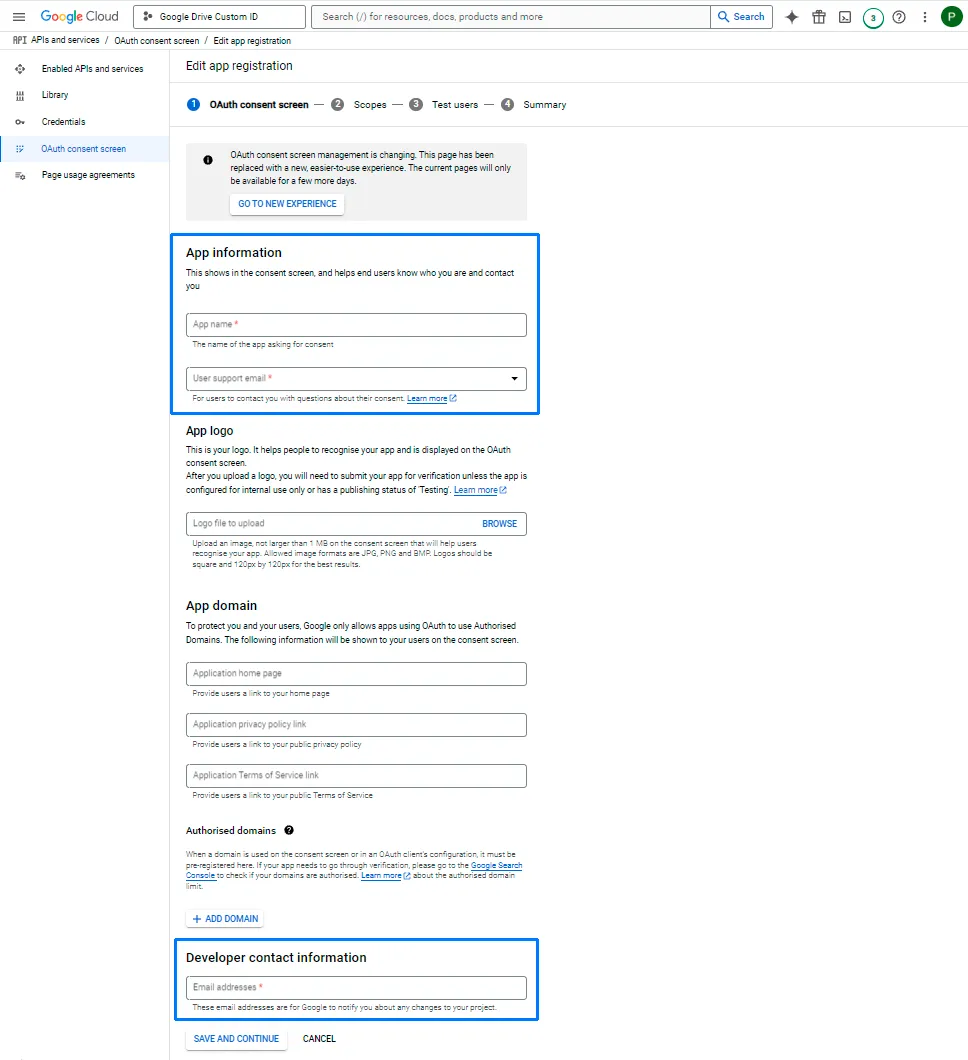
Enter an app name, such as “Google Drive Custom ID”. Add your email as the user support email and as the developer contact email, then select Save and continue.
-
Add the Google Drive permission
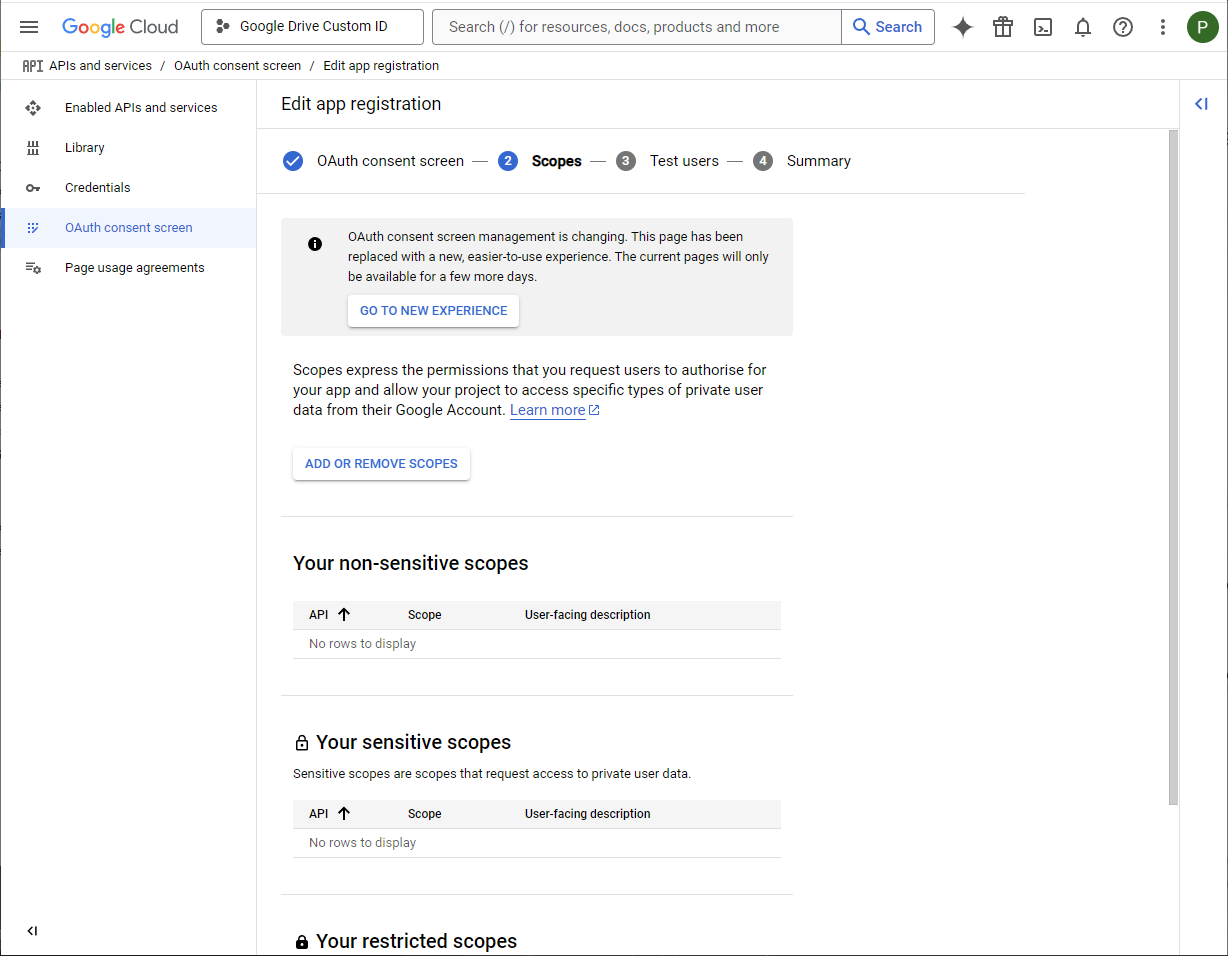
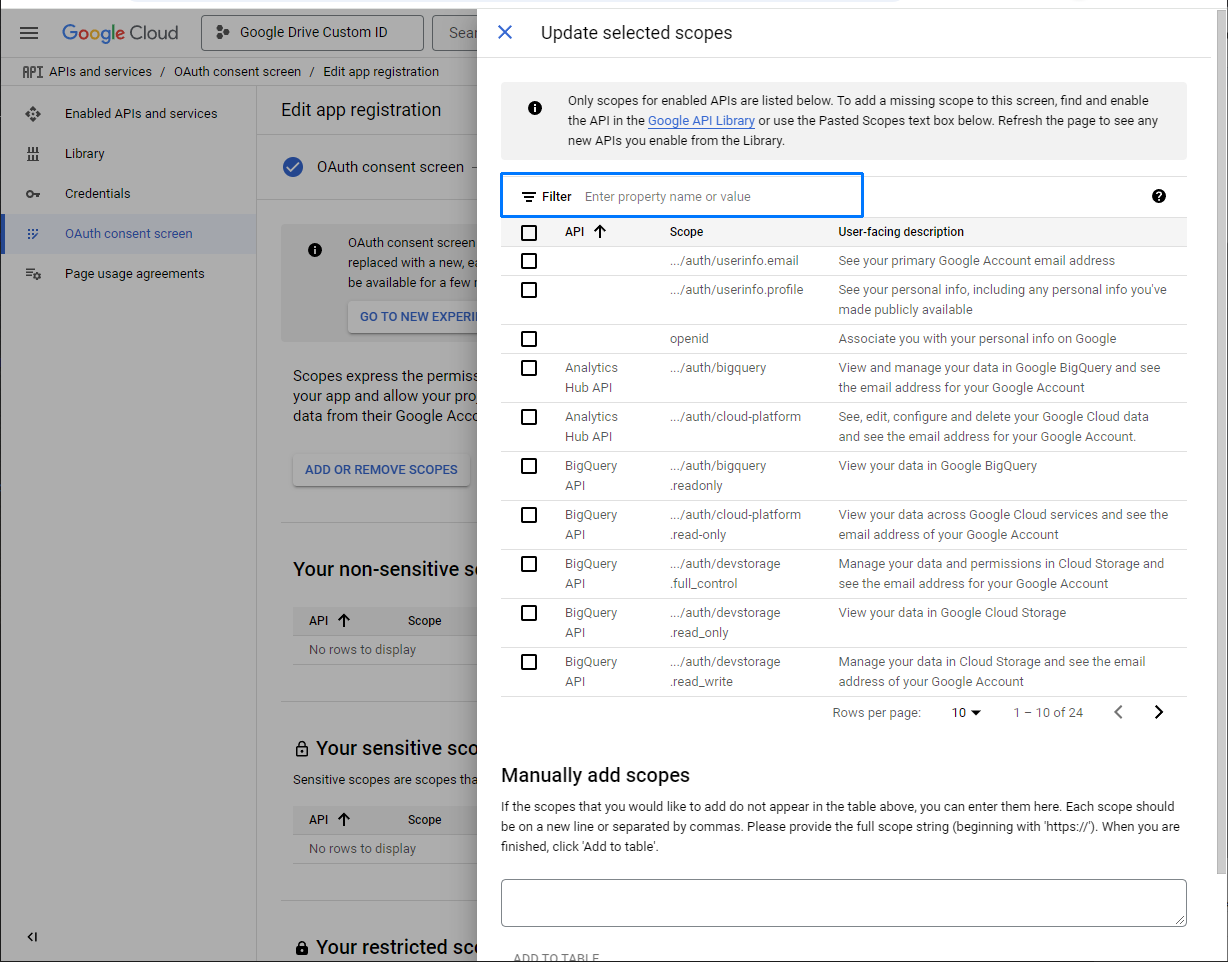
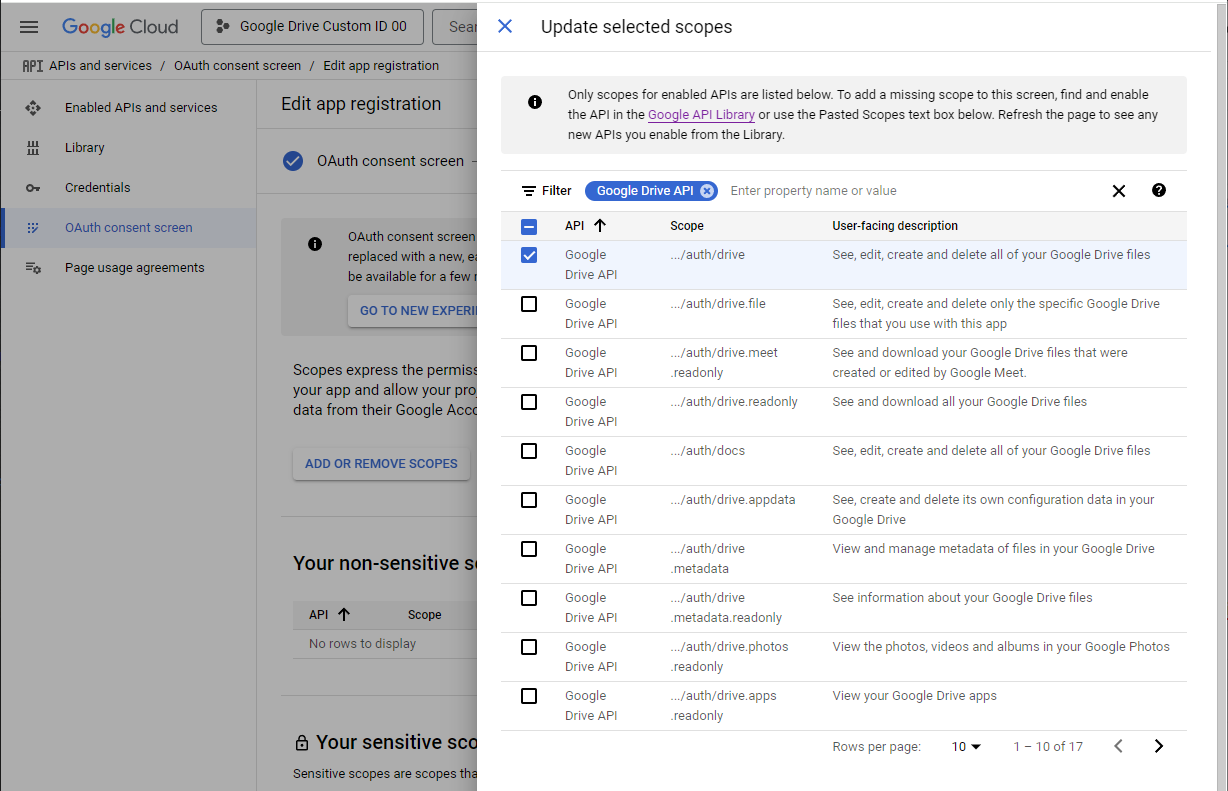
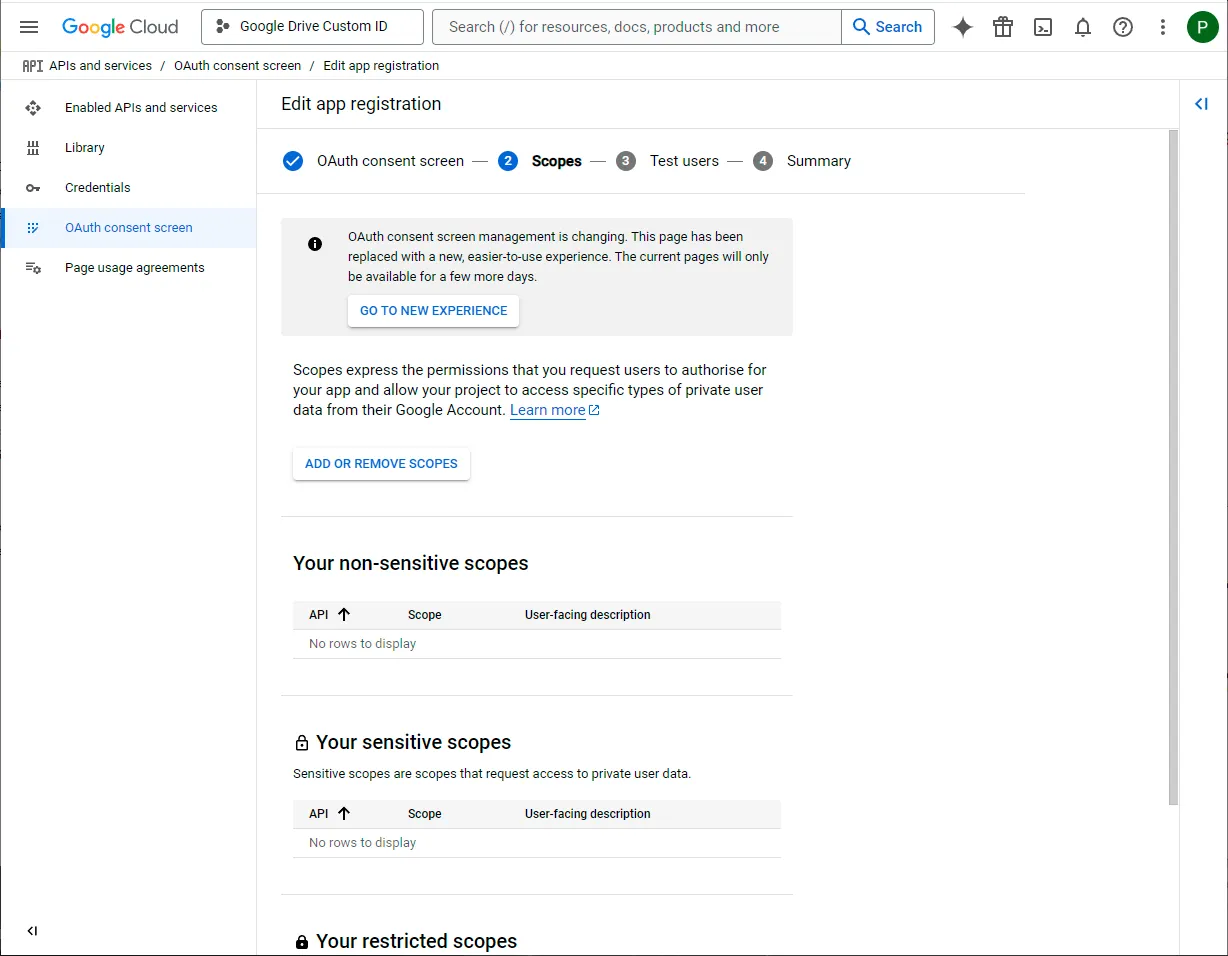
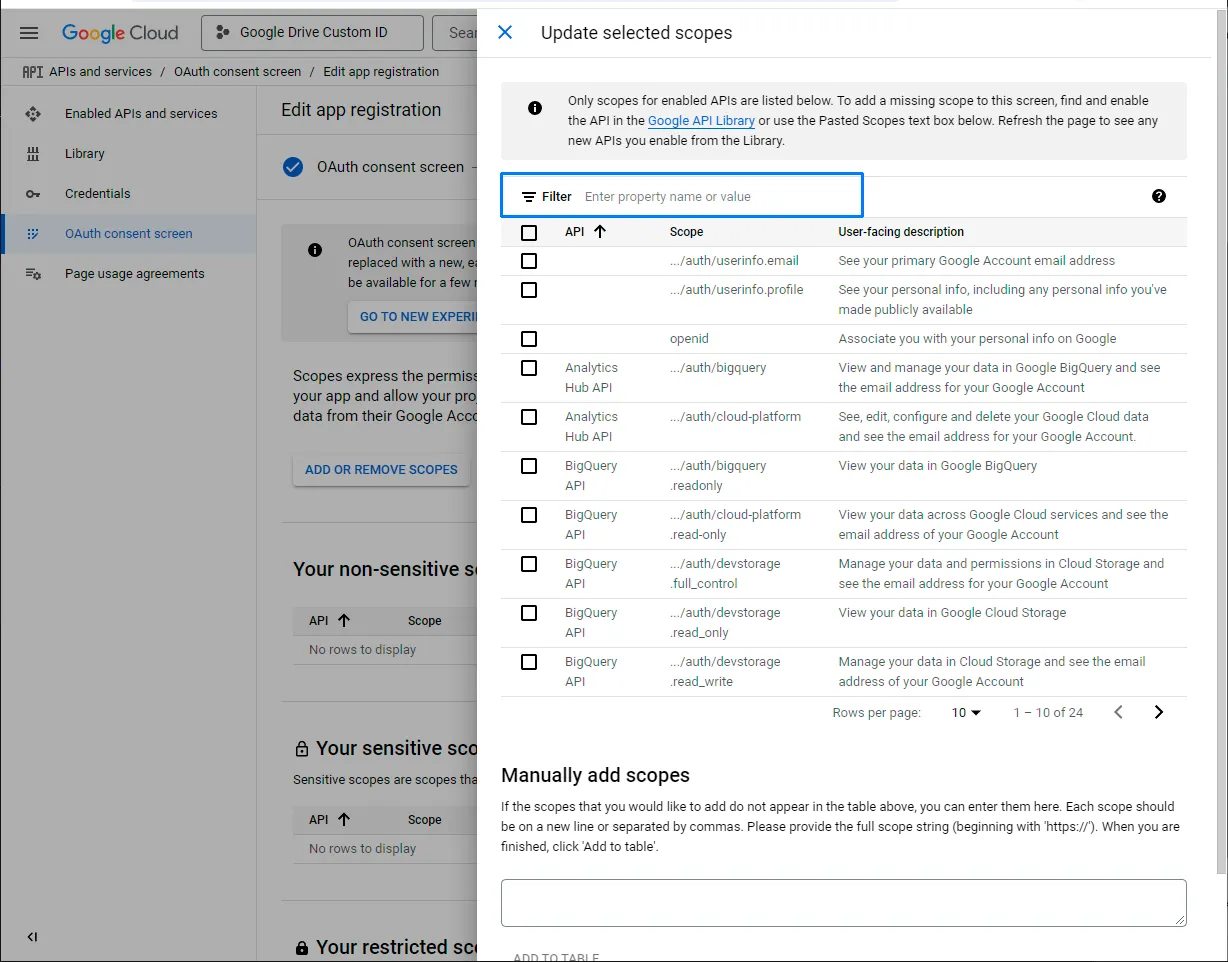
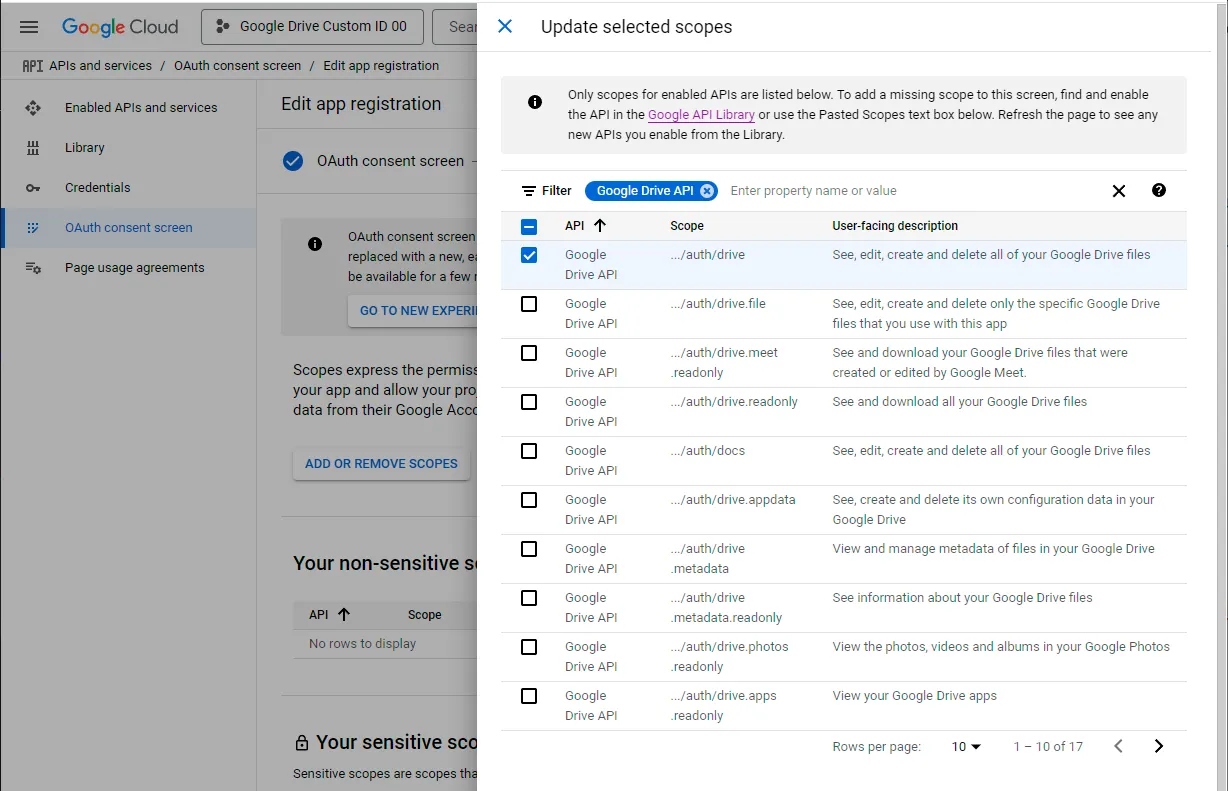
Select Add or remove scopes. Filter by Google Drive API, choose the …/auth/drive scope, and select Update.
Select Save at the bottom of the page.
-
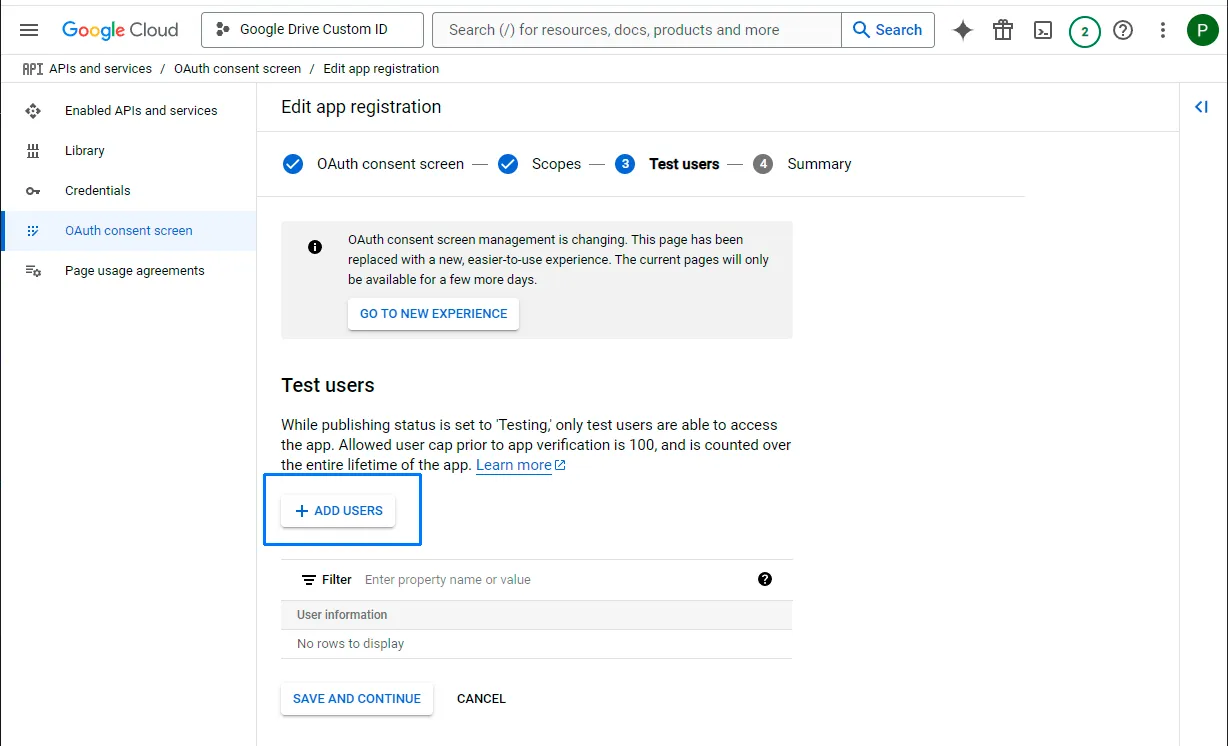
Add a test user
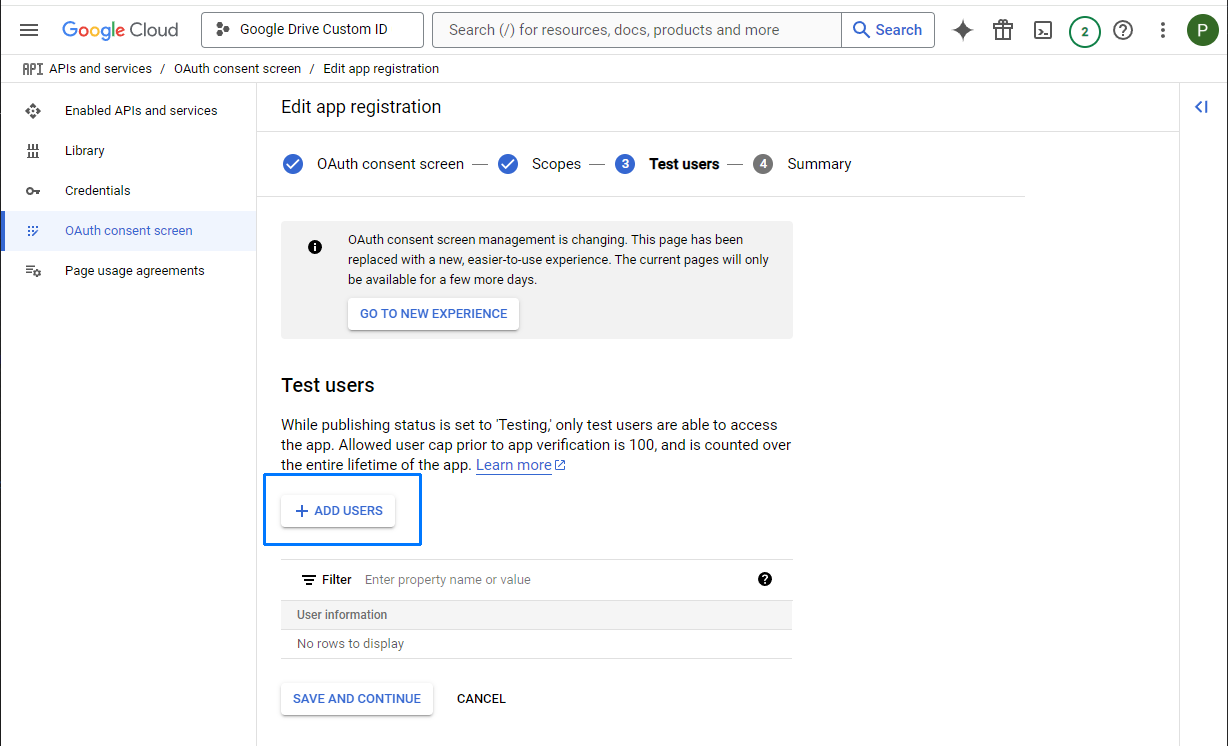
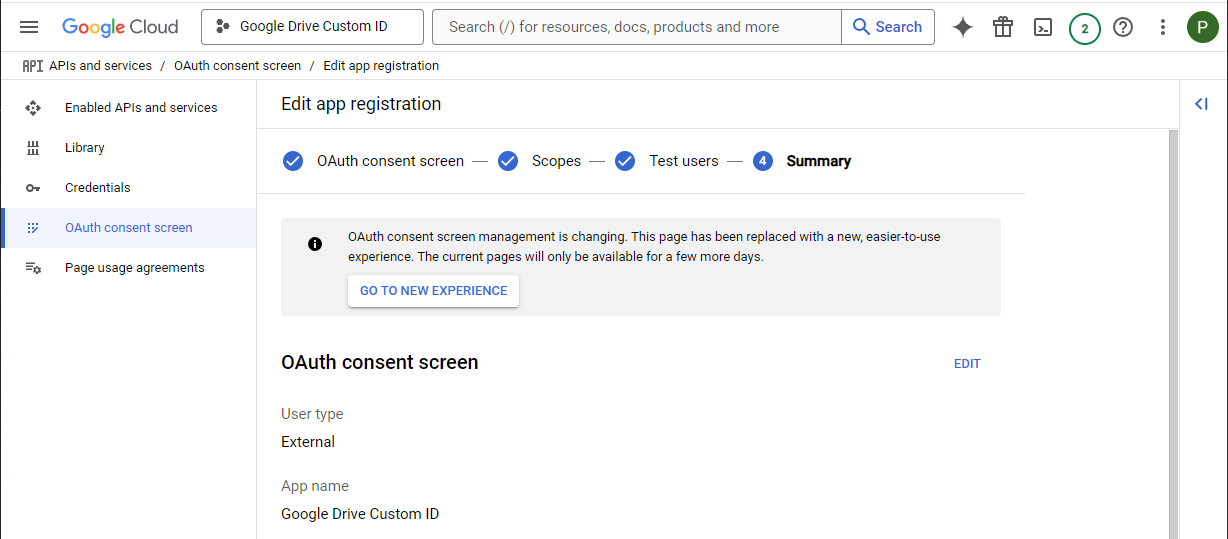
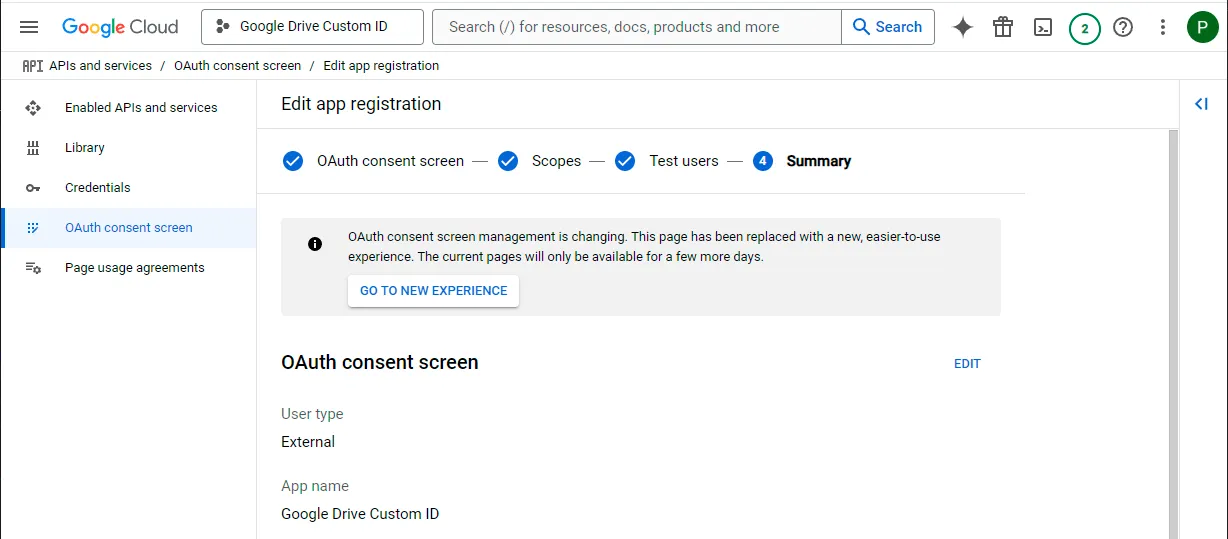
Add a test user on the consent screen. You can use your own Google account. Save and continue through the summary.
-
Create OAuth credentials
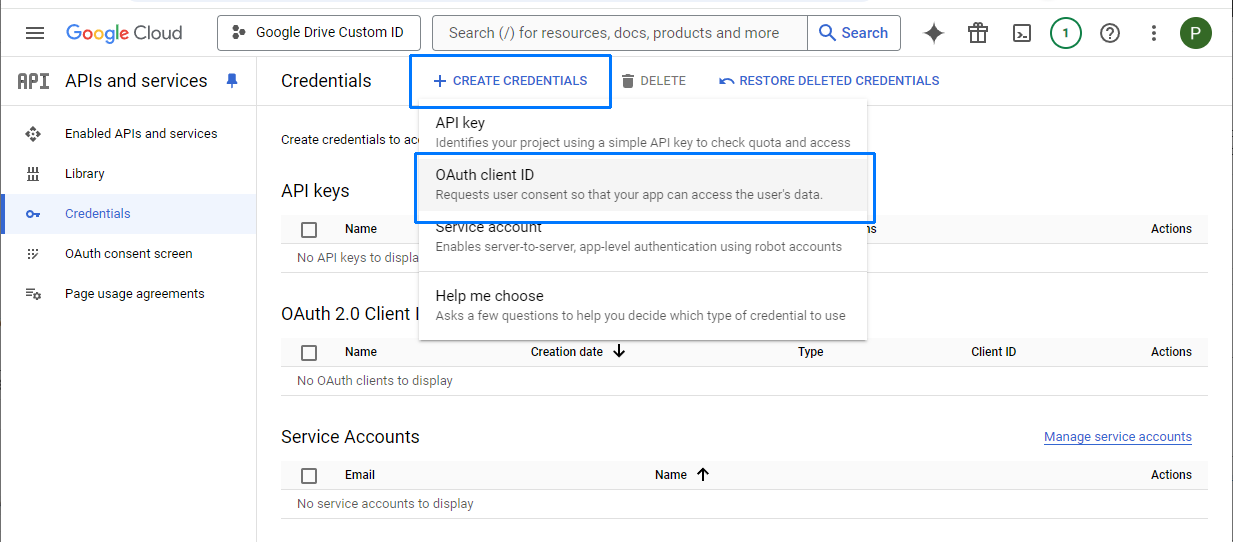
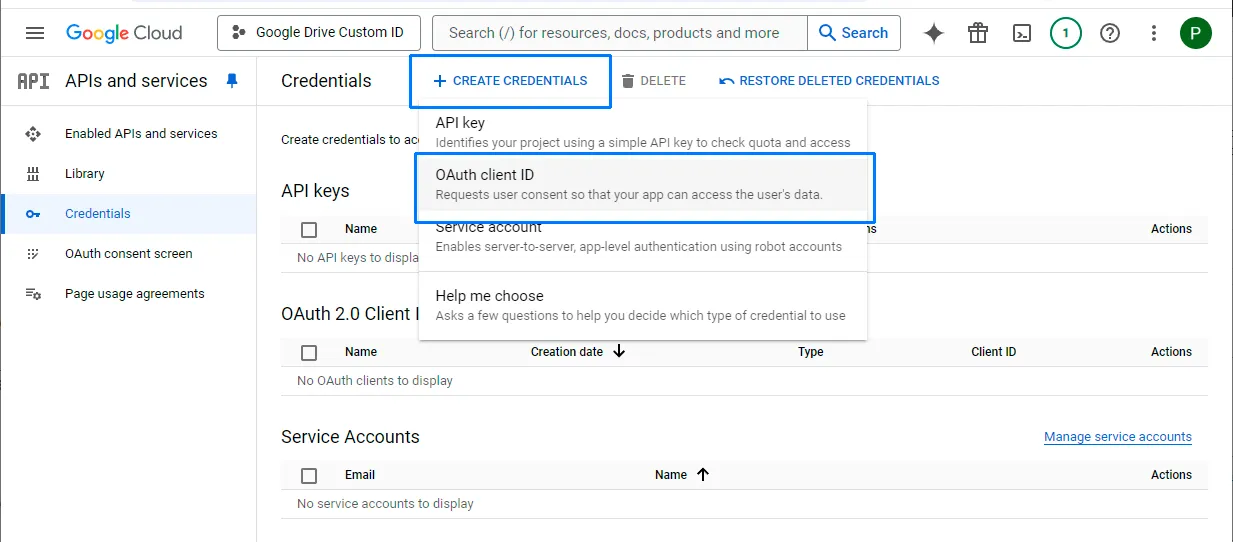
Open Credentials, select Create credentials, and then choose OAuth client ID.
-
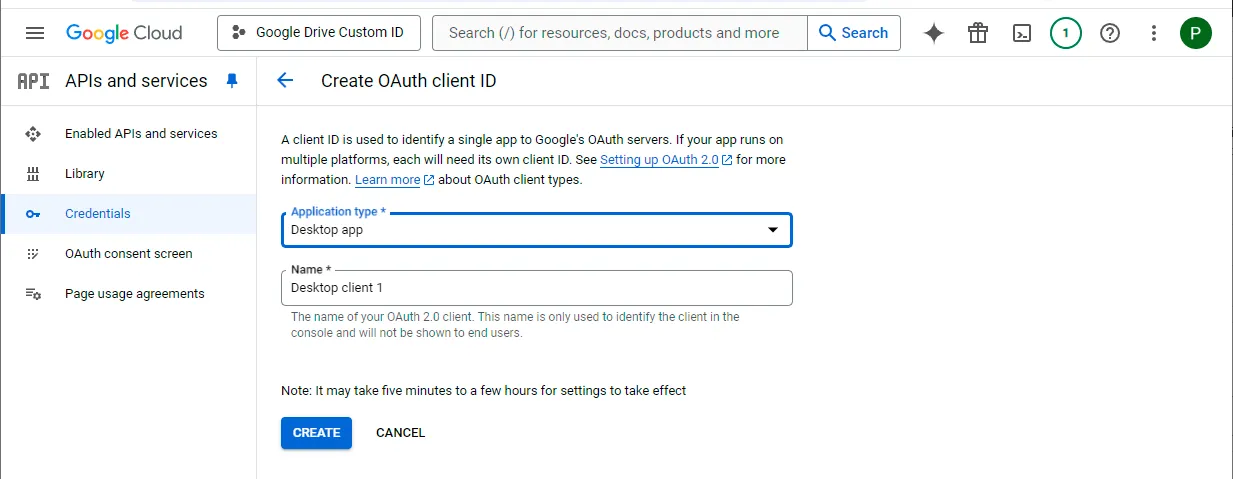
Select Desktop app
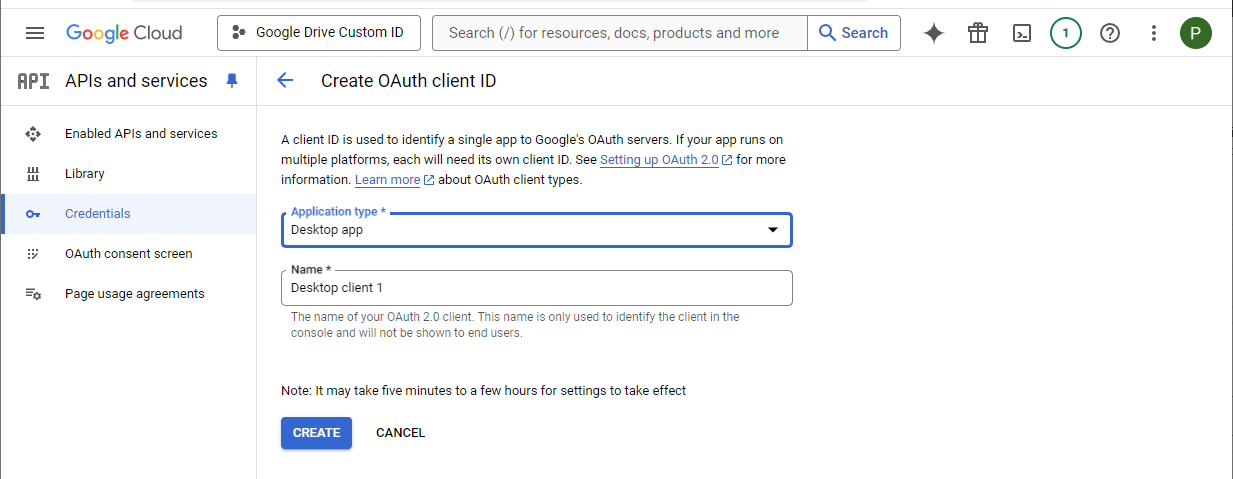
Set Application type to Desktop app and select Create. The suggested client name can be left as it is.
-
Save the client ID and secret
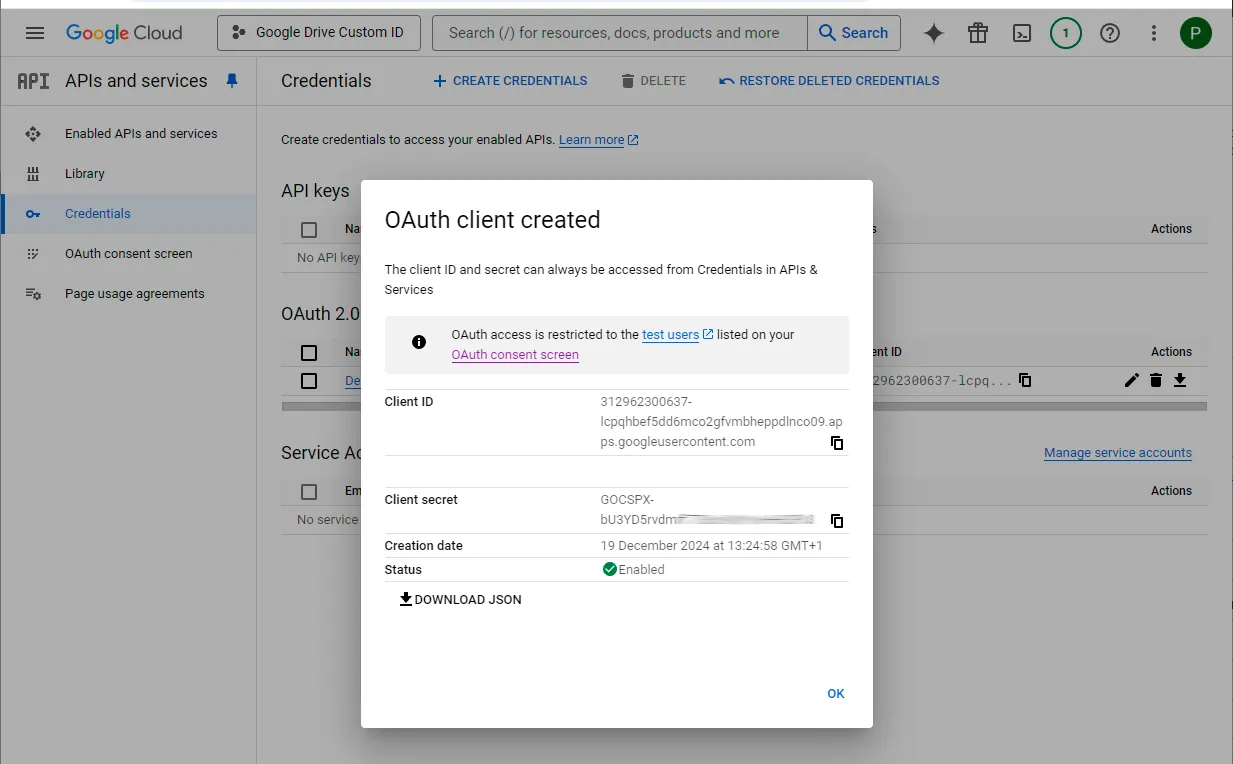
Google Cloud displays a client ID and a client secret. Keep both values available; you will enter them in Mipony.
-
Publish the app
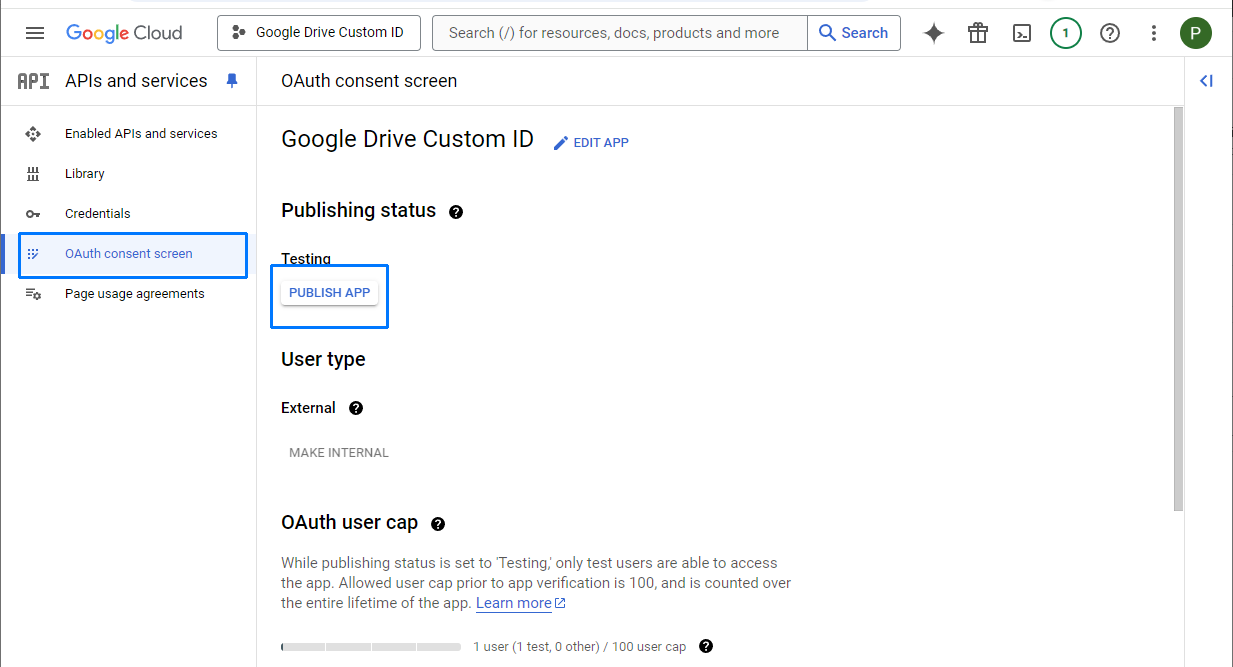
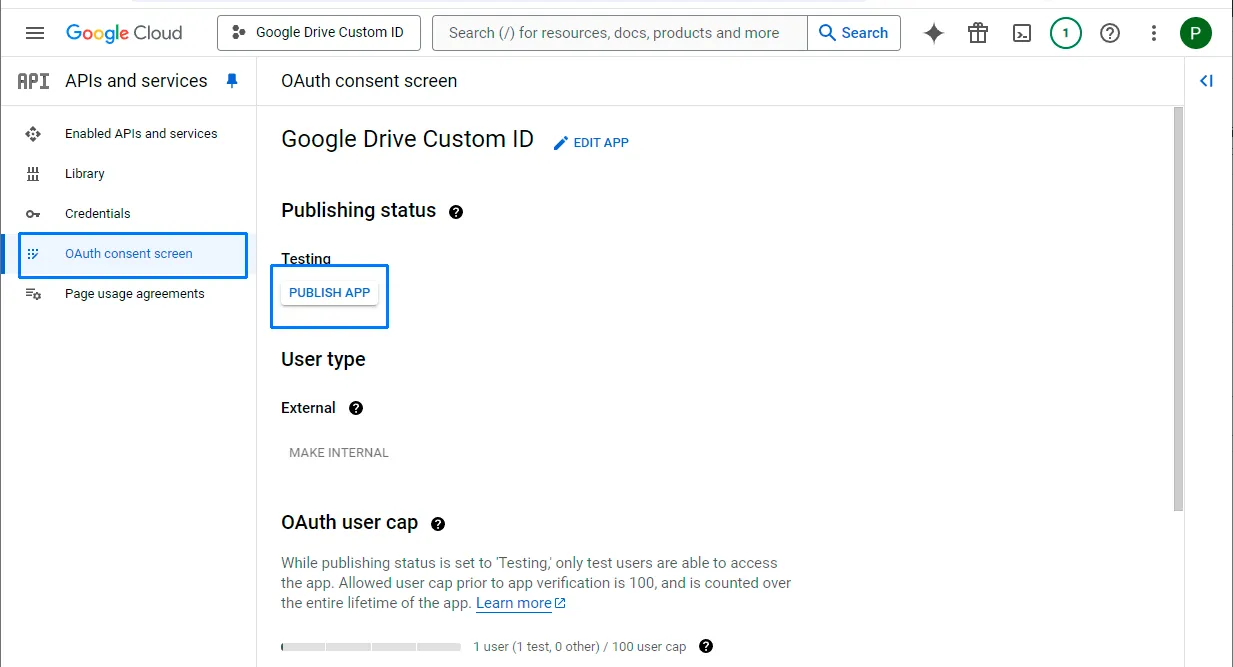
Return to OAuth consent screen, select Publish app, and confirm. You do not need to submit the app for verification to use your own client ID and secret in Mipony.
-
Connect Google Drive in Mipony
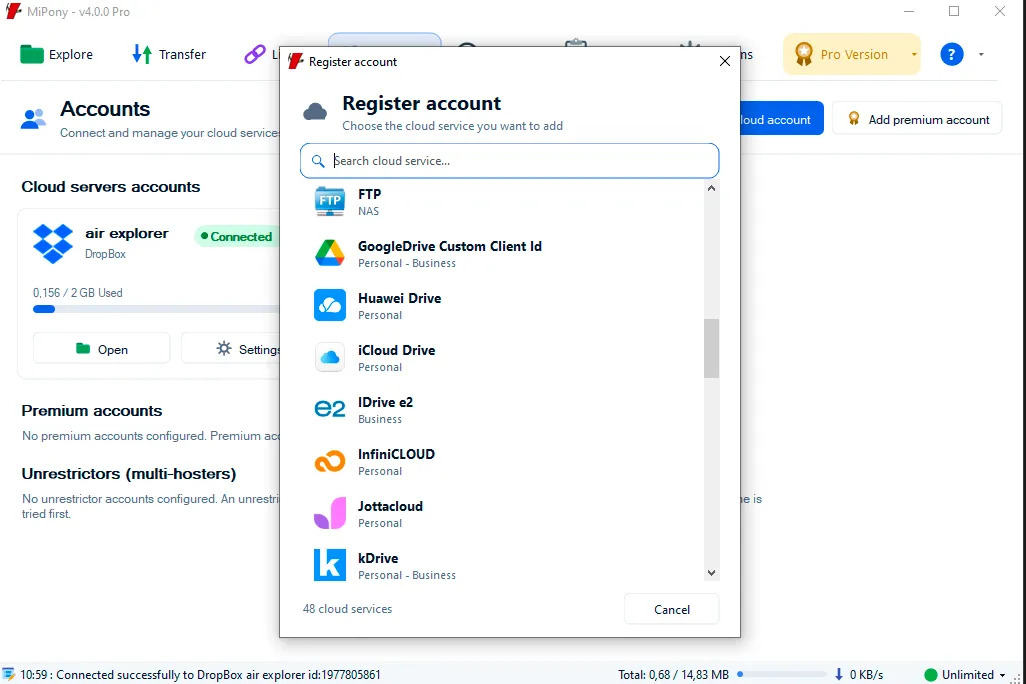
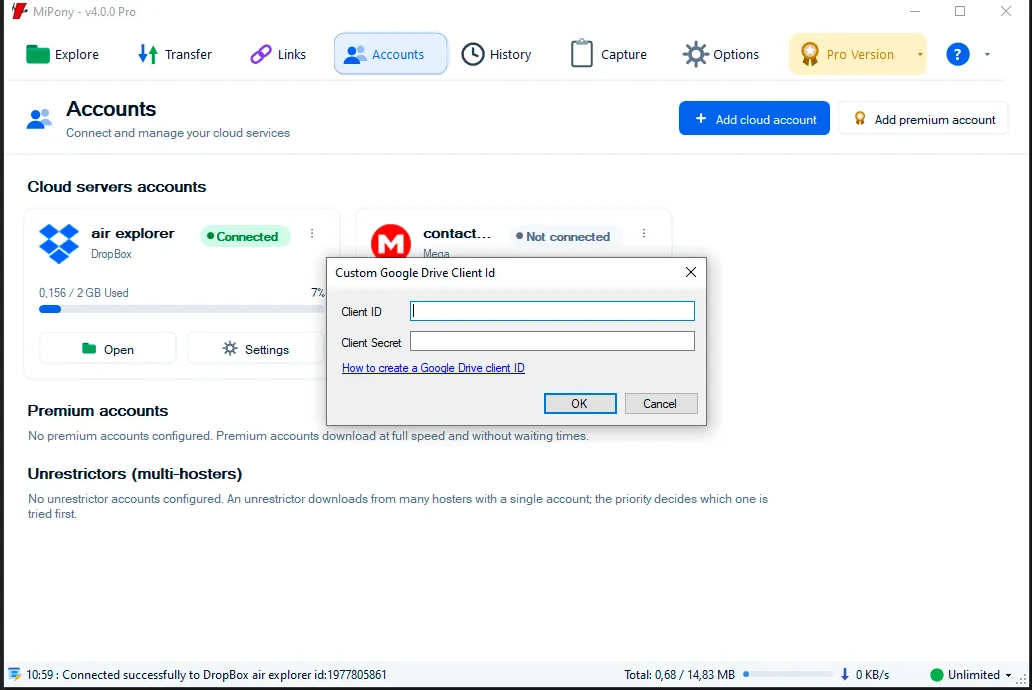
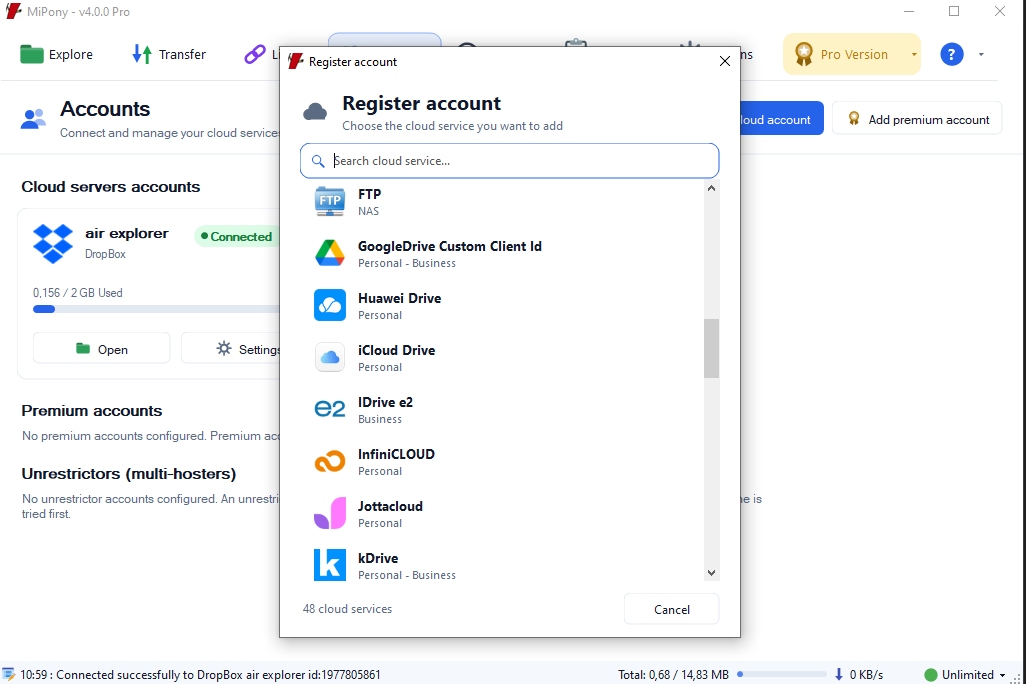
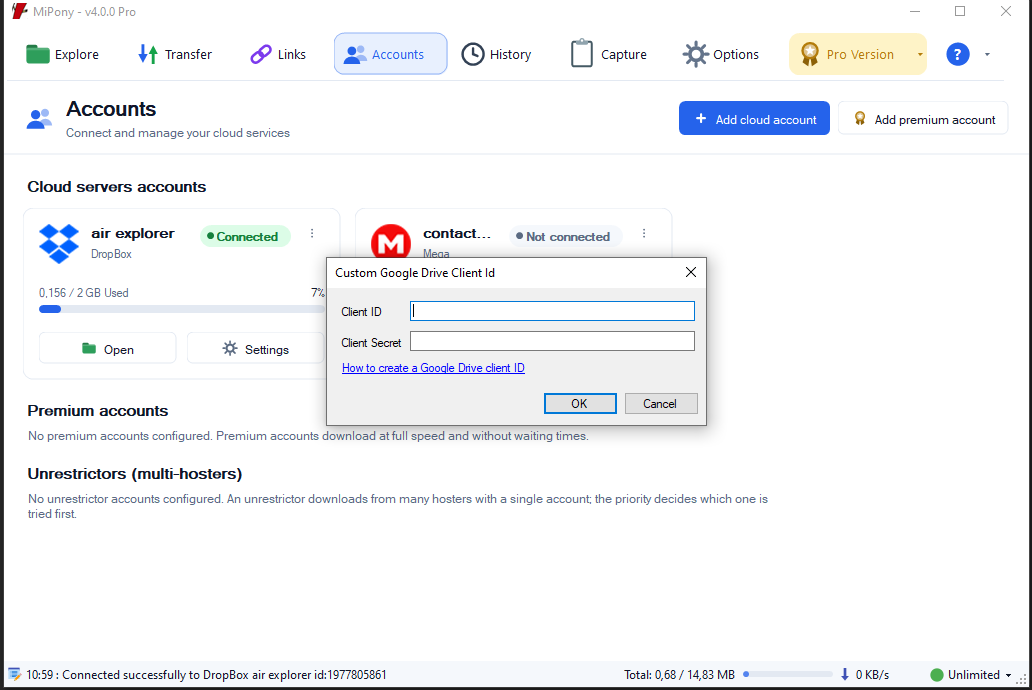
In Mipony, open Accounts, add a cloud account, and choose GoogleDrive Custom Client Id. Enter the client ID and client secret you saved.
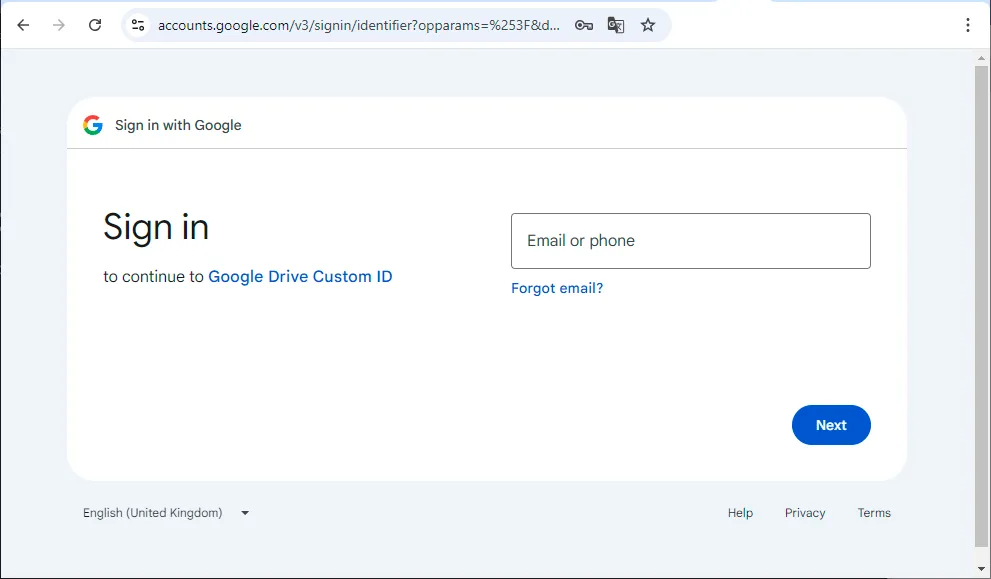
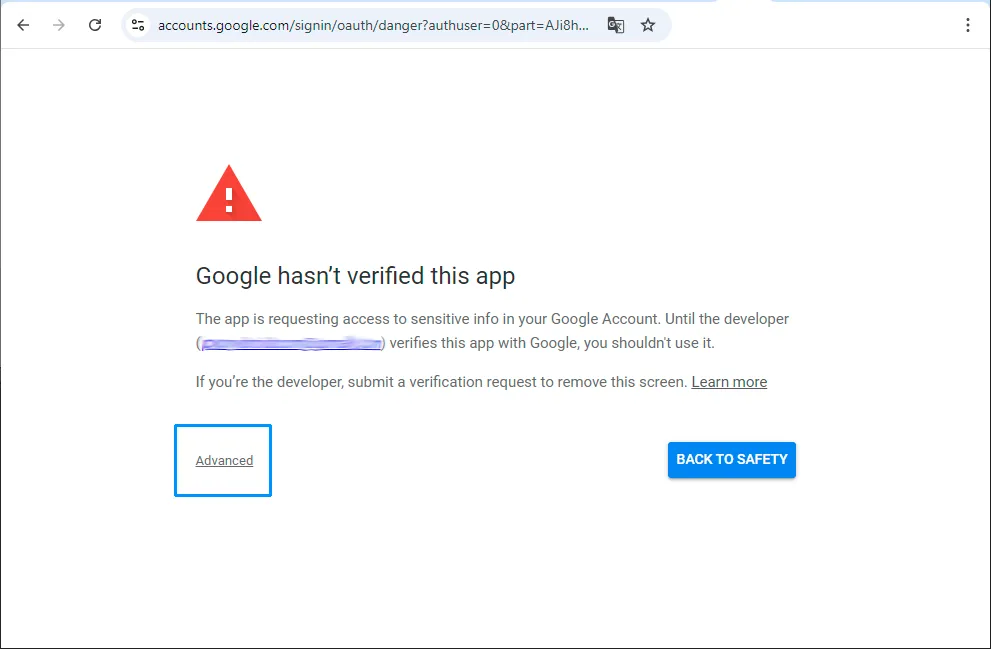
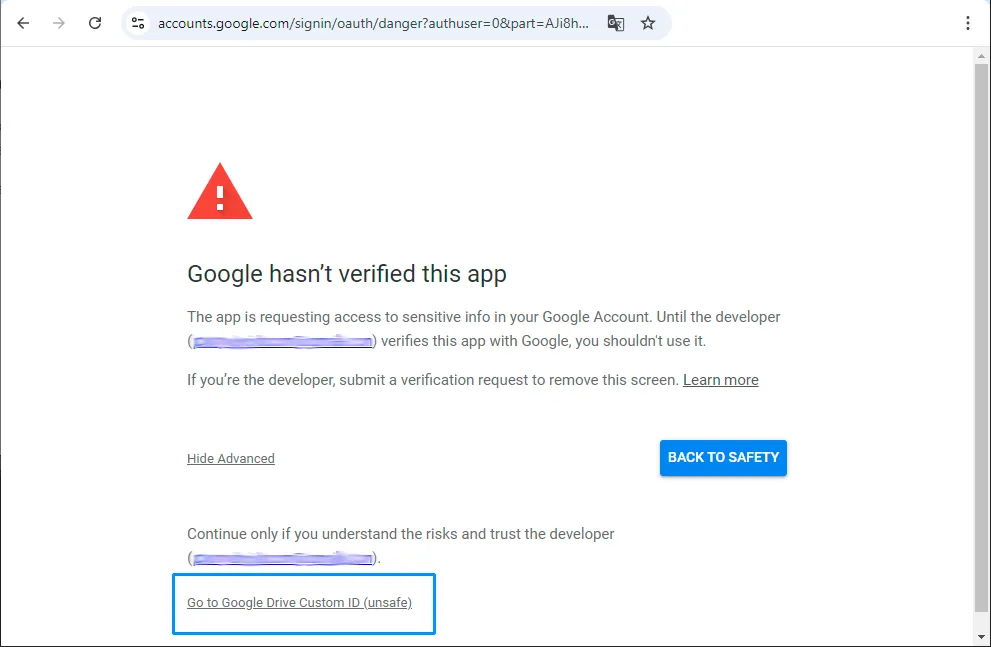
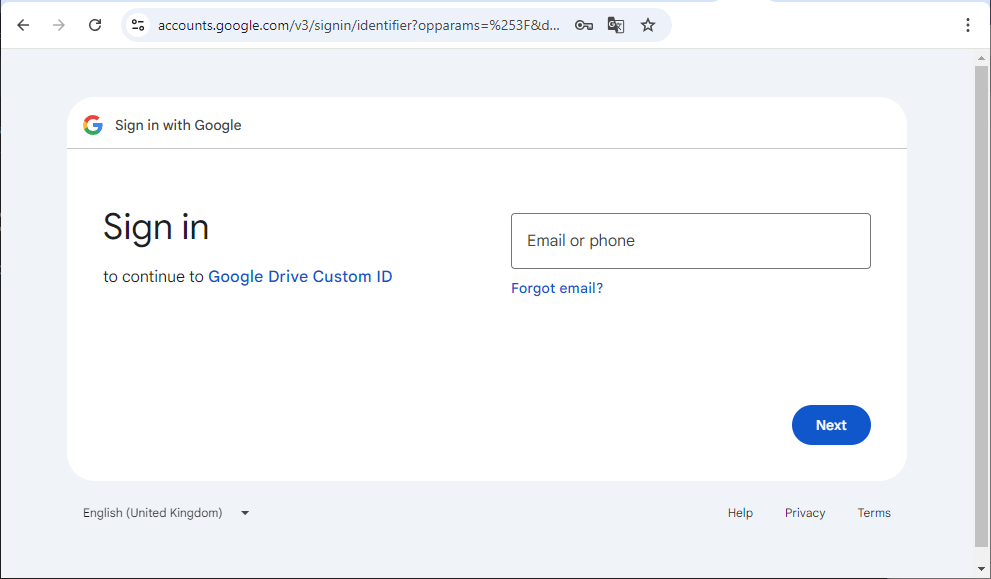
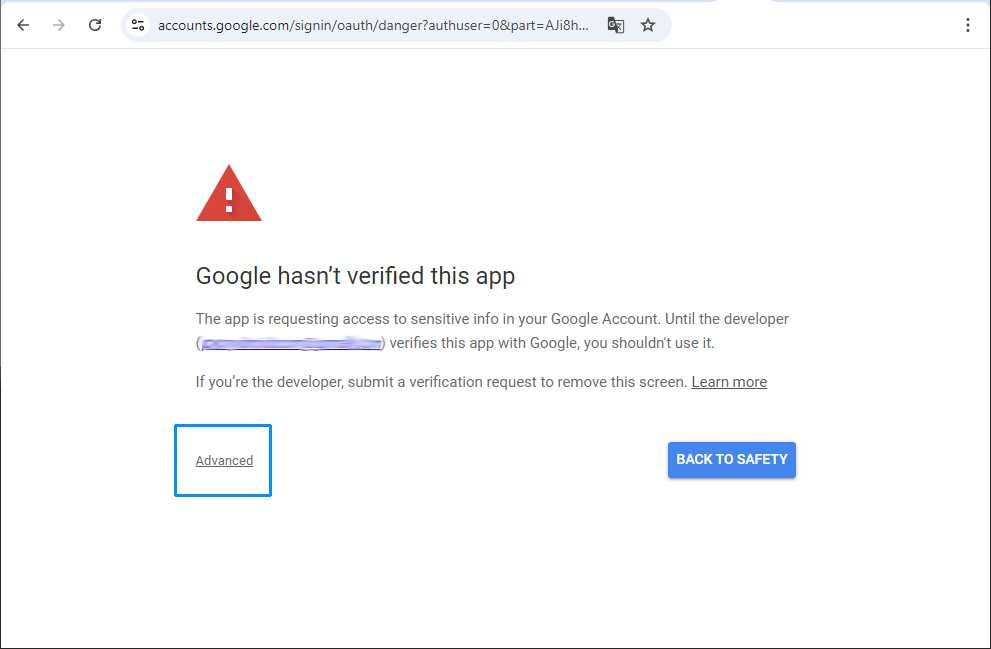
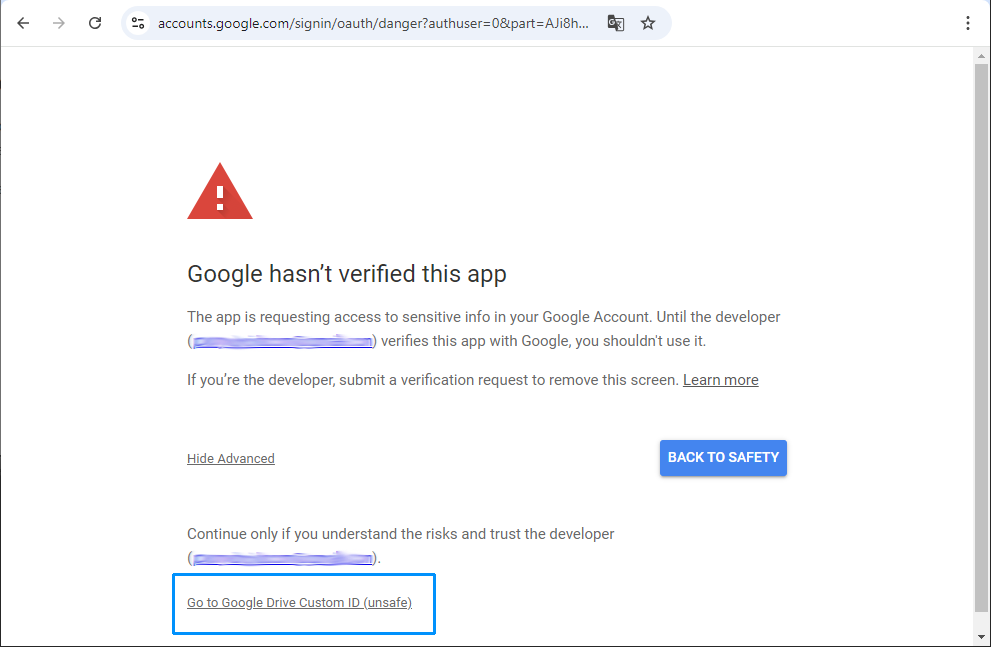
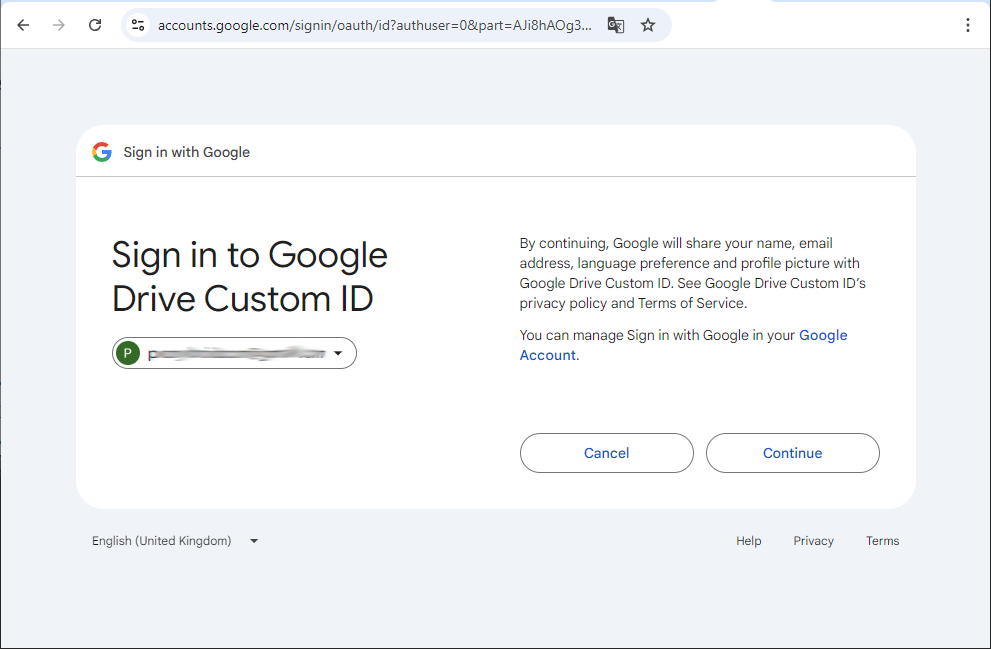
When the browser opens, sign in with the Google account you want to connect. On the unverified-app screen, select Advanced, then Go to Google Drive Custom ID (unsafe).
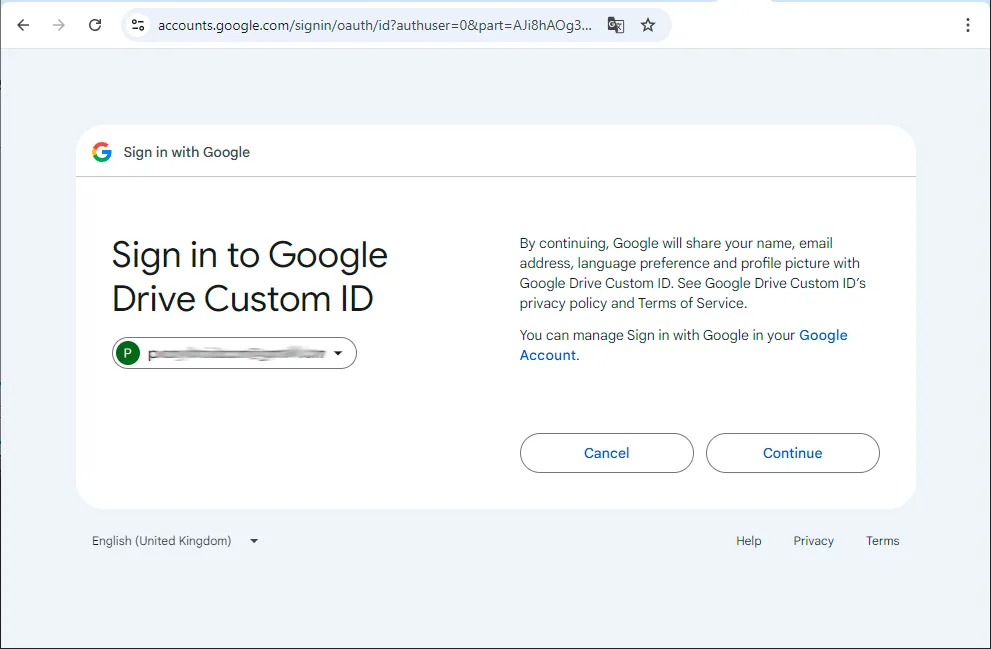
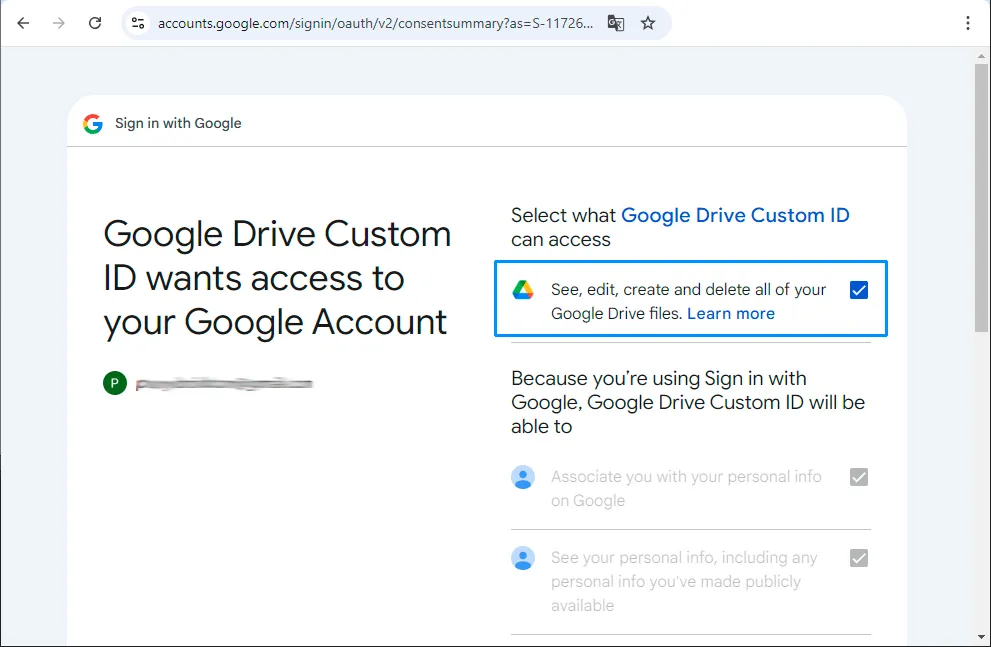
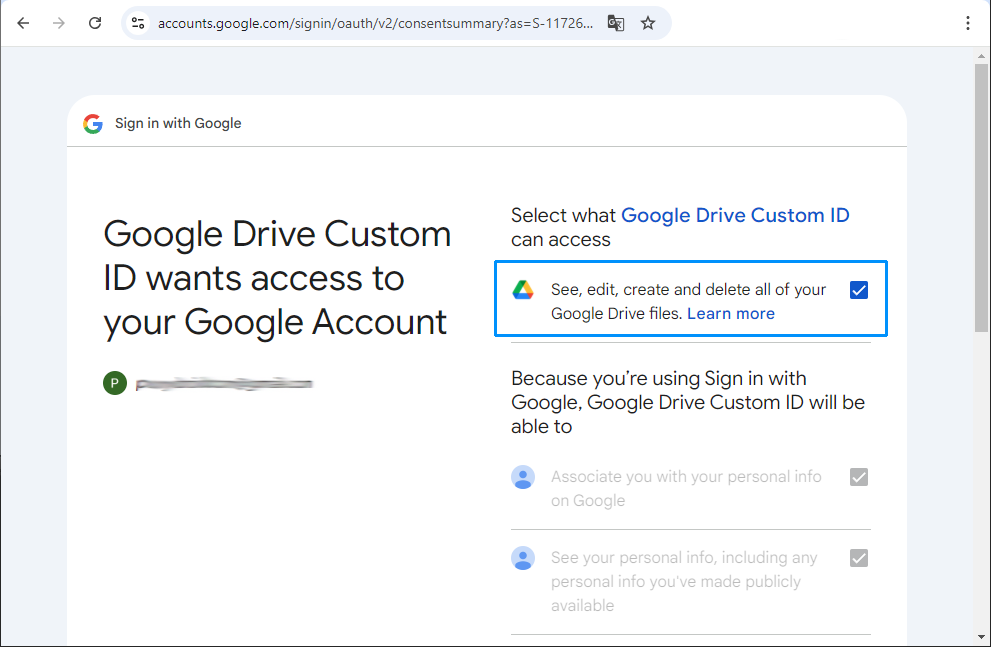
Select Continue. Check the permission to see, edit, create, and delete all your Google Drive files, and select Continue again to finish authorization.